Findings & safety notices
The Findings page collects every finding that will appear on the report so you can review, fine-tune, or add to them before publishing. Open it from the section sidebar or the command palette.
There are two kinds of findings:
- Triggered findings — generated automatically from your answers, based on rules built into the template. Findings are built into the sample templates available to you without needing any configuration, but you can also build off of these sample templates, or create completely new templates with triggered findings of any kind. See Using Templates.
- Custom findings — ones you add yourself, whether or not they're tied to a form answer.
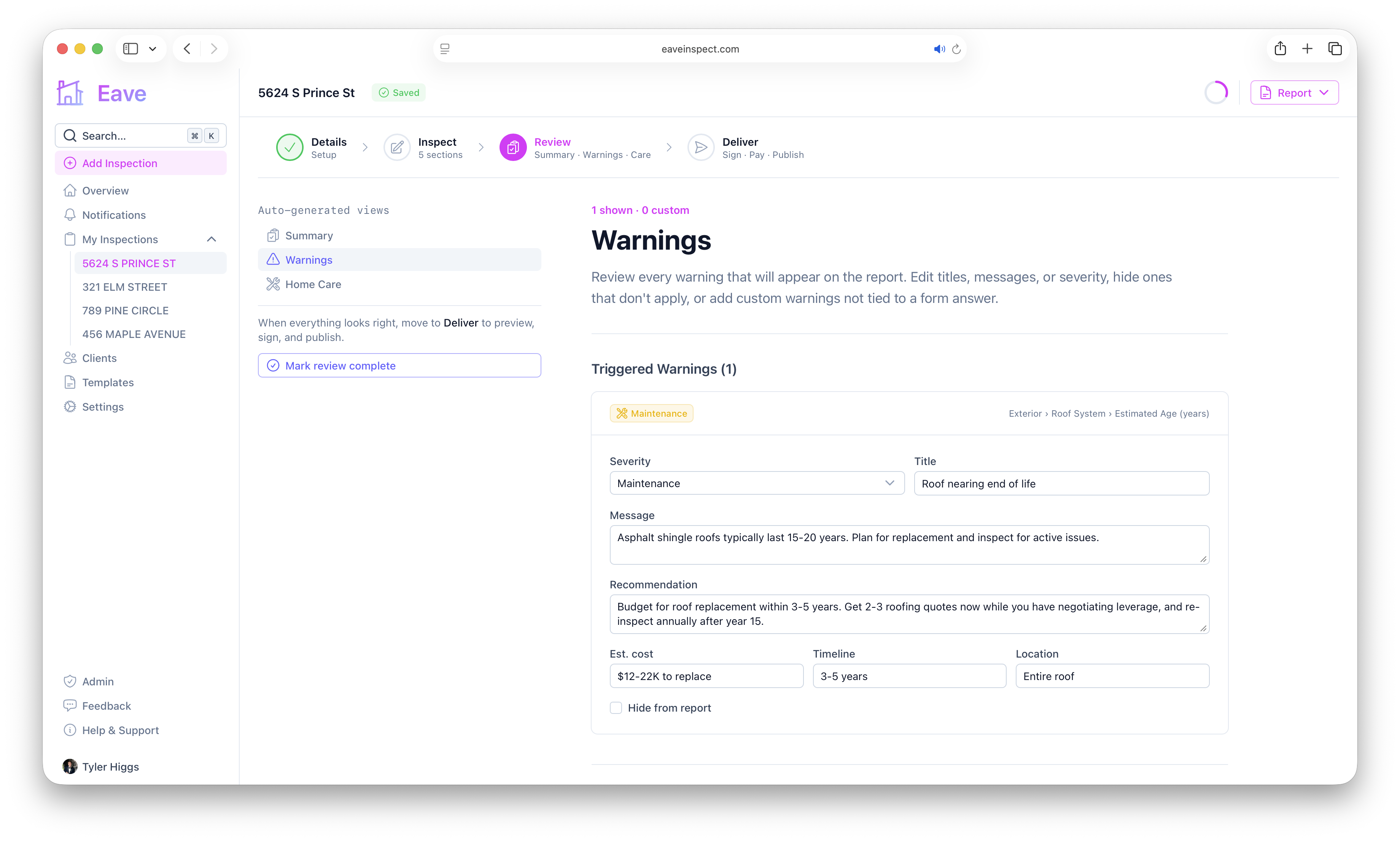
Triggered findings
When an answer matches a finding rule on the template, a finding appears here automatically. Each card shows a severity badge (Safety, Health, Structural, Electrical, Fire, Maintenance, or Info) and a breadcrumb link back to the section › subsection › field that triggered it — click it to jump straight to that field.
You can refine any triggered finding:
- Severity, Title, and Message
- Recommendation (optional)
- Est. cost (e.g. "$1–3K"), Timeline (e.g. "1–2 years"), and Location (e.g. "Entire roof")
- Hide from report — keep the finding out of the report without deleting the rule
Edited findings show a Modified badge; hidden ones show a Hidden badge. Use Reset to defaults to revert your edits.
Adding a custom finding
Click Add Custom Finding to write one from scratch. Set the severity, the type (a defect or a limitation), a title (required), and a message, plus optional recommendation, cost, timeline, and location. You can attach it to a specific section and subsection, or leave it general. Remove a custom finding with the trash button.
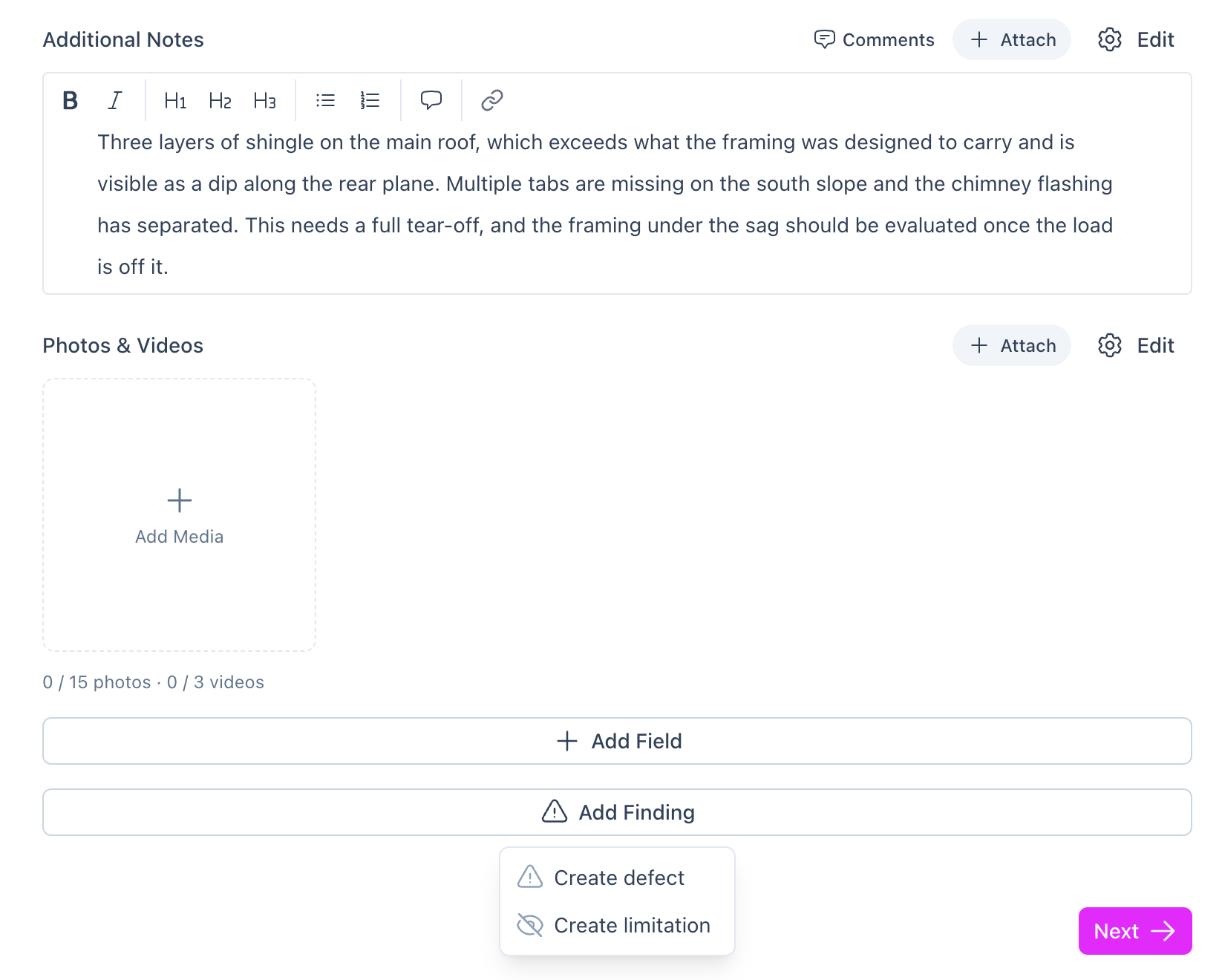
You can also add one while you fill out a subsection: scroll to the bottom and click Add Finding, then choose Create defect or Create limitation. Use this when a finding is about the subsection as a whole rather than one field.
Limitations: what you couldn't inspect
Not every note on a report is a problem with the house. "Attic hatch painted shut" and "Seller's boxes blocked the crawl space" are about what you couldn't see, and they shouldn't inflate the defect count. Give those findings the Limitation type (the default is Defect).
A limitation:
- Appears in its own Limitations & Items Not Inspected section after the findings, numbered L-01, L-02, and so on, so the F-numbers stay defects only
- Is left out of the Safety / Major / Minor / Info totals and the system-health strip
- Doesn't show up in the buyer's repair request, since there's nothing to repair
- Is described neutrally (never as a problem) when you generate an AI summary
You can change the type on any triggered finding from this page, and Reset type puts it back to what the template says. Several sample templates already mark their access and "not tested" findings as limitations, such as the Inspection Limitations question and the basement accessibility question in the default template.
Severity grouping
Severities are grouped on the report into Critical, Moderate, Minor, and Informational. The reference at the bottom of the page shows exactly how each severity maps.
Stale overrides
If you edited a finding and later changed the answer (or the template removed the rule), your edit moves to Stale Overrides so it isn't lost. Click Remove to discard any override you no longer need.