Using Eave on iOS
The iOS app is designed to be extremely simple: get to the property, fill out your inspection, and capture evidence as you go. It focuses on filling out inspections in the field — building or editing templates will remain a web-only task.
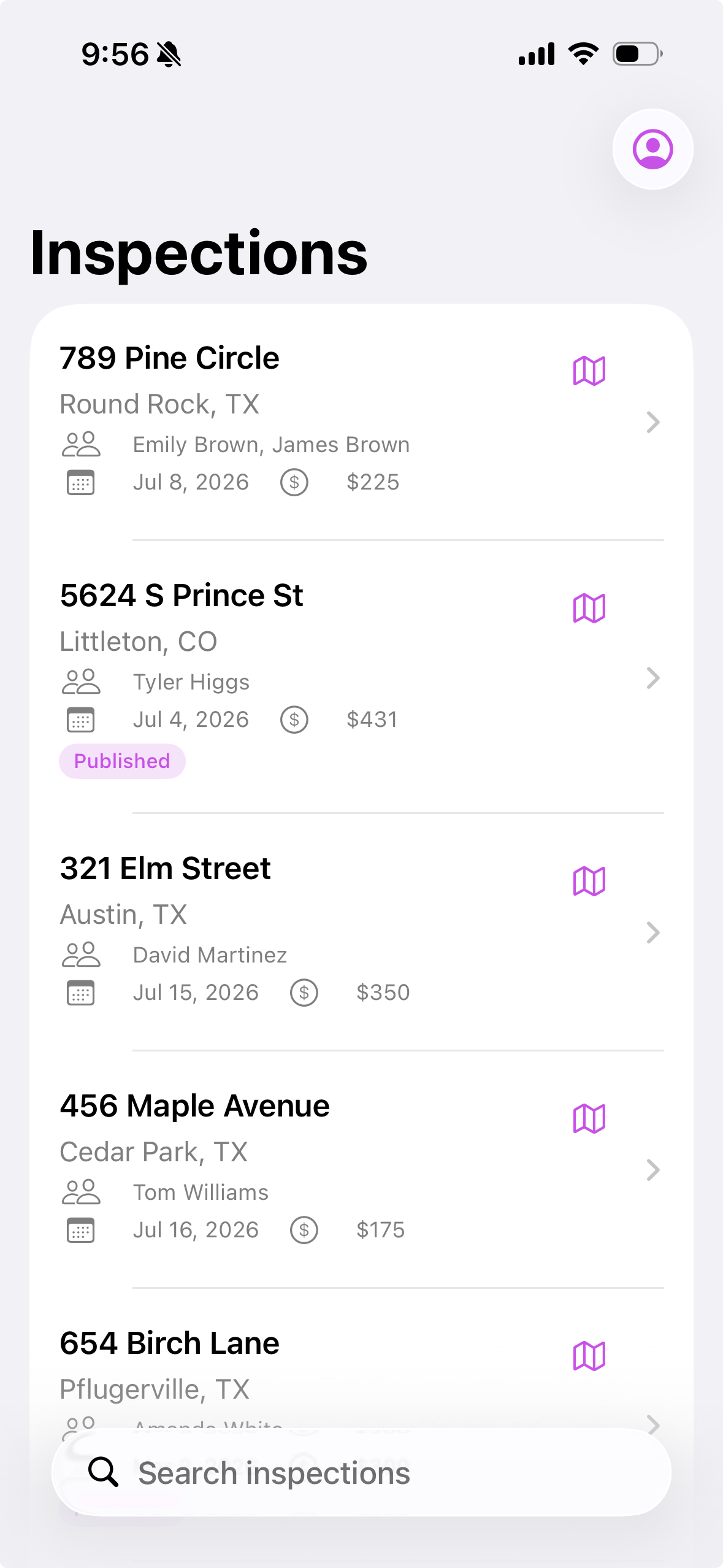
Opening the address in Maps
Every inspection shows the property address at the top. Tap it to open the address in whichever maps app you have set as your device default (Apple Maps, Google Maps, Waze, or another) for turn-by-turn directions to the property.
Filling out subsections and fields
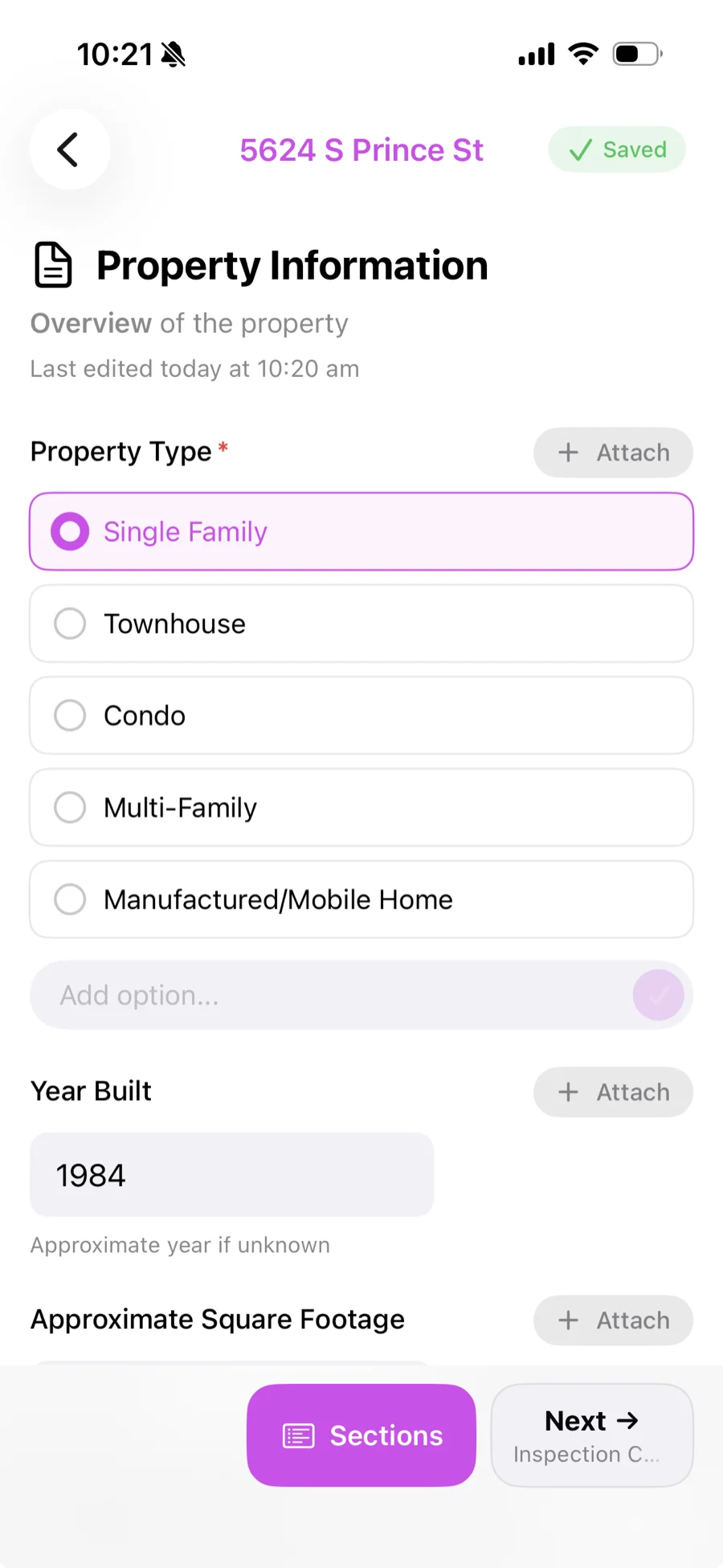
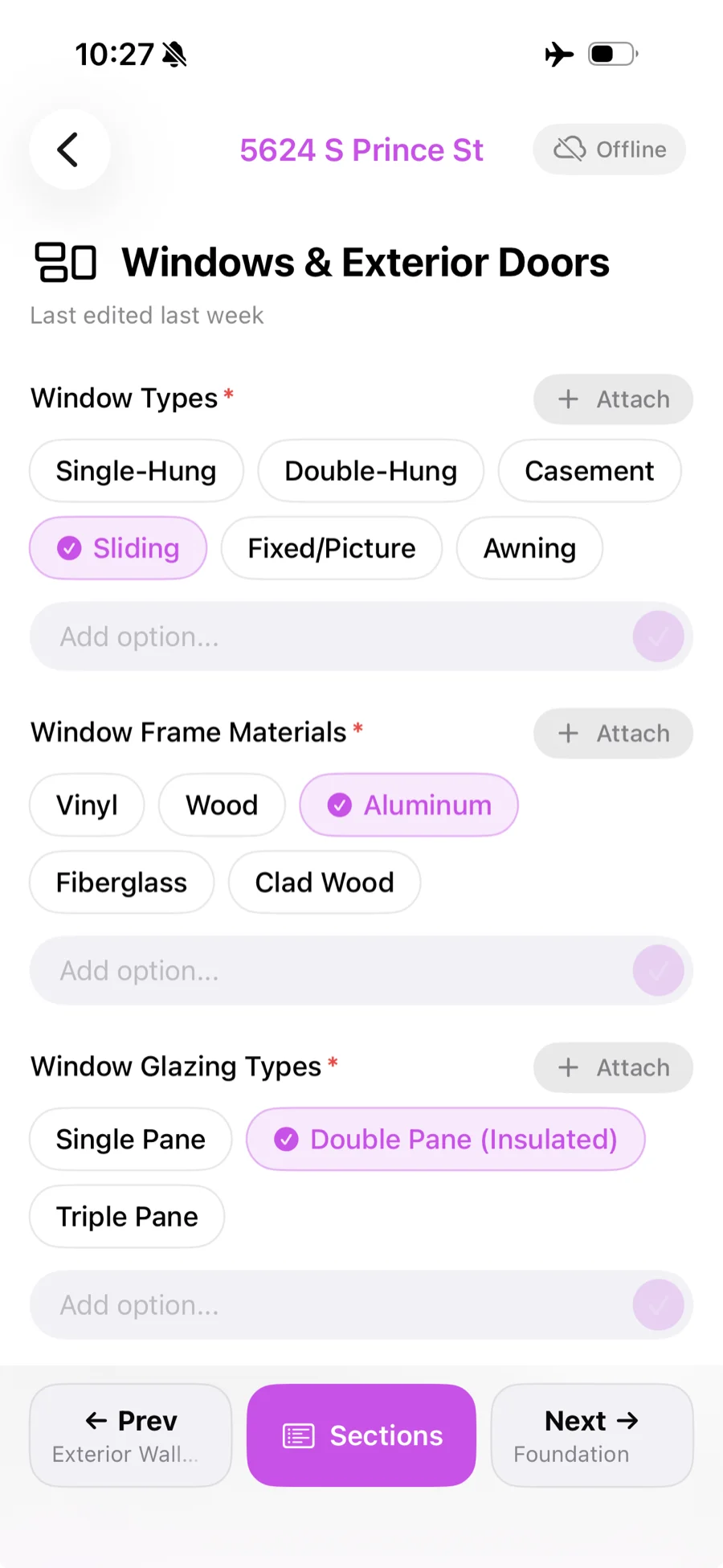
Open an inspection to see its sections and subsections, just like on the web. Tap a subsection to fill in its fields — text, numbers, yes/no, dropdowns, ratings, dates, and multi-select chip fields all work the same way as filling out sections on the web. Your answers save automatically as you go, so there's no save button to remember.
Finding your way around
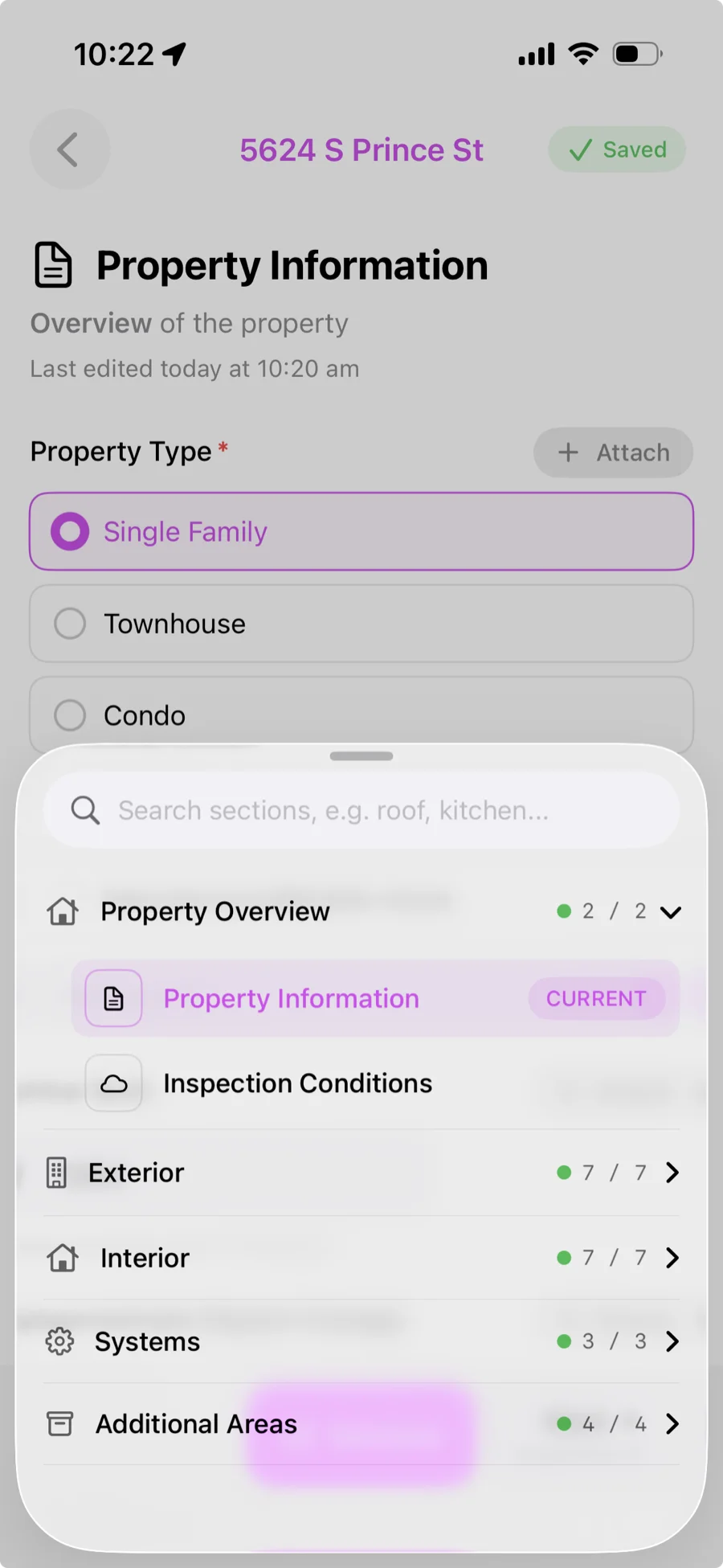
Tap Sections at the bottom to open the section navigator — every section and subsection is listed with a completion count (like "7 / 7") so you can see what's left at a glance. Use the search bar at the top to jump straight to a section by name.
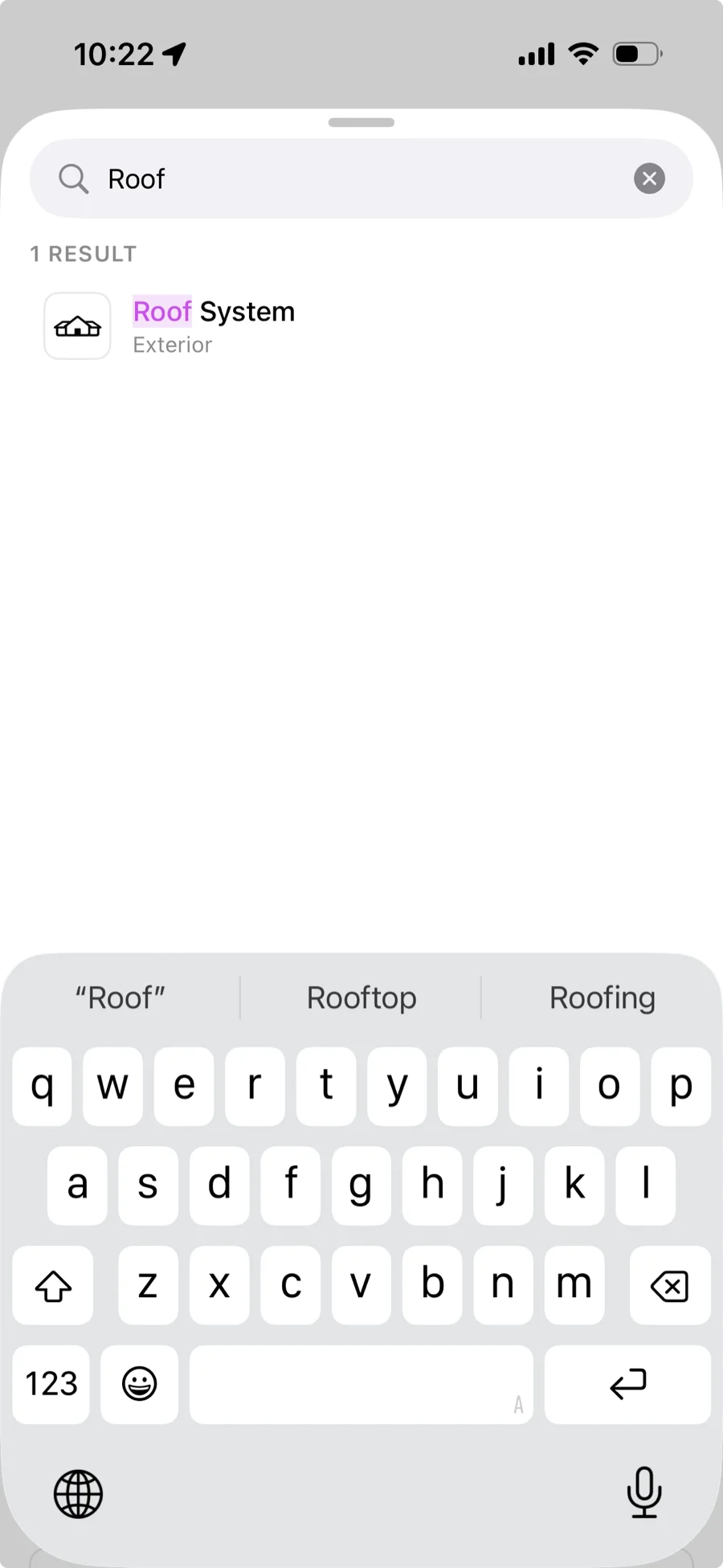
Attaching warnings, photos, and descriptions
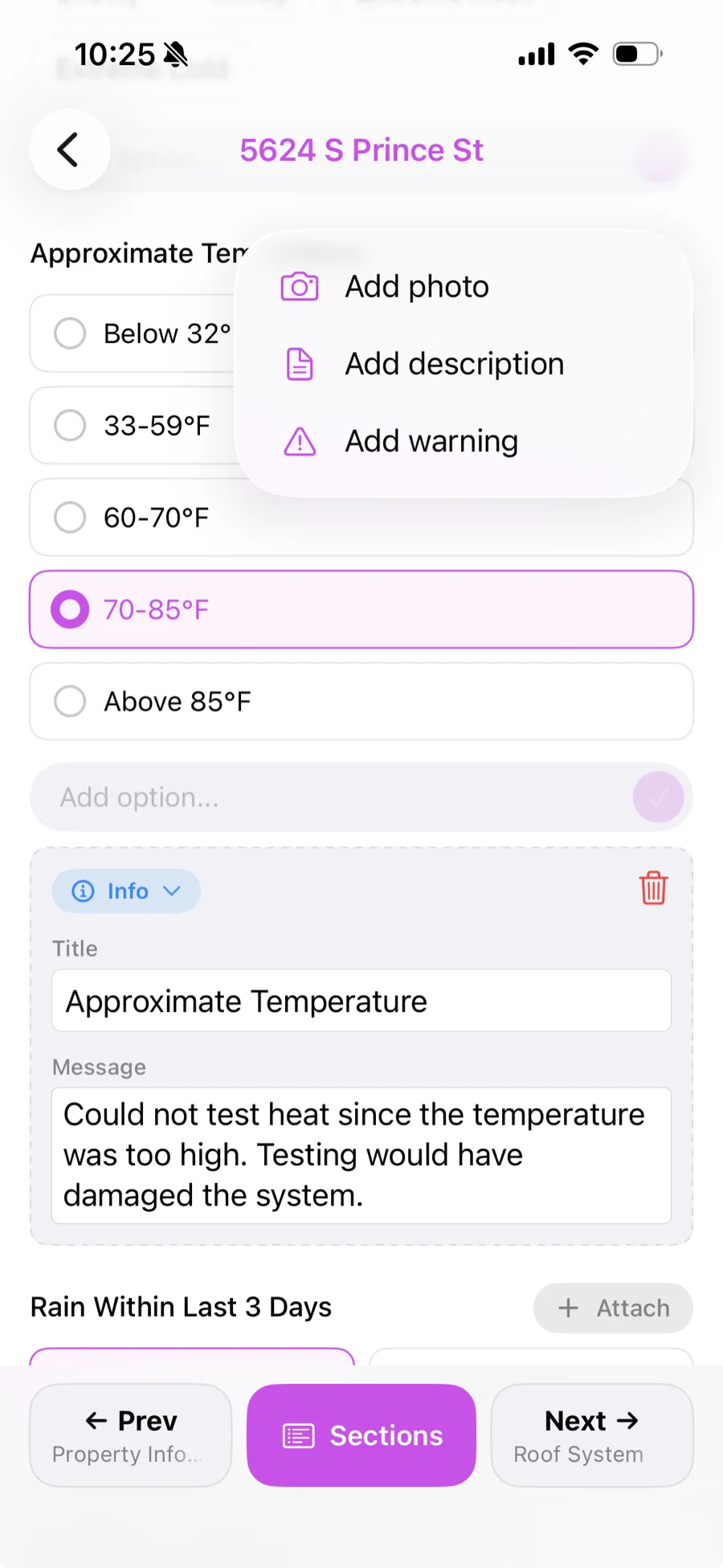
Under any field, tap Attach to add extra context, the same way you can on the web:
- Add description — a short note explaining the answer in more detail.
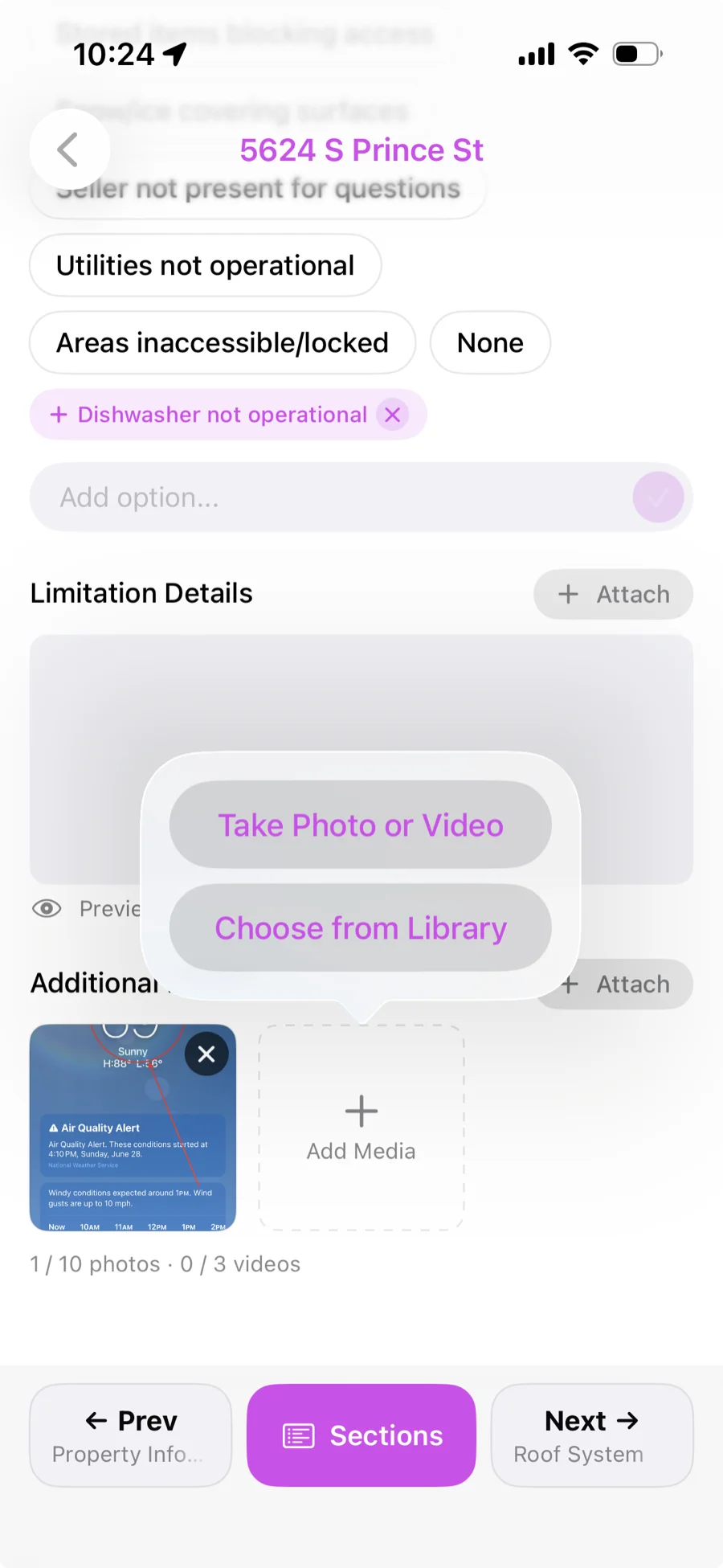
- Add photo — snap a photo with your camera or choose one from your library to attach right there. Each field allows up to 10 photos and 3 videos.
- Add warning — flag a concern tied to that specific field.
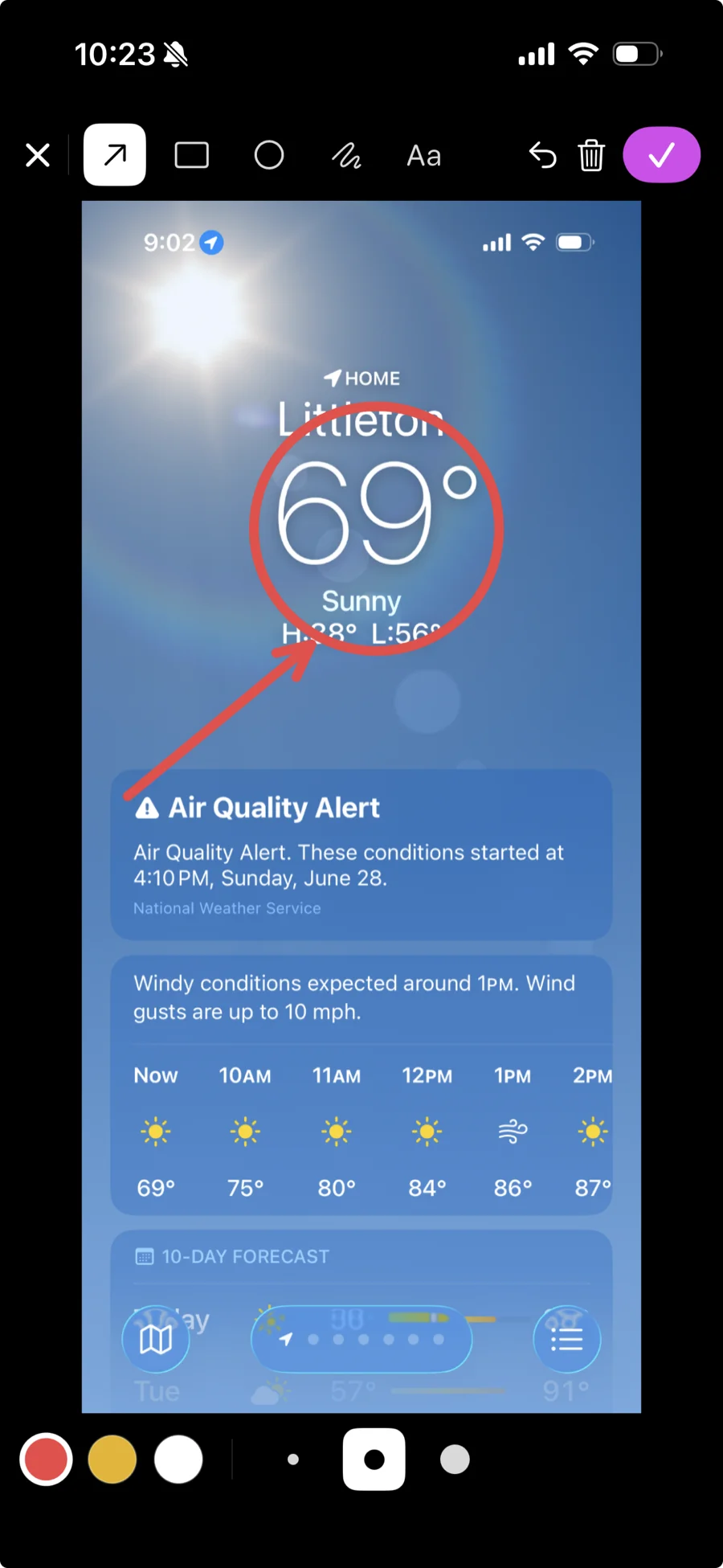
- Annotate photos — after adding a photo, draw circles, arrows, and text directly on it to point out exactly what you mean.
Get the app
The iOS app is a companion to the web app, not a replacement — everything you can do on your phone in the field, you can also do (and build templates, manage your org, and more) from a browser.
Not on iOS? Eave also works great in any mobile browser — see Using Eave on Mobile for how to fill out inspections from your phone today.