Welcome to Eave
A quick tour of what Eave does and how to get started building inspection reports.
Eave helps home inspectors build professional inspection reports and share them with clients. You fill out a structured template on-site, attach photos and videos, and publish a web link report that clients can view and download all from one place.
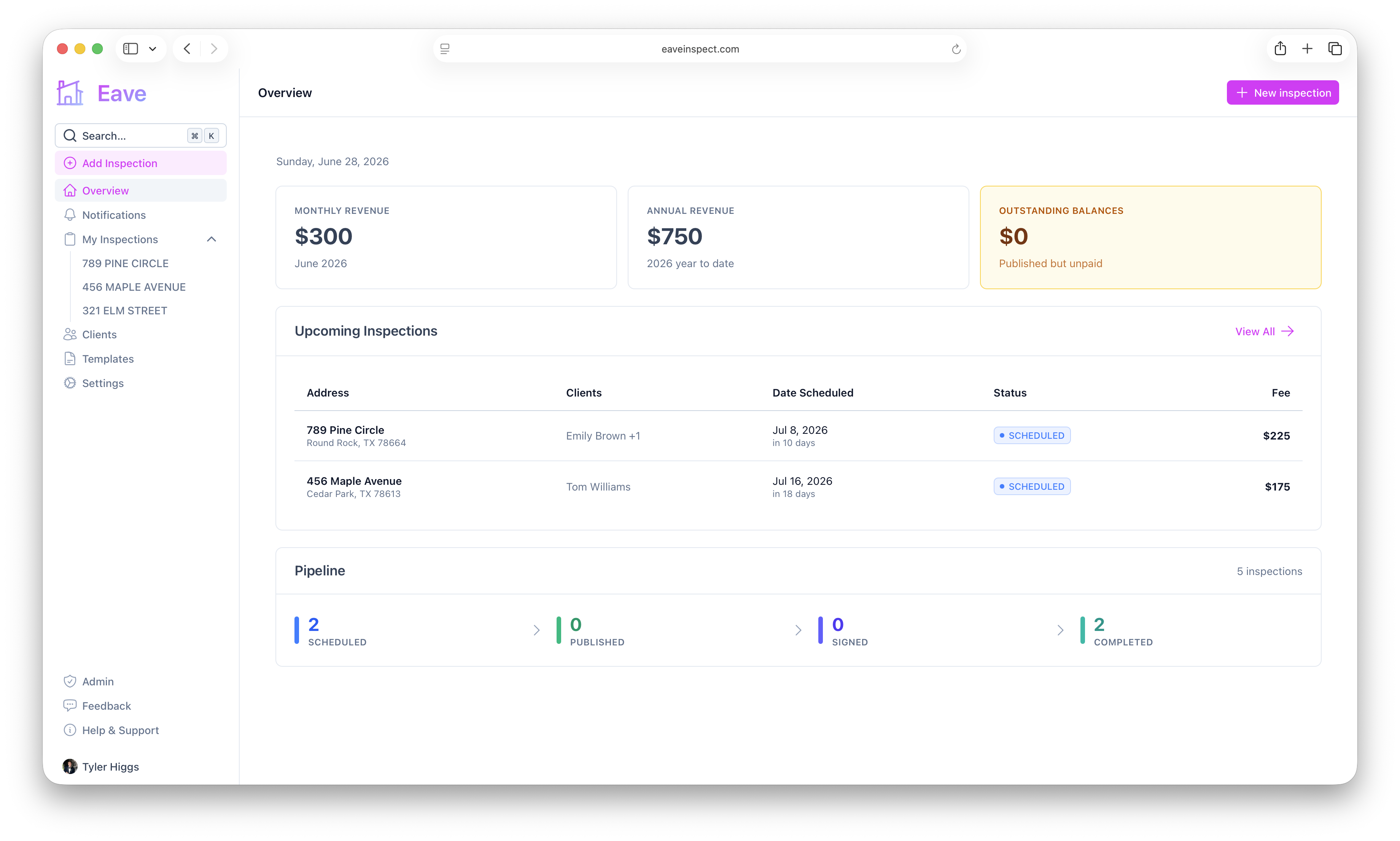
What you can do with Eave
- Run inspections from the built-in Standard Home Inspection template or your own custom templates.
- Capture evidence with photos and videos attached directly to each item you inspect, and draft your summary with AI when you're ready to publish.
- Build faster with AI — describe your template and Eave writes the fields, conditions, and warnings, in the template editor and on your public request form. See Editing a template.
- Flag issues automatically — warnings and home-care tips appear on the report based on the answers you enter.
- Get booked with a public booking link, a per-inspection scheduling link, or a permanent request link that turns website visitors into draft inspections — see Scheduling overview.
- Get paid and get signed off by collecting the inspection fee online and having clients sign a pre-inspection agreement before you arrive — see Payments overview and Agreements overview.
- Publish & share a client-facing report that supports digital signatures.
- Work from your phone with the Eave iOS app — fill out inspections online or offline, with photo annotation and push notifications.
- Collaborate by sharing templates and reports across your organization.
The basic workflow
- Set up your profile so your name, license, business details, and signature appear on reports. See Dashboard overview and Business profile & licensing.
- Get on the books — send a client a scheduling link, or set the date yourself. See Scheduling overview.
- Add an inspection, pick a template, and optionally attach a pre-inspection agreement for the client to sign before you arrive. See Add an inspection and Agreements overview.
- Fill out the sections on-site, adding photos and videos as you go. See Filling out sections.
- Review warnings and home-care tips that were triggered by your answers. See Warnings & safety notices and Home care tips.
- Publish the report and share it with your clients — collect the inspection fee online if you've connected Stripe. See Publishing & sharing reports and Payments overview.
Before your first inspection
A complete profile makes your reports look professional and may be required for licensure. From Settings → Account, fill in:
- Profile — your full legal name and business phone.
- Business — company name and address.
- Licensing — your license number(s), unless your state doesn't require one.
- Signature — draw or upload the signature that appears on reports.
Eave shows a profile-completeness indicator in the sidebar. Click it any time to see which fields are still missing.
Need a hand?
Every page in this Help Center is searchable from the command palette — press the search button in the sidebar and look under Help & Docs.