What clients see when they book online
When you share a booking link, the client opens it in their browser — no account or login required. The page shows your (or your organization's) branding, the property being inspected, and your real open availability.
The info panel
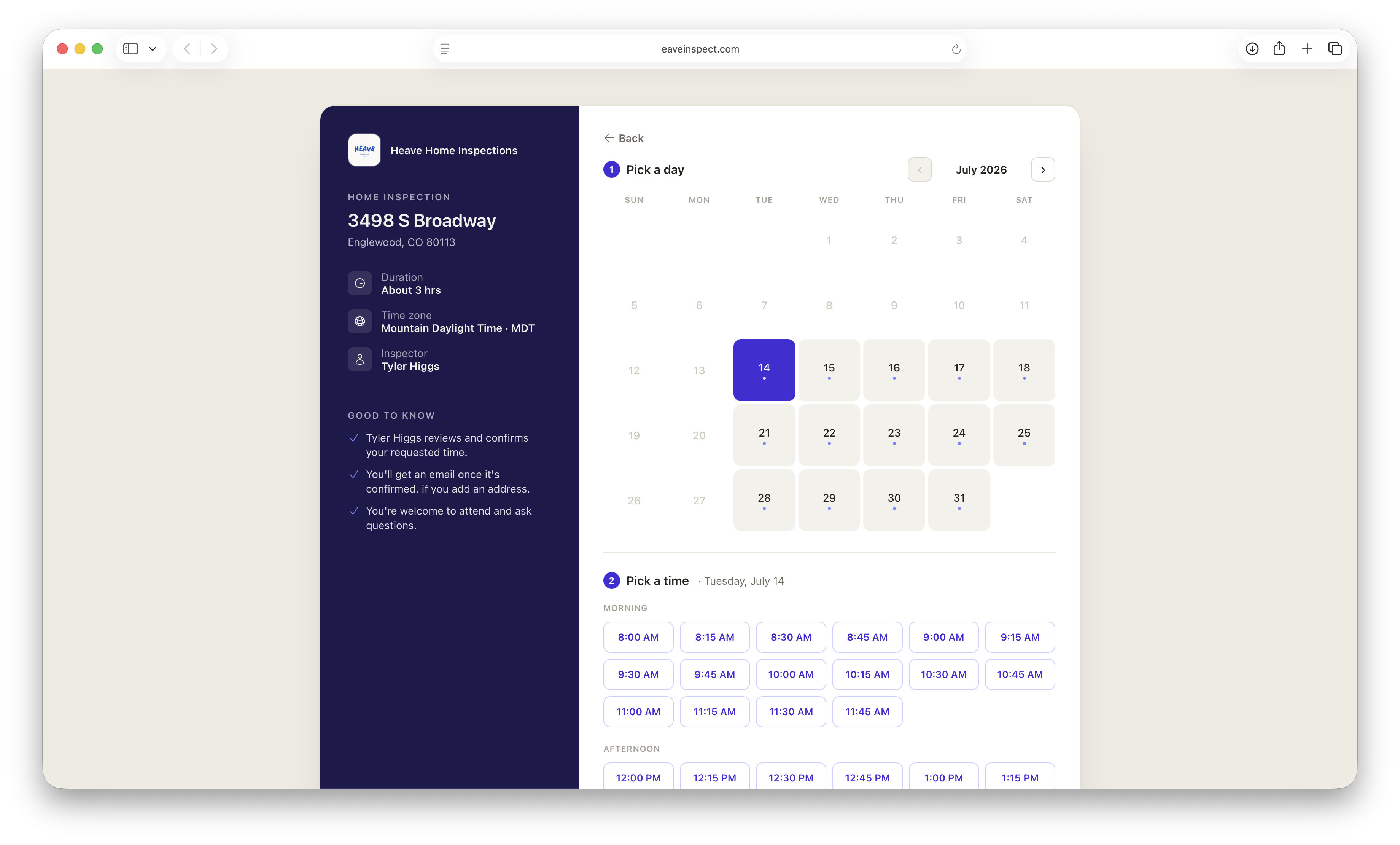
A sidebar shows:
- Your logo and name, and the property address
- Duration — roughly how long the inspection will take
- Time zone — shown in a friendly label (e.g. "Mountain Time · MDT")
- Inspector — your name
- A short "Good to know" list explaining that you review and confirm the request, that they'll get an email once it's confirmed if they leave an address, and that they're welcome to attend
Picking a time — three steps
Step 1 — Pick a day. A month calendar highlights days with open slots; everything else is disabled. Clients can page forward and back, bounded to how far out you allow bookings.
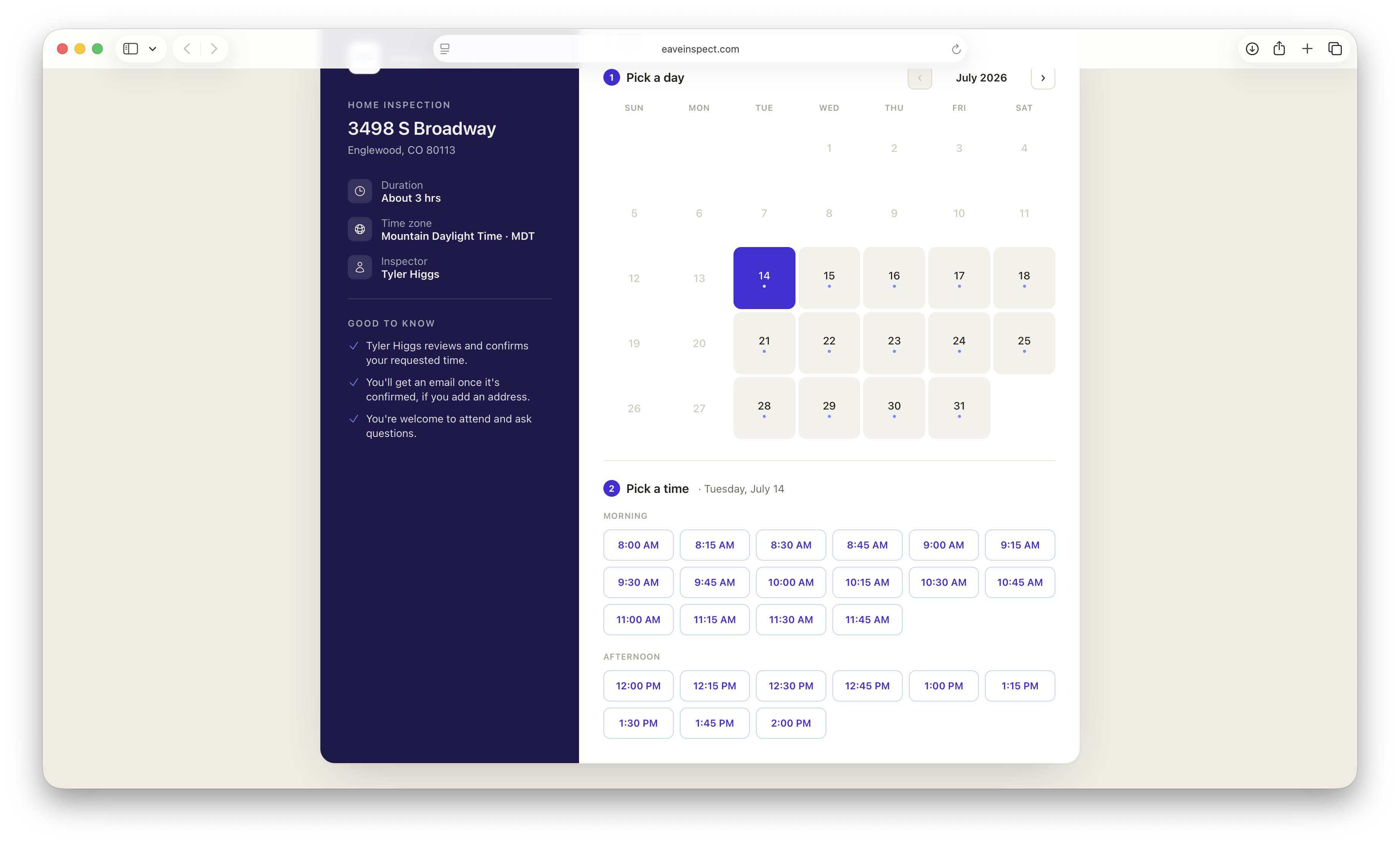
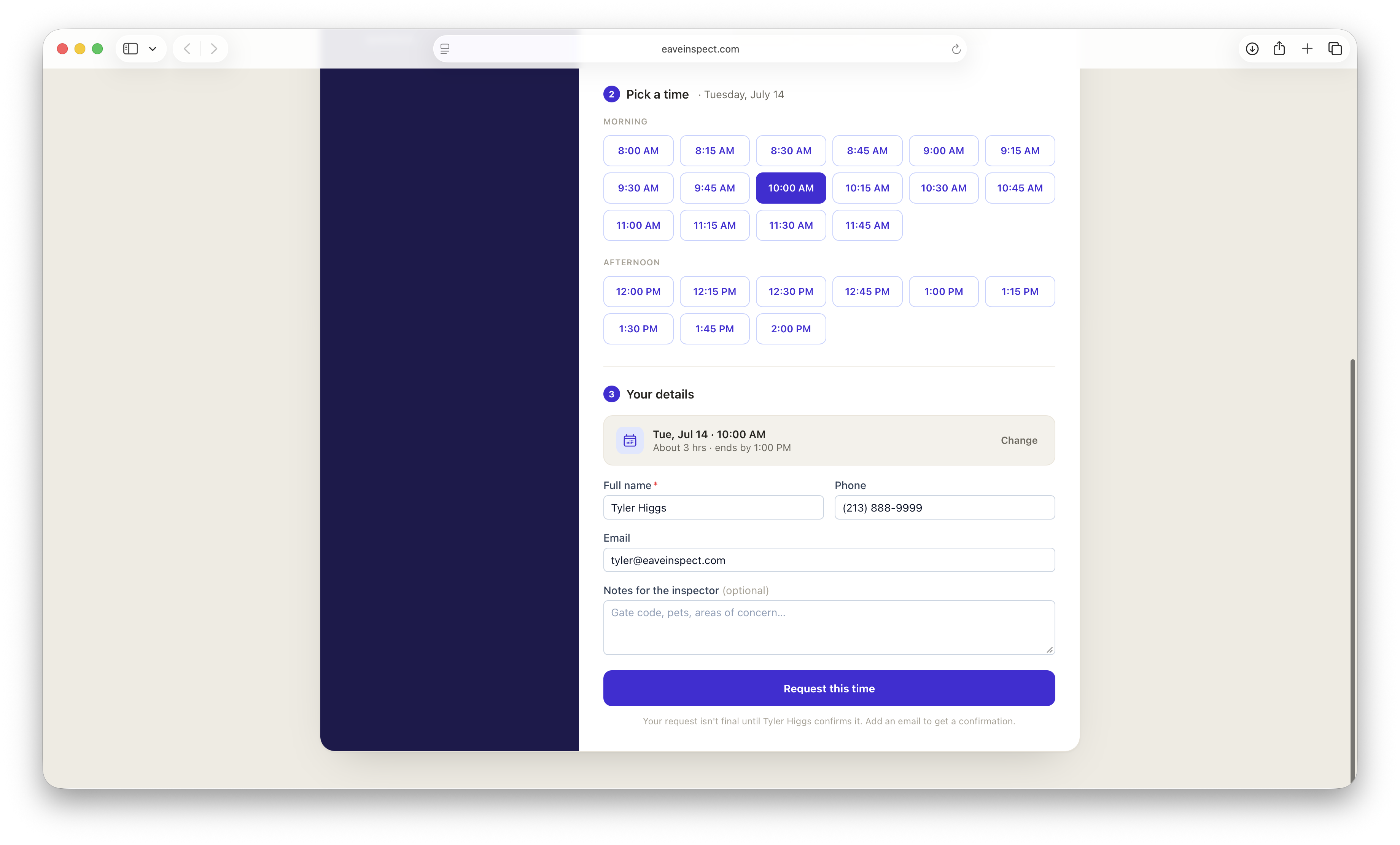
Step 2 — Pick a time. Open times for the selected day appear as buttons, grouped under Morning and Afternoon. Selecting one shows a summary strip with the date, time, duration, and end time, with a Change link to go back.
Or — let you pick. Below the time buttons there's an "I'm flexible — let {your name} pick a time" option. Clients who are relocating, working, or simply don't mind can choose it instead of a slot, and you decide the time. If you have no open availability at all, this is offered on its own rather than the page dead-ending.
Step 3 — Your details. The client enters their full name (required), phone, email, answers "Will you be at the inspection?" (I plan to attend / I won't be there / Not sure yet), and can add optional notes for the inspector (gate codes, pets, areas of concern — or, if they let you pick, which days and times suit them). Then they click Request this time (or Send my request if they're leaving the time to you).
After they submit
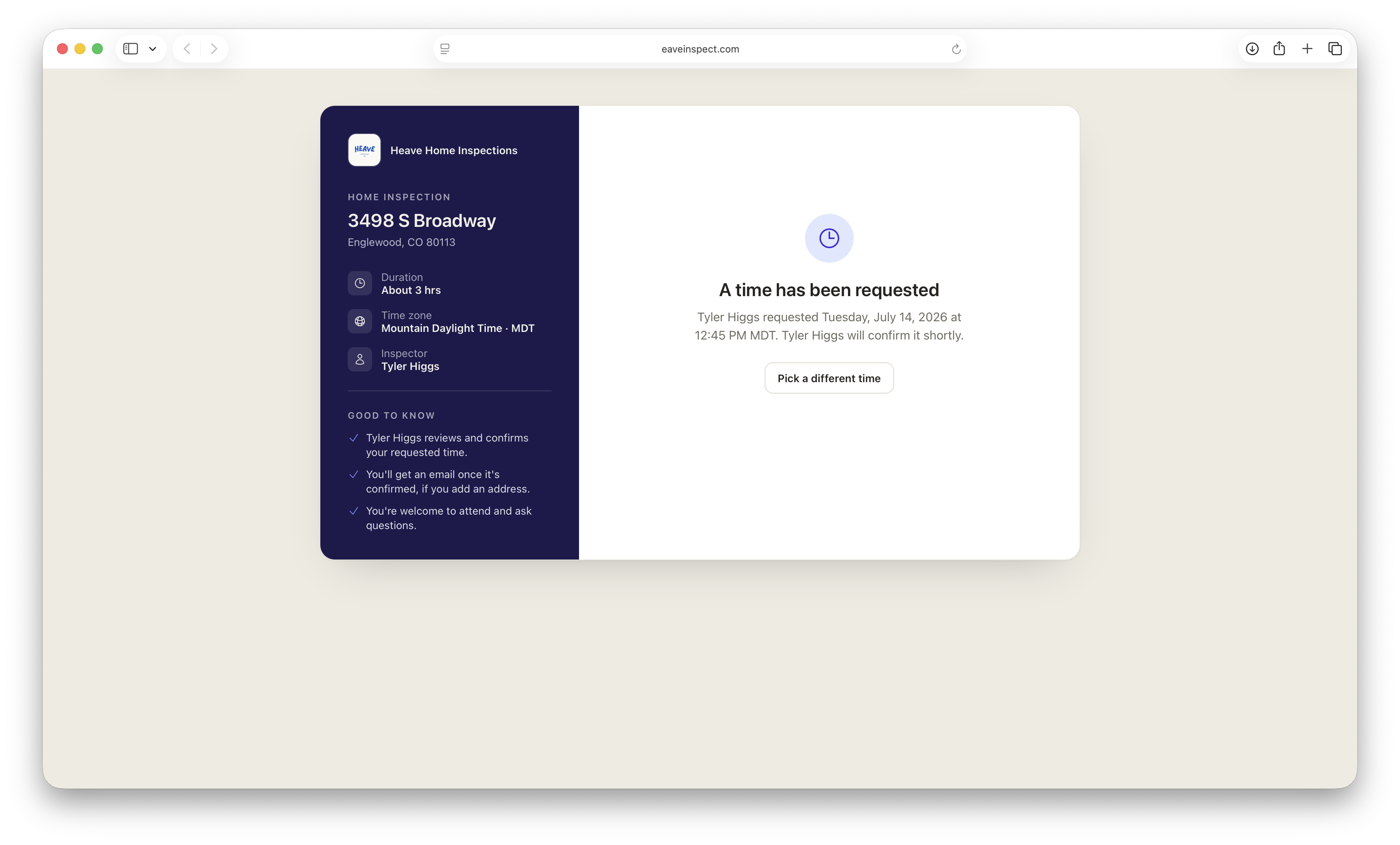
Submitting doesn't book the slot immediately — it sends you a request. The client sees a confirmation screen: "A time has been requested", with a note that you'll confirm it shortly. They can click Change my request to pick again before you act on it.
If they asked you to pick, they instead see "{your name} is picking a time" and are told you'll email them the date.
Once you confirm the request (see Turn scheduling on for an inspection, or opt out), revisiting the same link shows "Your inspection is scheduled" with the confirmed date and time.