Block time off and recurring breaks
The Scheduling page (in the sidebar), under the Time off & blocks tab, is where you manage time clients can't book on top of your regular weekly hours:
Open slots = your weekly hours − booked inspections − everything on this tab.
These blocks aren't only for clients — they're drawn on your own timeline too, so scheduling an inspection yourself warns you before you book over your lunch or a day off.
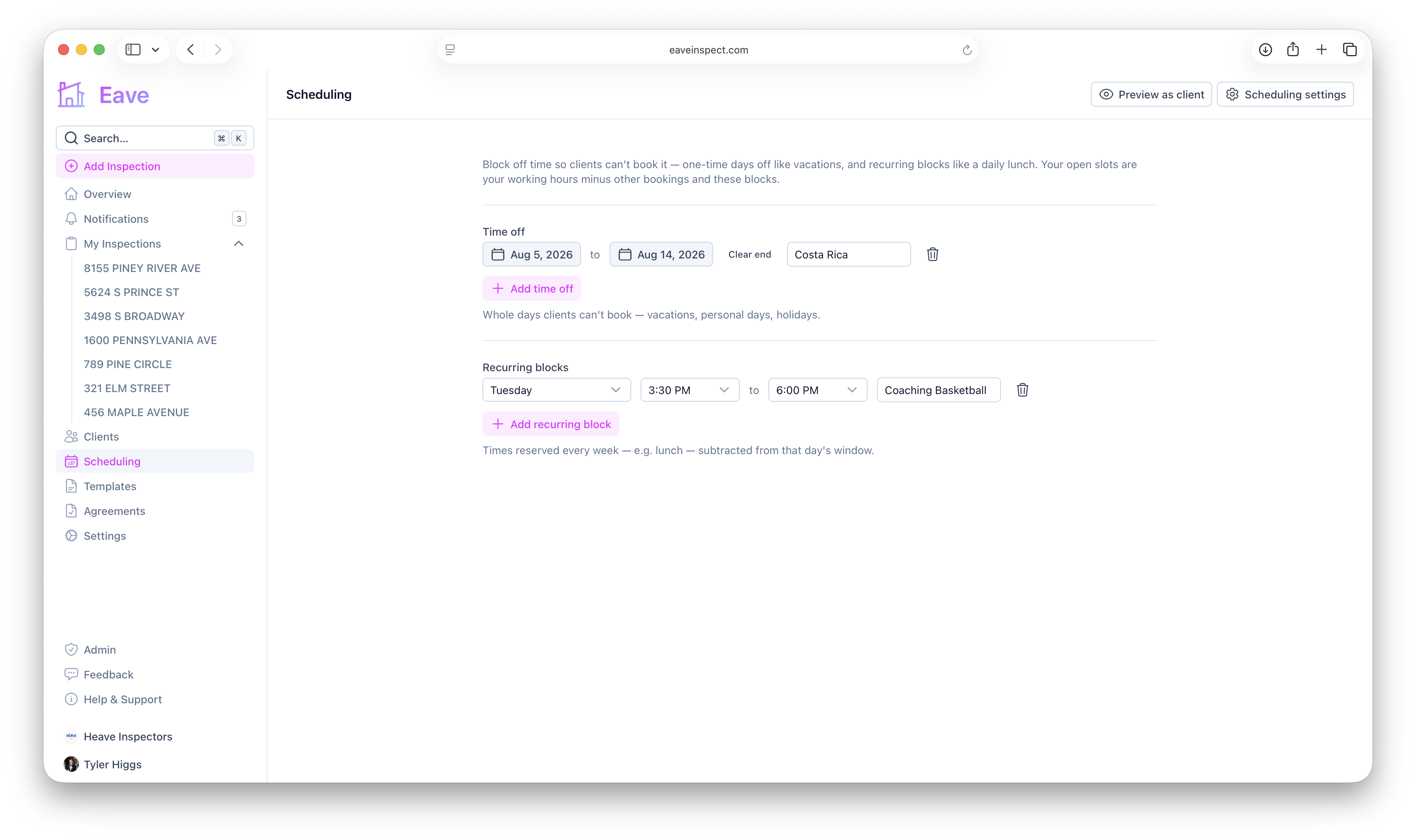
Time off
Use Time off for whole days — vacations, personal days, holidays. Click Add time off, pick a start and (optionally) end date, and an optional label. Remove one with the trash icon.
Recurring blocks
Use Recurring blocks for a time reserved every week, like a daily lunch break. Pick which weekdays it applies to, a start and end time, and an optional label. Recurring blocks are hard windows — no buffer time is applied on top of them the way it is for other bookings.
The other tabs
- Links — both of your booking links side by side, with a QR code for the public one. See Take inspection requests from a public link.
- Availability — your working hours and booking rules. See Configure your availability.