Inviting members
An organization lets you collaborate with teammates and share templates and reports. Manage it under Settings → Organization.
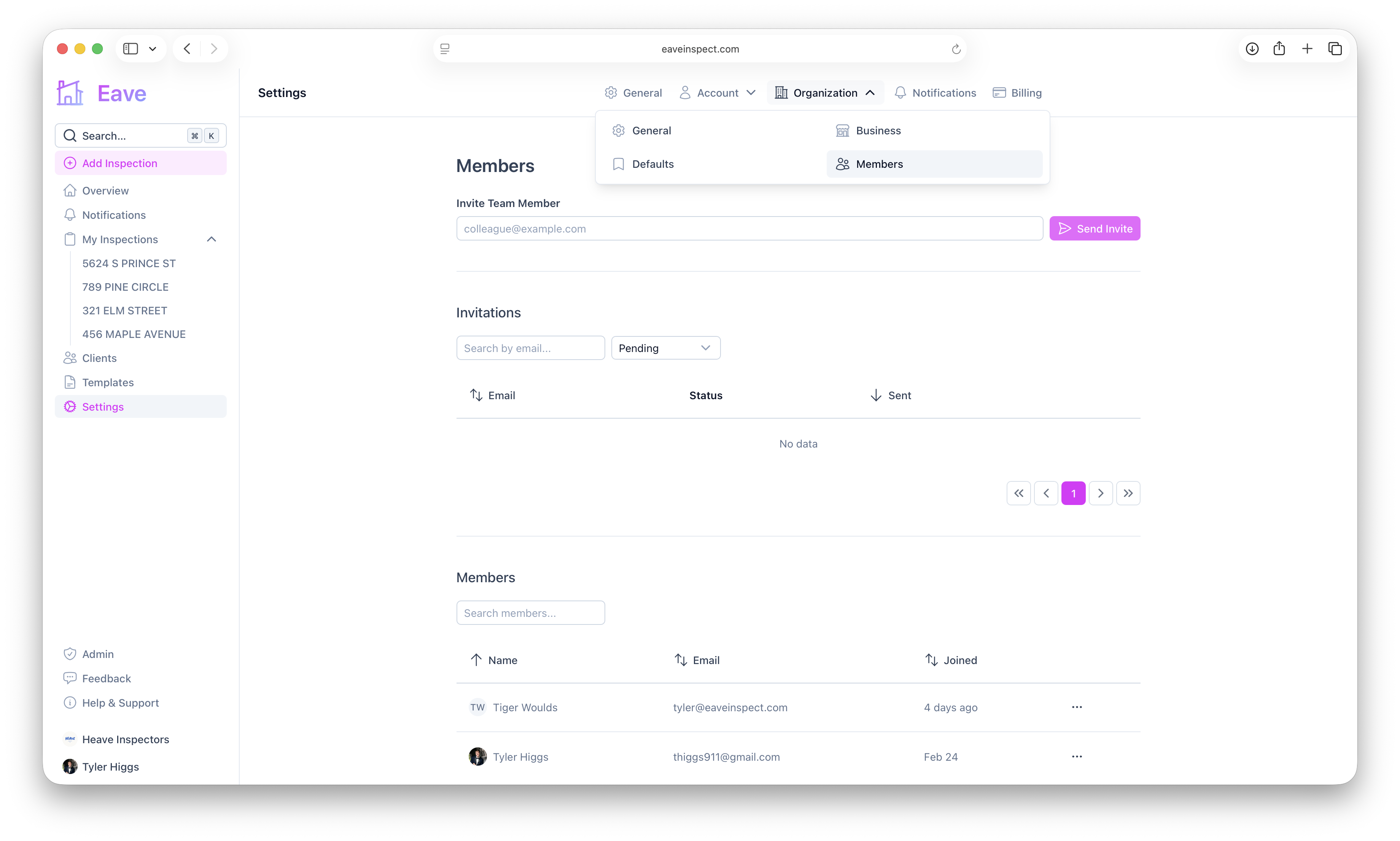
Create an organization
If you're not in an org yet, you'll see a Create Organization prompt. Enter an organization name and click Create. You can set its logo and an org-level default template afterward.
Invite a teammate
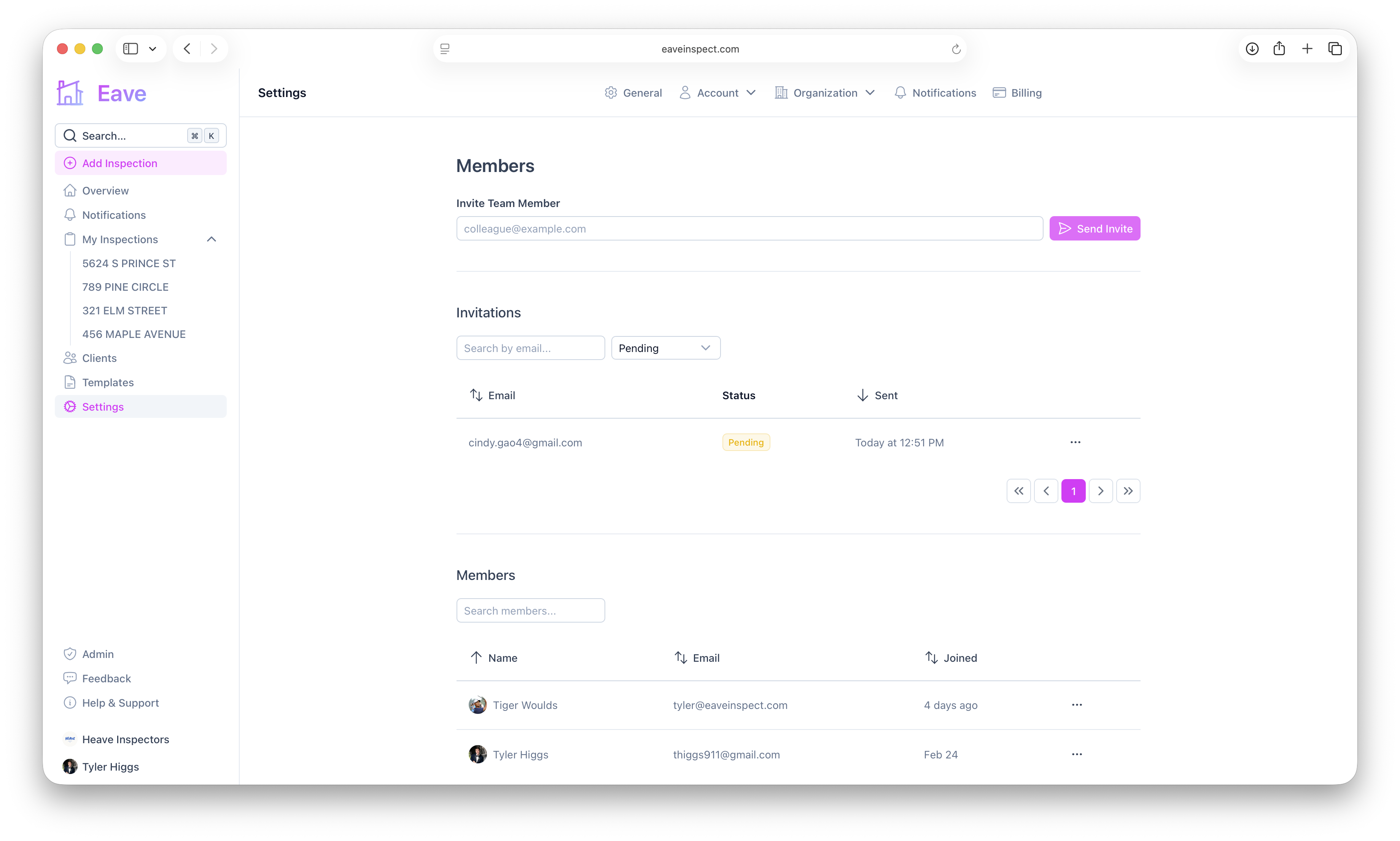
In the Invite Team Member section, enter the person's email and click Send Invite. Eave sends them an invitation notification.
Accepting an invitation
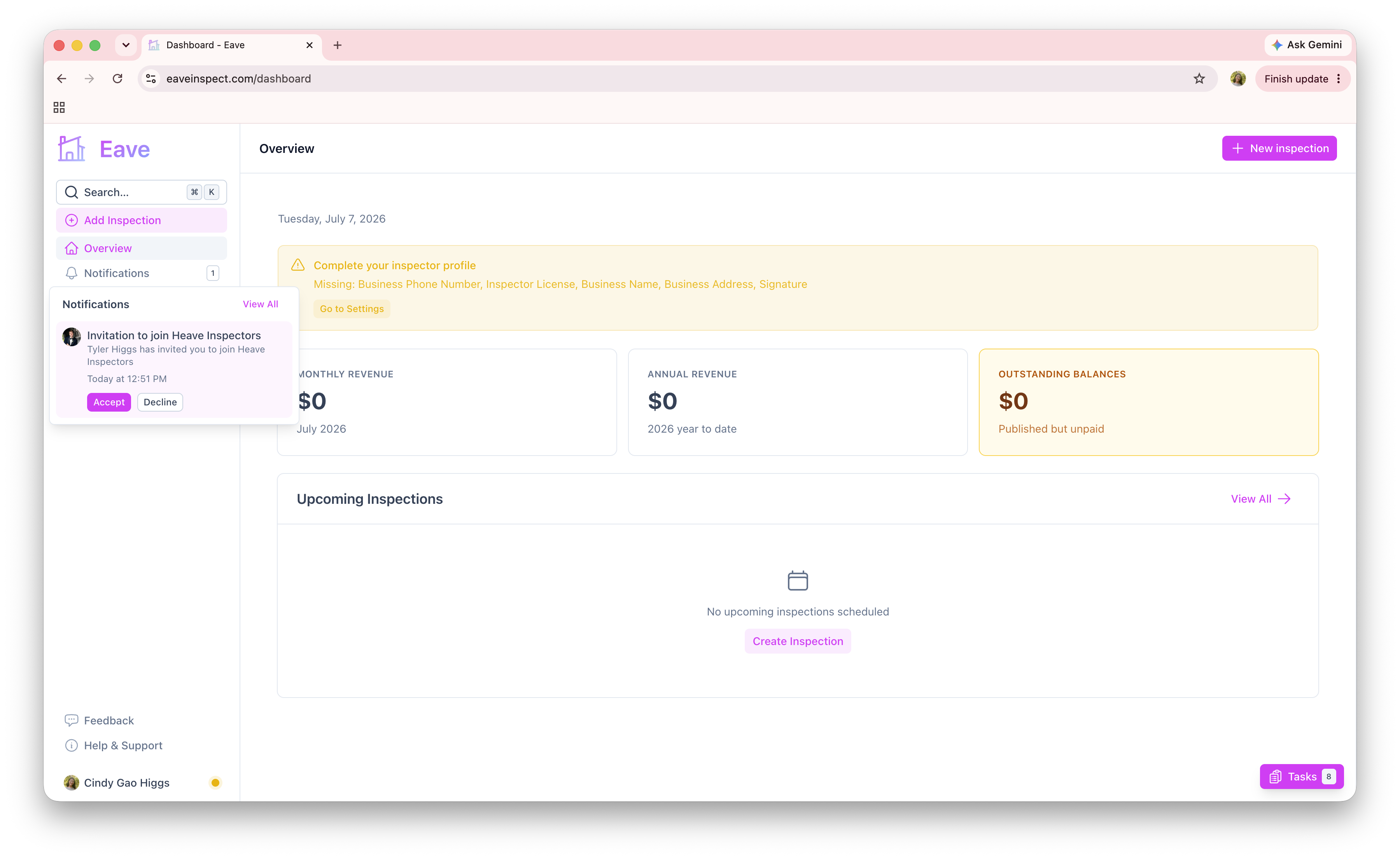
The invited person sees the invitation in their Notifications bell (and on the Notifications page). They click Accept to join — or Decline. You don't need to do anything else; once accepted, they appear in your Members list.
Managing invitations & members
- Invitations table — search by email and filter by Pending / Accepted / Declined; delete an invitation with the trash button.
- Members table — search members and use the actions menu to Remove from organization. If you're the last member, you'll see Delete organization instead.
What sharing gets you
Joining an org pools your templates, reports, and clients with the team. See Sharing templates & reports.