Writing agreement templates
Author your agreement documents on the Agreements page, linked from the sidebar. Each one is a reusable template you can attach to inspections, with merge fields that fill in the real client, property, and fee details automatically.
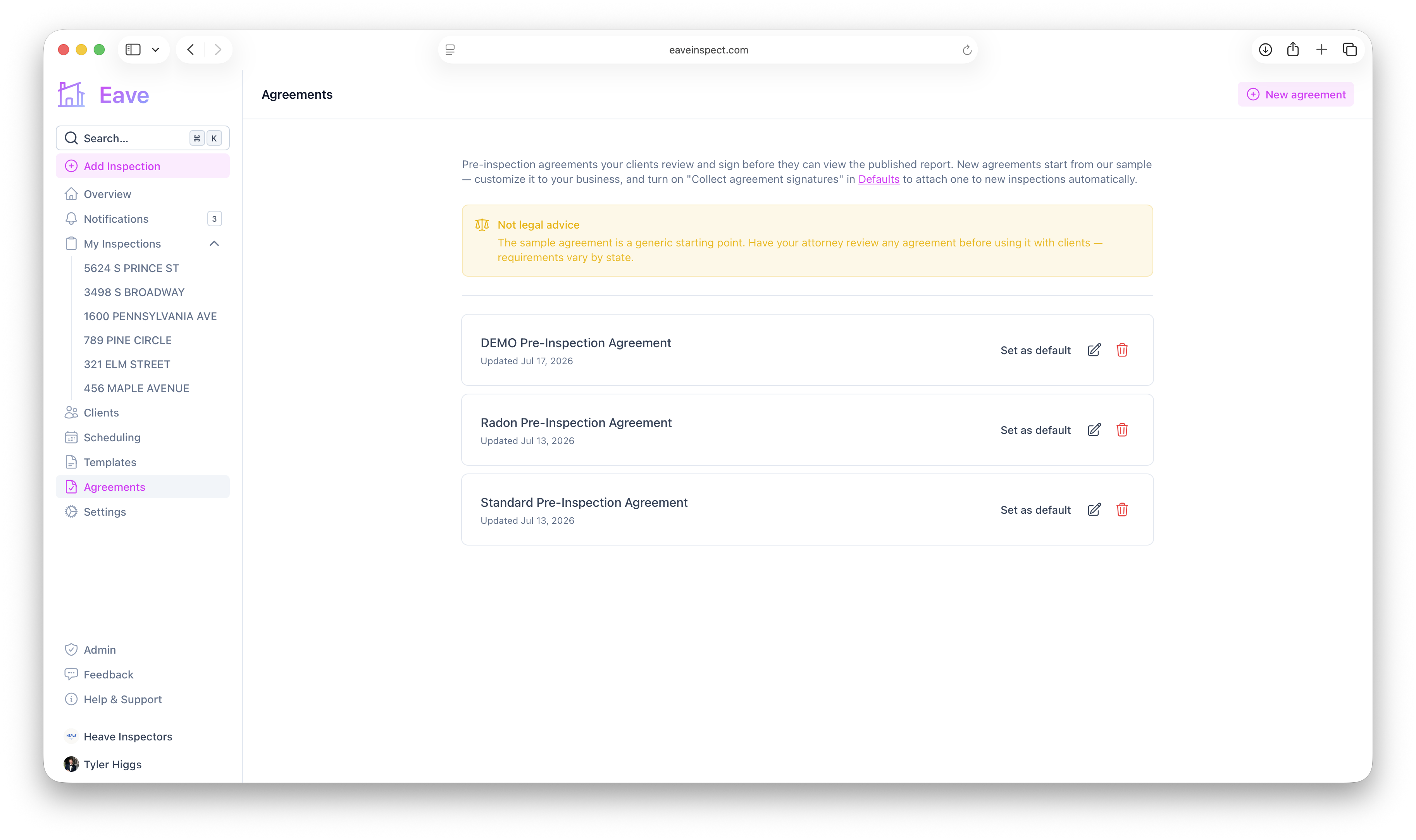
Create an agreement
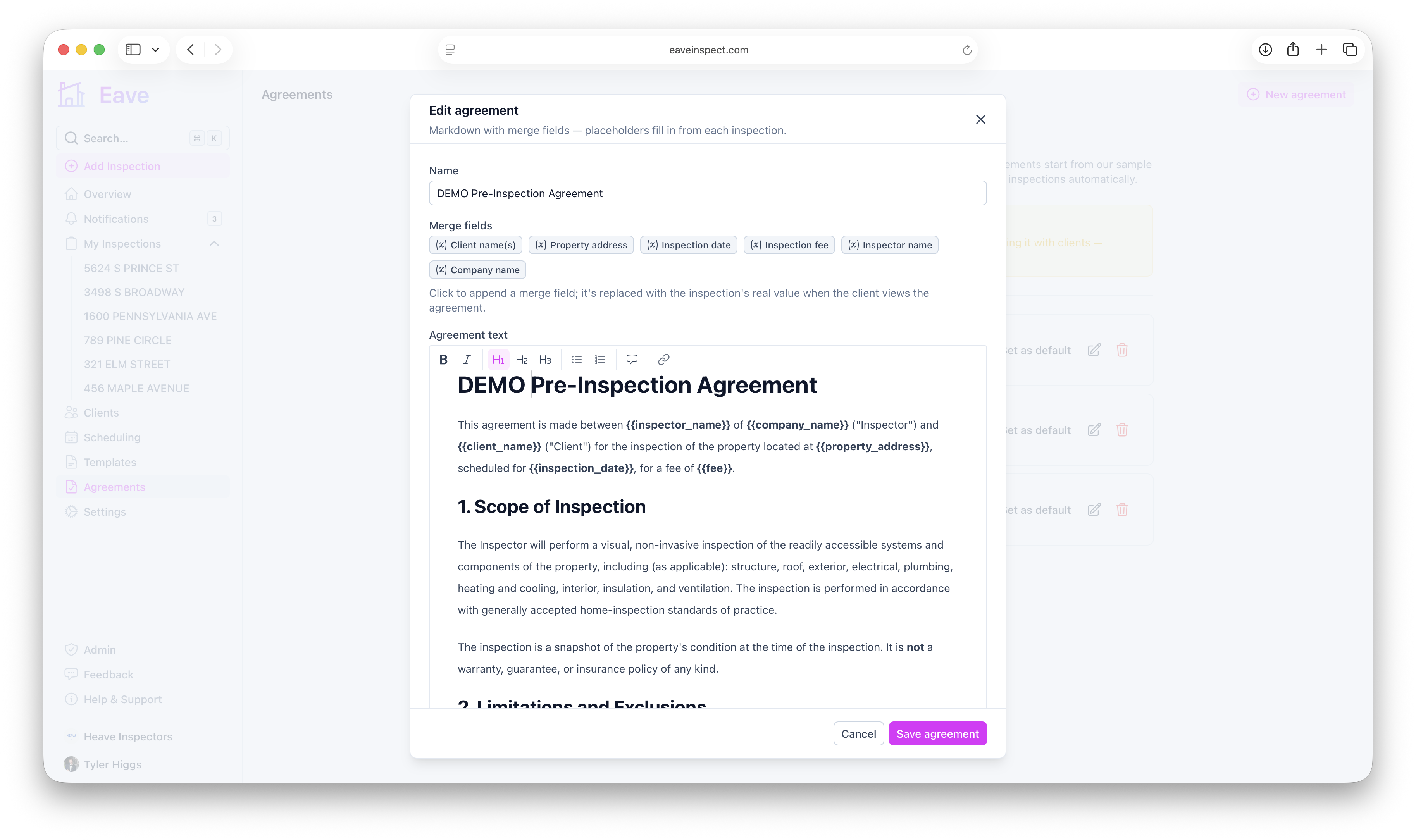
Click New agreement to open the editor. A new agreement starts pre-filled with our sample so you can edit rather than write from scratch. Fill in:
- Name — how you'll recognize it in the list and when attaching it (e.g. "Standard Pre-Inspection Agreement").
- Agreement text — the document itself, written in a rich text editor.
- Merge fields — click a chip to append a placeholder token to the text.
Click Save agreement when you're done. The button stays disabled until both a name and some content are filled in.
Merge fields
Merge fields are placeholders like {{client_name}} that are replaced with each inspection's real values when the client opens the agreement:
| Merge field | Fills in with |
|---|---|
{{client_name}} | The client name(s) on the inspection |
{{property_address}} | The full property address |
{{inspection_date}} | The scheduled date, or "to be scheduled" if unscheduled |
{{fee}} | The inspection fee |
{{inspector_name}} | Your name |
{{company_name}} | Your business or organization name |
Defaults and sharing
- Set a default — use Set as default on a template card to mark it My default. That agreement is attached automatically to your new inspections when signature collection is on.
- Organization sharing — everyone in your organization can see and use each other's templates. An org admin can pick an Org default at Settings → Org → Defaults, used for members who haven't set their own.
- Deleting is safe — deleting a template never touches inspections that already use it; they keep their own signed or attached copy.
Turn on automatic attachment
To attach an agreement to every new inspection without thinking about it, turn on Collect agreement signatures in Settings → Account → Defaults. There's also a Require a signed agreement for completion toggle — when on, an inspection only counts as complete once it's both paid and signed.