What clients see when they pay
When you share a pay link (or it's emailed automatically), the client opens it in their browser — no account or login required. The page shows your branding, the property address, and a simple, secure checkout.
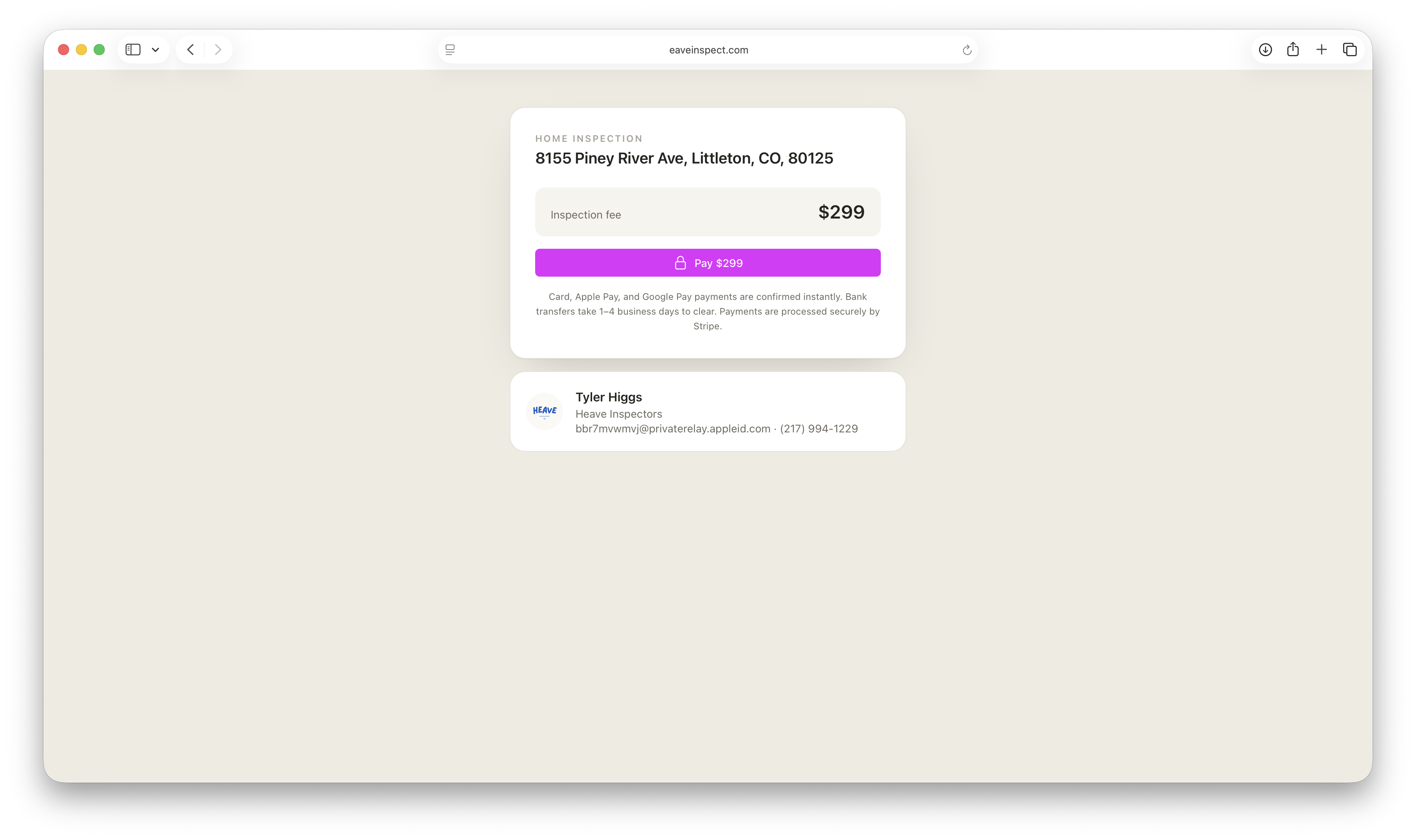
The pay page
- The property address and your inspector card (logo/name, email, and phone) so the client knows exactly what and whom they're paying.
- The inspection fee, shown clearly.
- A Pay button that opens Stripe's secure, hosted checkout.
Card, Apple Pay, and Google Pay payments are confirmed instantly — the client lands back on a "Paid" screen right away. Bank transfers (ACH) show a processing state and clear within 1–4 business days.
If an agreement isn't signed yet
When the inspection has a pre-inspection agreement the client hasn't signed, the pay page shows a gentle nudge to sign the agreement first. It's informational — paying is never blocked on signing, but signing first keeps the client on the intended path.
After paying
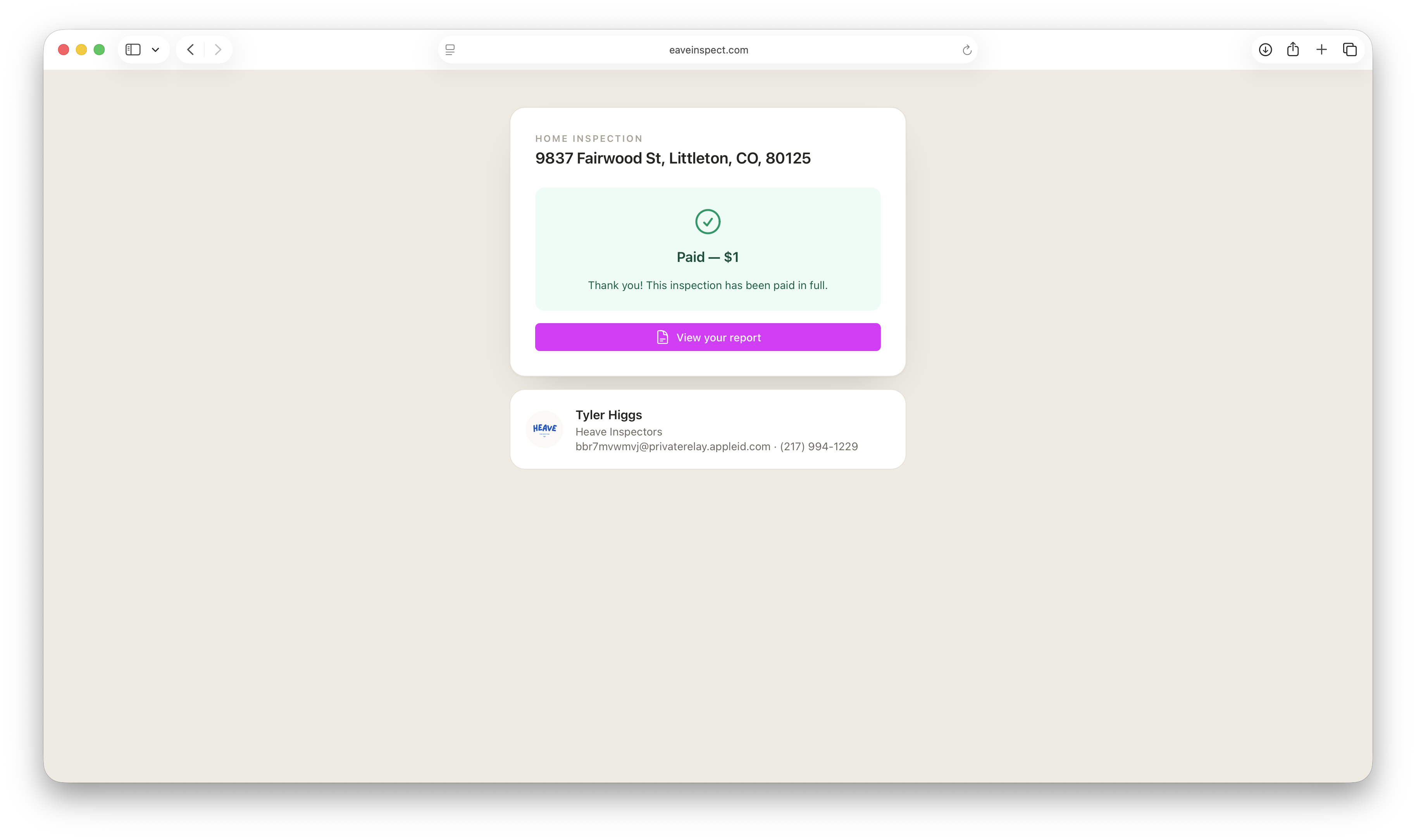
Once payment is confirmed, the client sees a Paid confirmation with the amount. If the report is published, a View your report button takes them straight to it.