Collecting payment on an inspection
Create and share a pay link, track its status, and record cash or check payments manually.
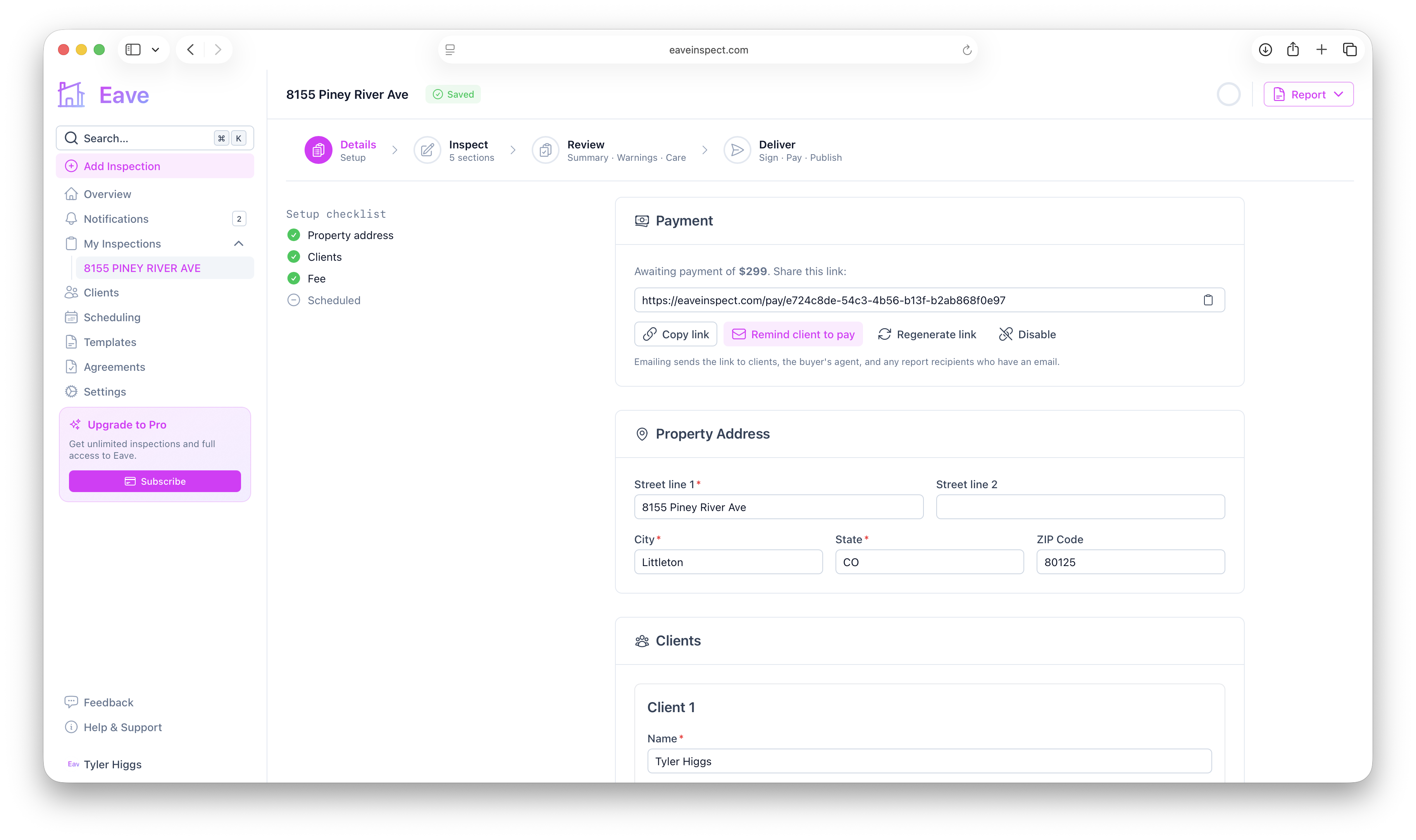
Once your Stripe account is ready and an inspection has a fee, a Payment card appears on the inspection page. From here you create the pay link, share it, and watch it settle.
Create the pay link
The card offers two ways to start:
- Create link & email — creates the link and emails it to the client(s) right away.
- Create link only — creates the link without sending anything, so you can copy and share it yourself (text, your own email, etc.).
The inspection needs a fee greater than $0 before you can request payment. If there's no fee yet, the card prompts you to set one first.
Share and manage the link
Once a link exists, the card shows it with quick actions:
- Copy link — copy the pay URL to share however you like.
- Remind client to pay — re-send the pay email anytime.
- Regenerate link — issue a fresh link. The old link stops working — useful if the old one leaked or you want to invalidate it.
- Disable — turn off online payment for this inspection entirely.
Emailing the link (via Create link & email or Remind client to pay) sends it only to the client(s) who have an email. The buyer's agent and other report recipients are not asked to pay.
Payment status on the card
The card reflects where the payment stands:
- Awaiting payment — the link is live and unpaid.
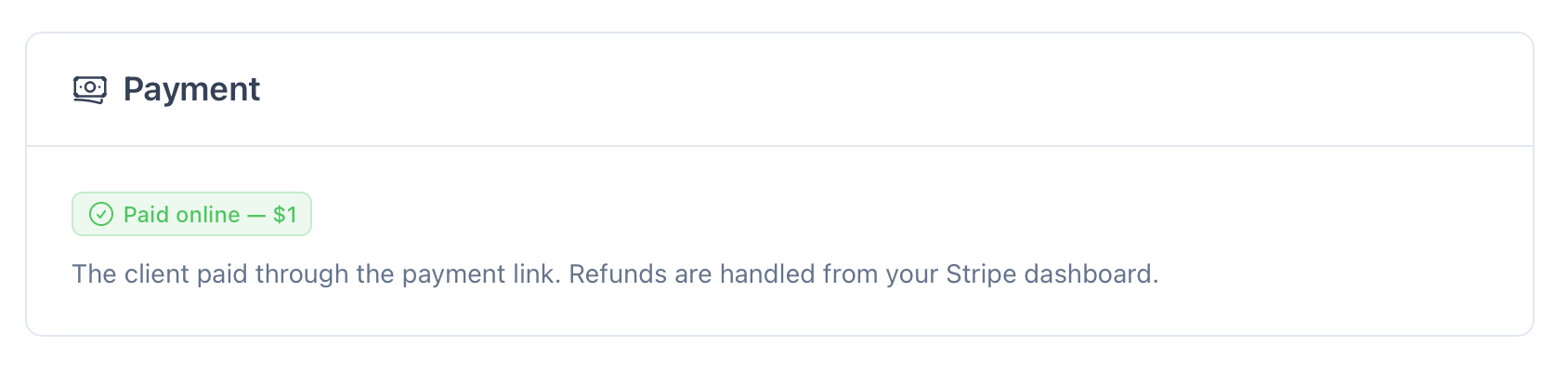
- Paid online — the client paid through the link. Refunds are handled from your Stripe dashboard.
- Bank payment processing — the client started a bank transfer; it usually clears within 1–4 business days and the inspection is marked paid automatically once it does.
- Bank transfer failed — an ACH payment didn't go through. No money was taken, and the client is automatically emailed a link to try again.
Recording cash or check (manual payments)
Not every client pays online. To record a cash or check payment, open the inspection's Deliver page and set the Paid date. This marks the inspection paid without involving Stripe, exactly as it always has.
If a payment was collected online and you later clear the Paid date, Eave asks you to confirm — because clearing it does not refund the client. Issue refunds from your Stripe dashboard; clearing the date only un-marks the inspection (and re-opens the pay link).
Related
- Send pay links automatically instead of by hand — Automatic payment emails & reminders.
- Keep the report locked until the client pays — Require payment to view report.