Publishing & sharing reports
When the inspection is filled out, you can preview the report, publish it, and deliver it to your clients. Published reports are sent by email with a link clients can use to view and download.
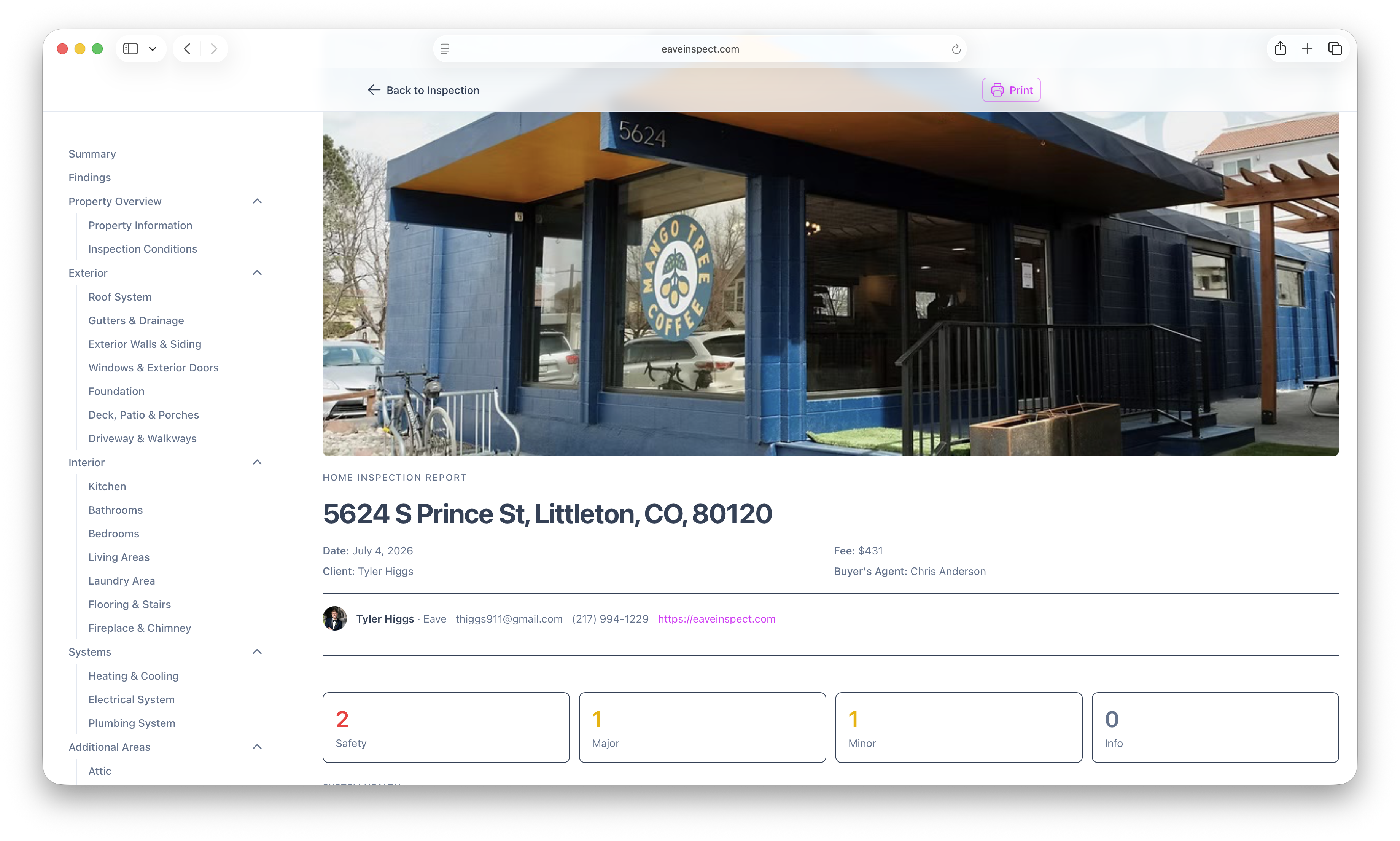
Preview the report
Open Preview Report (from the Report button or the command palette) to see the finished report exactly as clients will. From the toolbar you can Download PDF (only once published) or Print.
The Deliver page
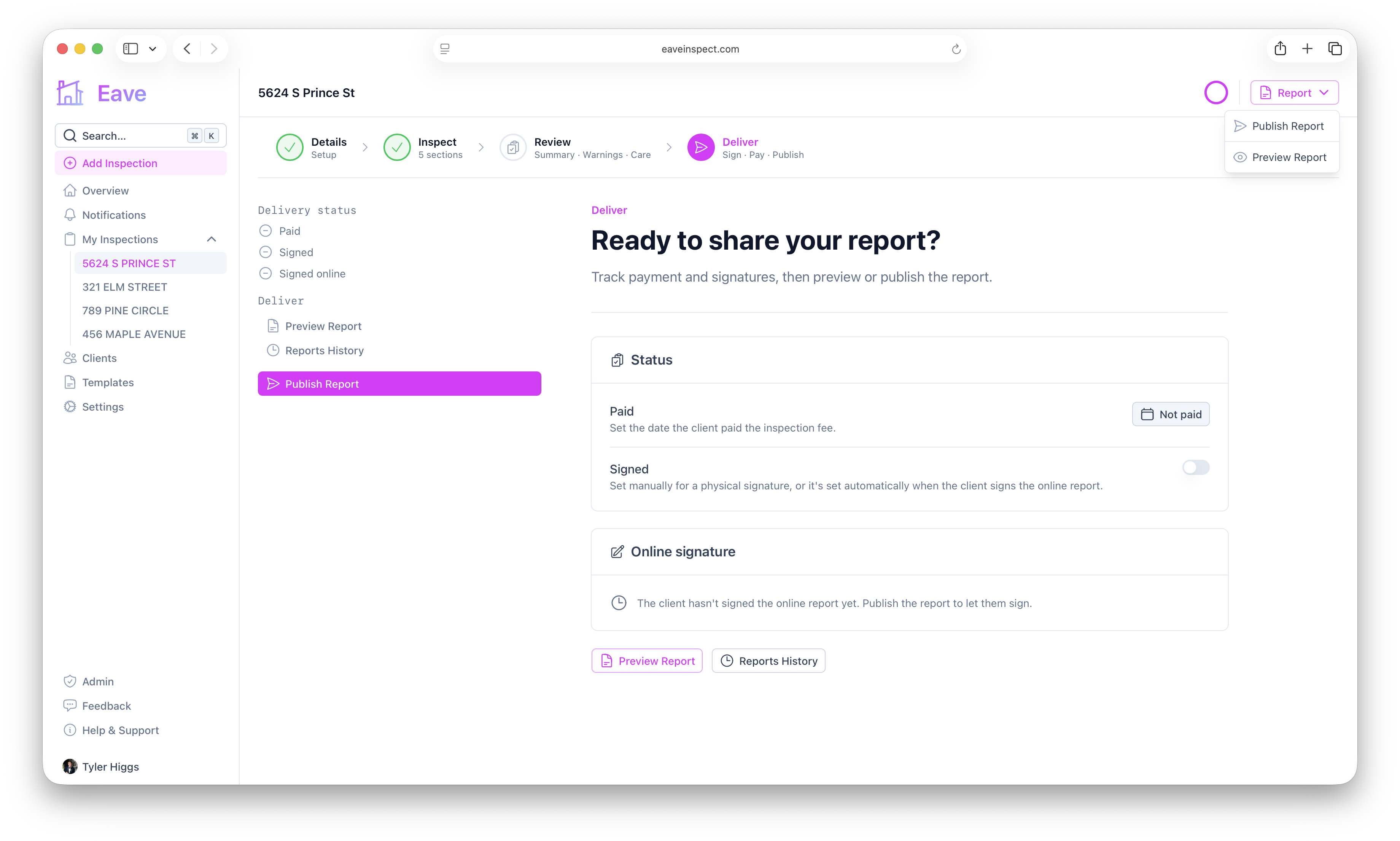
The Deliver step is your launch checklist. Here you can:
- Mark the inspection Paid when the client has paid the fee.
- Manage the pre-inspection agreement: copy the signing link, re-send it by email, download the signed PDF, or remove the agreement to unlock the report.
- Mark the agreement Signed manually (for a paper signature) — this is set automatically when a client signs online.
- Jump to View / Preview Report or Reports History.
Pre-inspection agreements
If you attach a pre-inspection agreement, the published report stays locked until a client signs it online. Turn on Collect agreement signatures in Settings → Account → Defaults to attach one automatically, or add one per inspection from the Deliver page.
See Pre-inspection agreements for the full guide to writing, attaching, and managing agreements.
Publish the report
Open the Report menu and choose Publish Report. A confirmation dialog appears that:
- Warns you if your profile is incomplete (with a link to finish it).
- Lists the clients who will be emailed a link to the report.
- Lists additional recipients who will receive a view-only copy.
Click Publish to send it.
What clients receive
- Clients get an email with a link to the report — or, if the pre-inspection agreement hasn't been signed yet, a link to sign it first (the report unlocks immediately after).
- Additional recipients (like a buyer's agent) get a view-only link.
The share link stays the same across re-publishes, so a bookmarked link keeps working.
If you allow it, recipients can also build a repair request — a free ask list for the seller — straight from the report link. See Repair requests.
Locking, unpublishing & re-publishing
Publishing locks the inspection — details, sections, photos, warnings, and home-care tips can't be edited. To make changes, open the Report menu and choose Unpublish; the inspection becomes editable again.
When you re-publish, clients are notified that the report was updated.
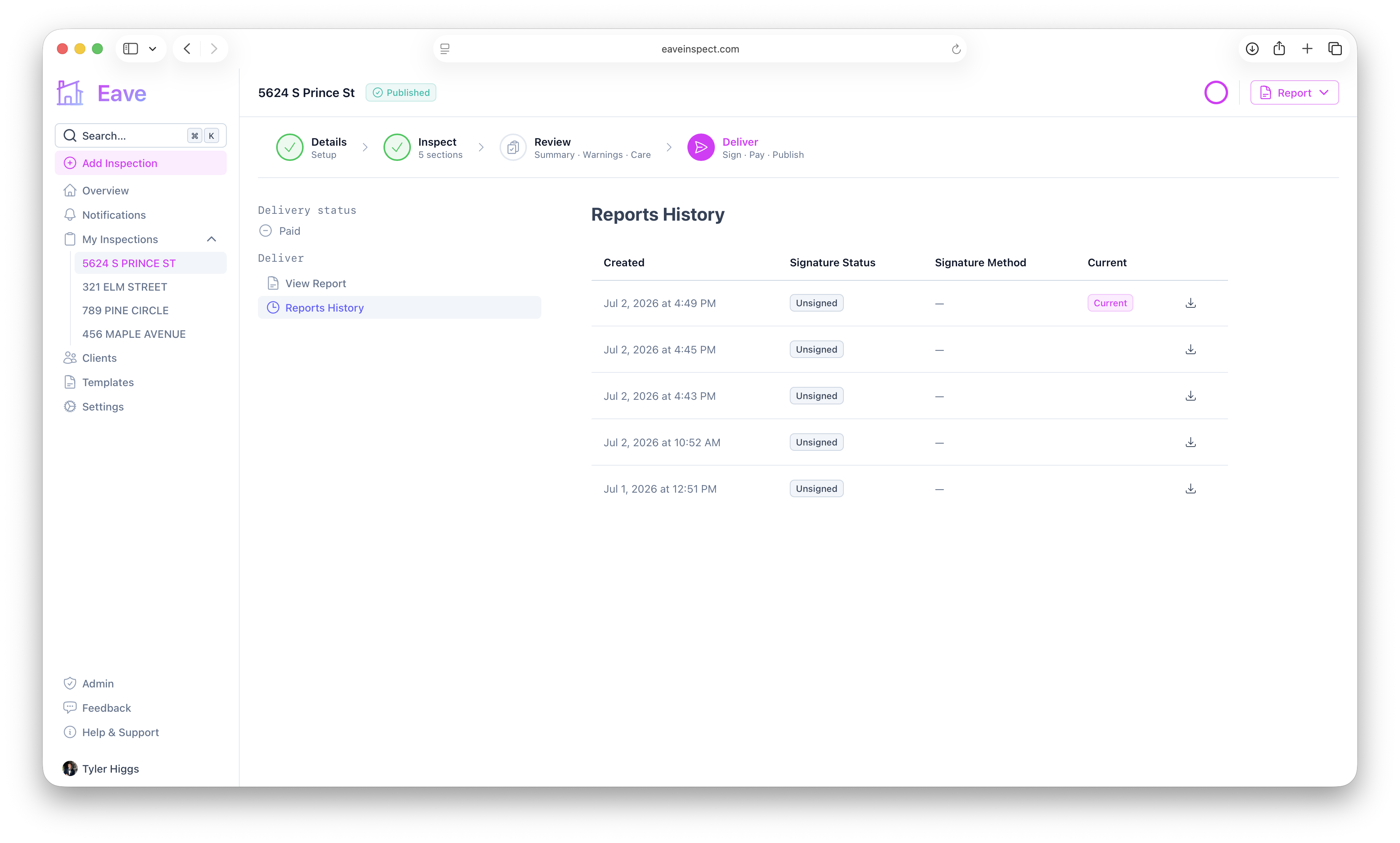
Reports history
The Reports History page lists every published version with its created date. You can download the PDF of any past version, and the most recent one is marked Current.