Configure your availability
Your availability lives on the Scheduling page, under the Availability tab, and controls every open slot a client can request — across every inspection and your public request link. There is one set of hours, not one per link.
The same settings are also at Settings → Account → Scheduling; both edit the same thing, so it doesn't matter which one you use.
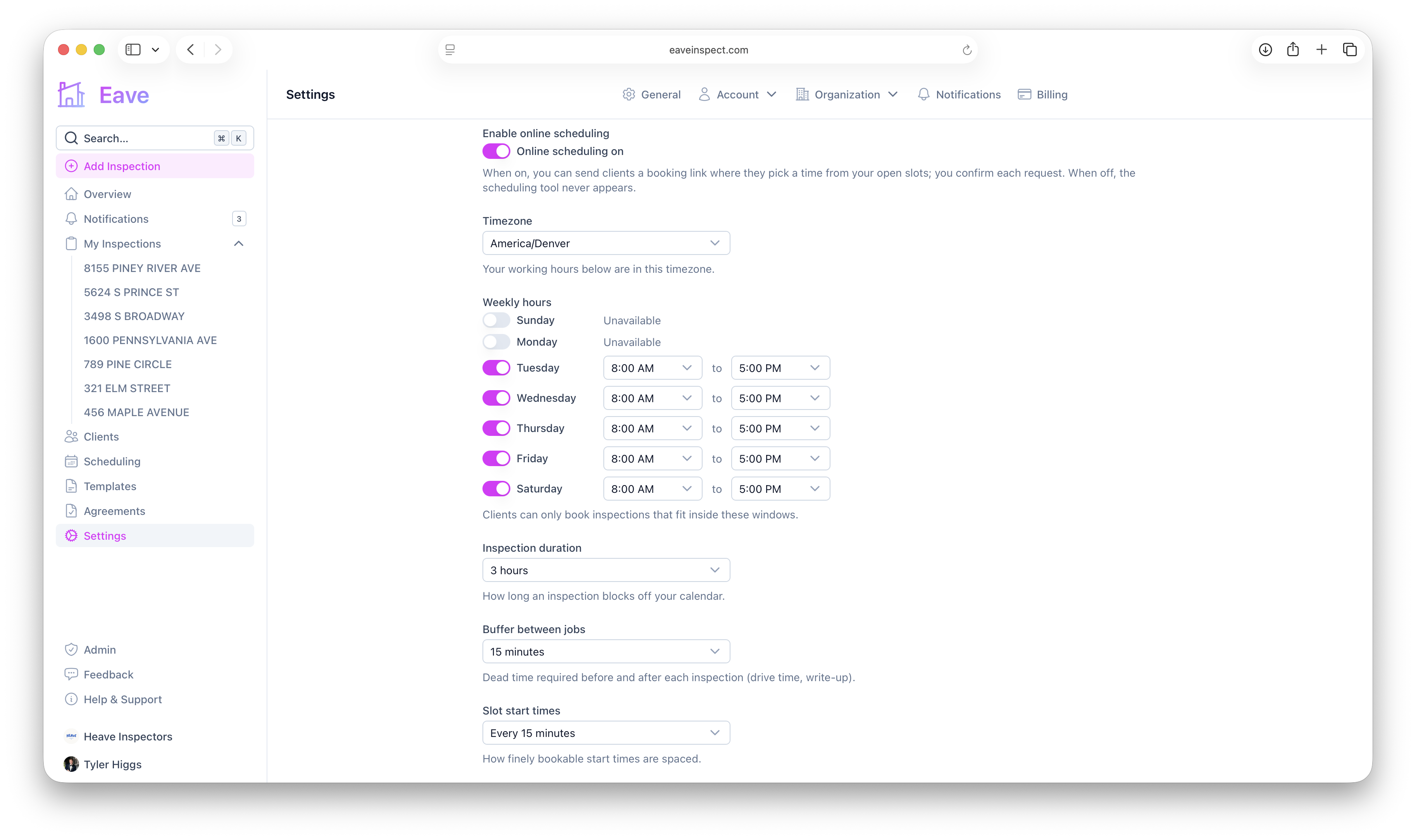
Settings
- Enable online scheduling — the master switch. When off, the booking tool never appears anywhere, for any inspection.
- Time zone — a searchable list of IANA time zones. All the hours below are in this zone.
- Weekly hours — toggle each day of the week on or off, and set a start and end time for the days you work.
- Inspection duration — how long a booked slot blocks out on your calendar (30 minutes to 8 hours).
- Buffer between jobs — dead time enforced before and after a booking, so back-to-back inspections don't butt up against each other.
- Slot start times — how finely available start times are spaced (every 15, 30, or 60 minutes).
These last three are grouped as Slot shape: how long a job takes, the dead time around it, and how finely start times are spaced.
Booking window
- Minimum notice — how much lead time a client has to leave. Anything sooner than this simply isn't offered. Defaults to 12 hours; set it to None if you're happy taking same-day work.
- Book up to — how far ahead clients can reach. Defaults to 45 days.
The booking window only limits what clients are offered. You can always schedule a job yourself for tomorrow morning, or six months out, from the inspection page.
Open slots are computed as your weekly hours, minus any blocked time (see Block time off and recurring breaks), minus your other scheduled inspections plus buffer, within your booking window.
Personal settings vs. your organization's
If you're part of an organization, an admin can set org-wide default hours in Settings → Organization → Scheduling. Every member inherits those hours automatically until they customize their own:
- If you haven't set your own schedule, you'll see "Using your organization's schedule" with a Customize my schedule button — this copies the org's settings as a starting point you can edit.
- Once you've customized, a Reset to organization default button lets you go back to inheriting the org's hours at any time.