Preview your booking page as a client
See exactly what a client sees when they open your booking link, without sending anything.
Before sharing a booking link, it's worth checking what it actually looks like. The Preview as client button on the Scheduling page opens your real booking page using your real working hours, blocks, and branding — but with a sample property address instead of a real inspection.
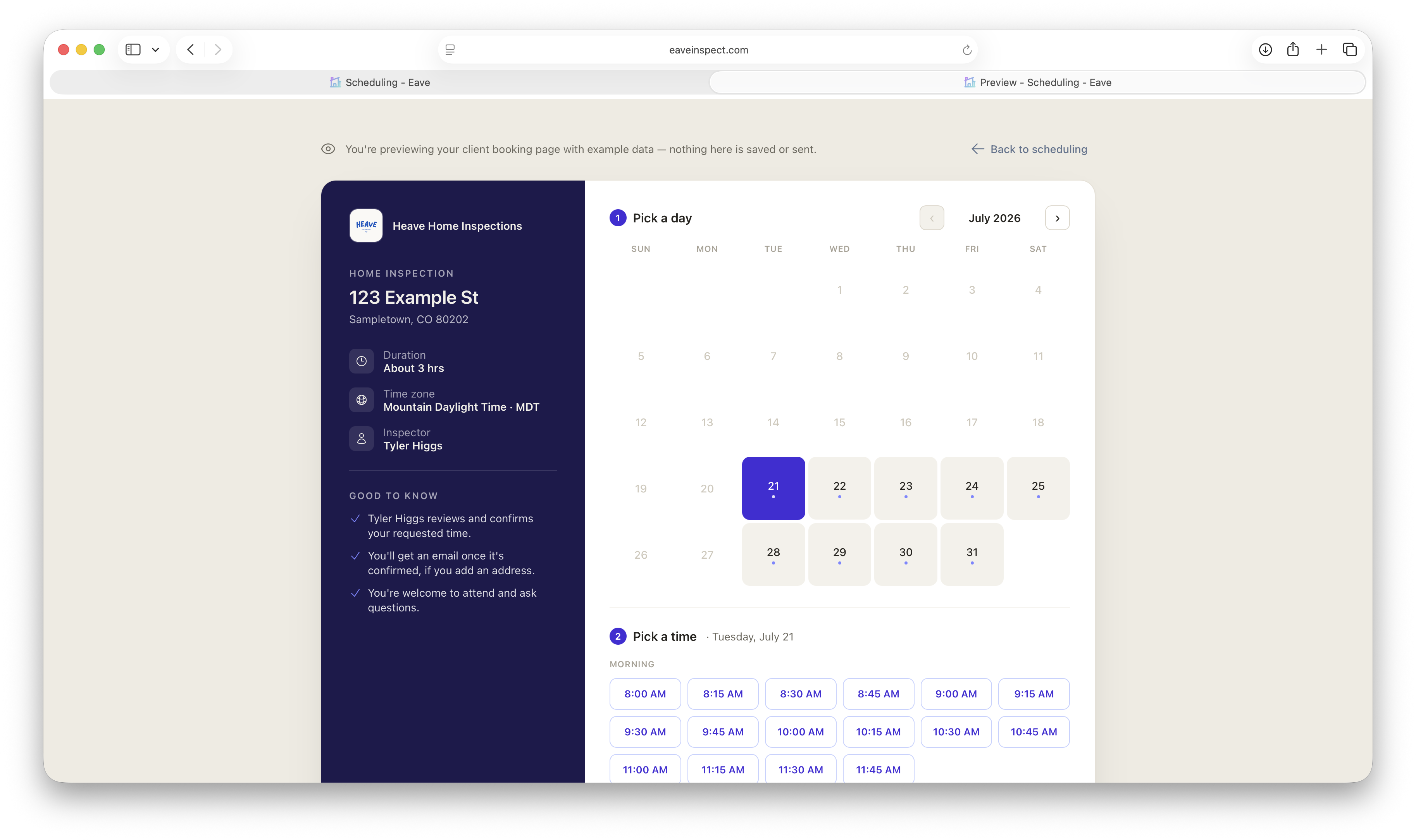
It's the same view described in What clients see when they book online — pick a day, pick a time, fill in details — but nothing you do here is saved or sent anywhere. A banner at the top reminds you it's a preview, and submitting the form just shows a local "Request sent — this is a preview" confirmation instead of notifying anyone.
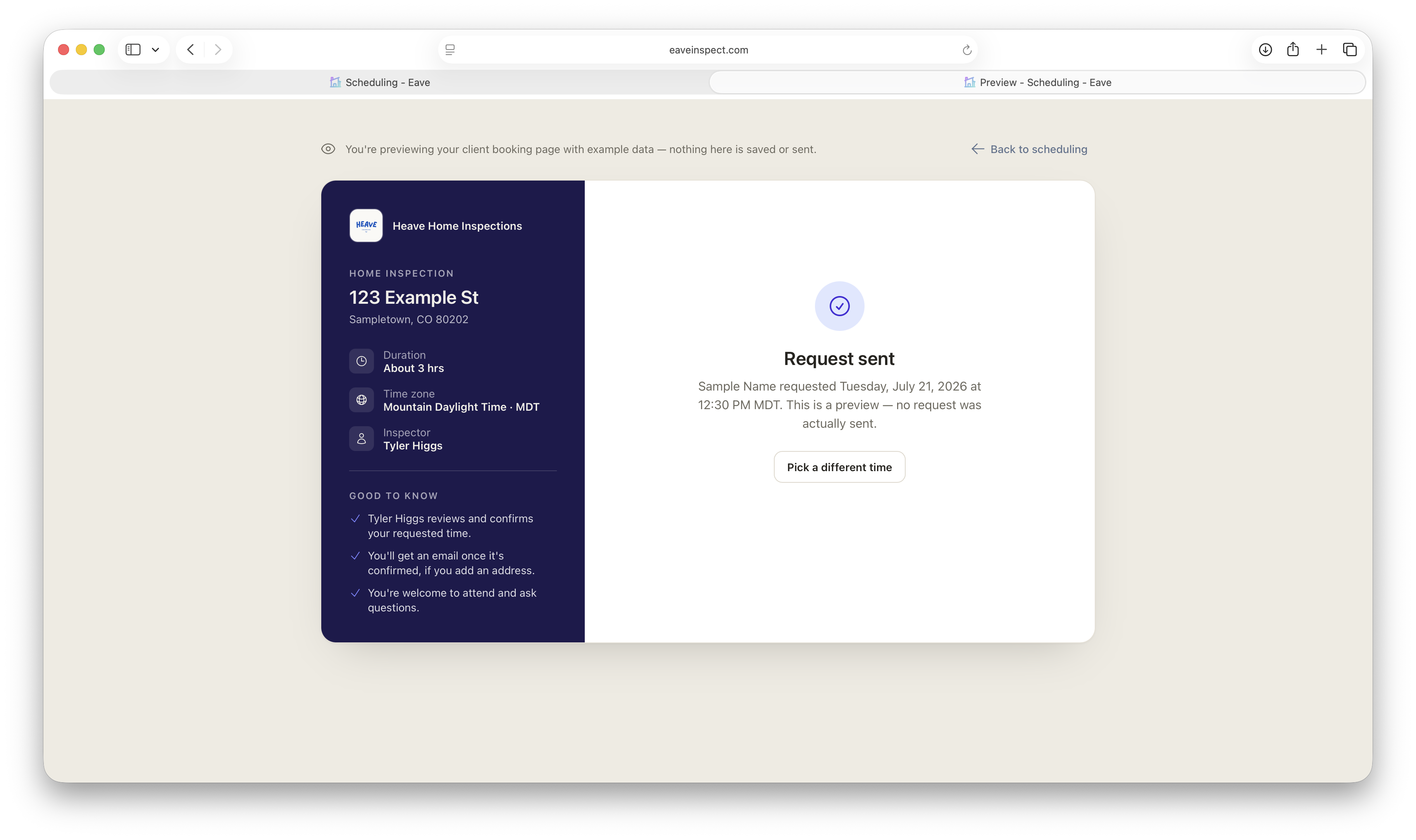
Use the preview after changing your working hours or blocked time to confirm your open slots look right, before sending a link to a real client.
The preview requires you to be logged in and assumes no other bookings exist, so the slots you see may be more open than what a client would see on a specific inspection with other appointments nearby.