Turn scheduling on for an inspection, or opt out
Online scheduling is opt-in per inspection. You can turn it on when you create the inspection, or add it later — and disable it again any time before the report is published.
At creation time
On the last step of Add Inspection, under Scheduling, choose one:
- Pick date & time — set the inspection time yourself, with your existing bookings, time off, and working hours in view. See Picking a time with your day in front of you.
- Decide later — leave it unscheduled for now (the default). This is how you opt out.
- Send the client a booking link — the client picks from your open slots; you confirm the request. Only shown when your scheduling is enabled.
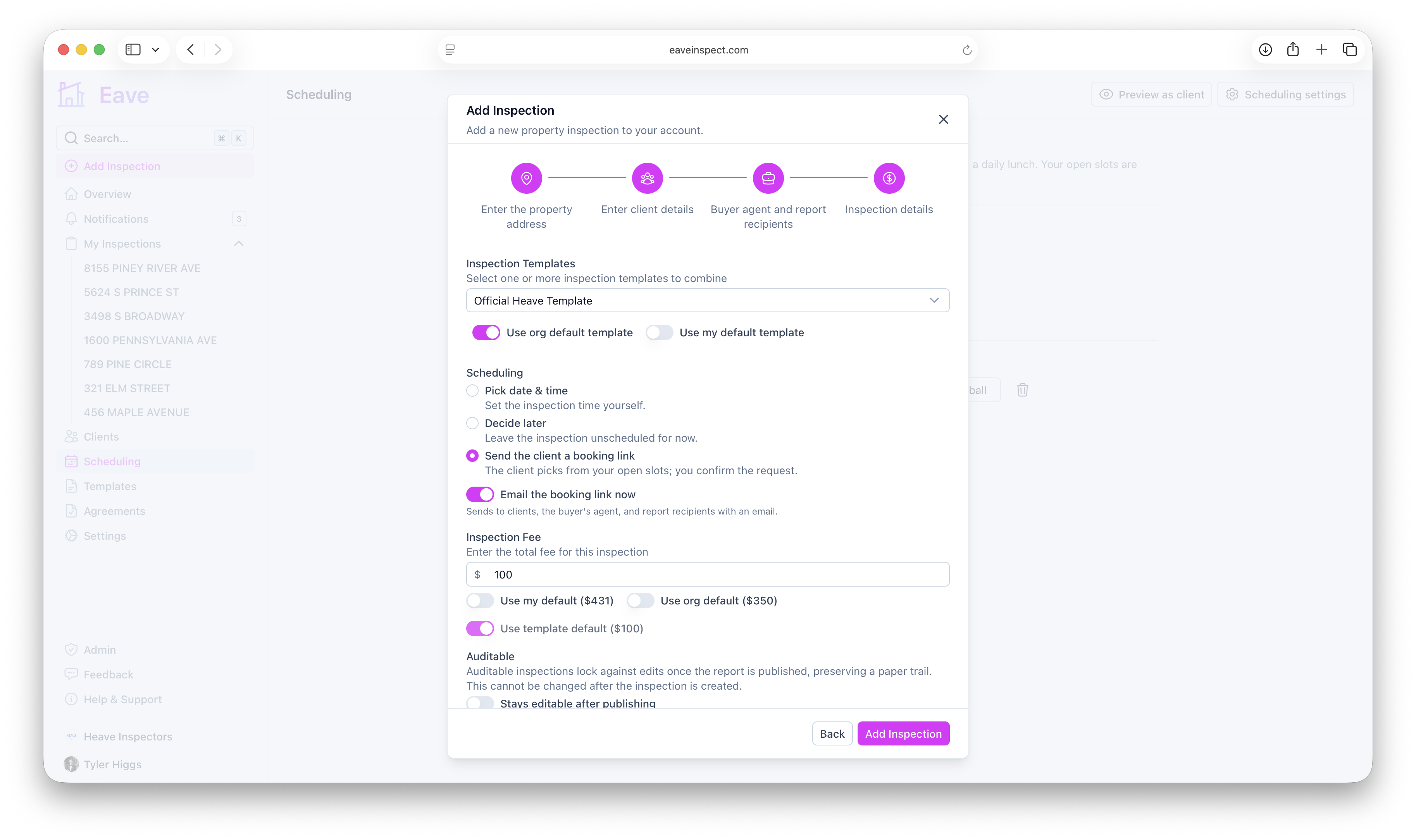
If you choose the booking link, a switch lets you email the booking link to clients now — pre-checked automatically if at least one client has an email address. If none do, it's disabled with a note to copy the link manually from the inspection page instead.
Setting the date
The Scheduling card at the top of the inspection's Details page always shows the scheduled time, whether or not you use the booking link. Set date & time (or Reschedule) opens a window where you pick the day and the start time together and choose who to email, then save it all in one go. Nothing is saved — and nobody is emailed — until you click Save, so you can change your mind about the time without anyone hearing about it.
Clear removes the date and puts the inspection back to unscheduled.
Picking a time with your day in front of you
That window shows you the day you're booking into, so you're not scheduling from memory:
- The calendar marks every day that already has something on it with a dot, and dims the weekdays you don't work.
- The day timeline draws your working hours, your other inspections (with the drive-time buffer either side of each one), your time off and recurring blocks, and the inspection you're placing. Anything outside your working hours is hatched.
- Open gaps long enough for a full inspection are outlined — click one to drop the inspection straight in. You can also click anywhere on the timeline, use the Start time menu, or take a shortcut like Right after 1420 Birch Ct.
- The status line underneath tells you whether it fits. If it doesn't, it says why — "Overlaps your lunch", "Runs past your workday", "Too tight against 1420 Birch Ct — leaves less than 30 min drive time" — and offers the nearest time that does work.
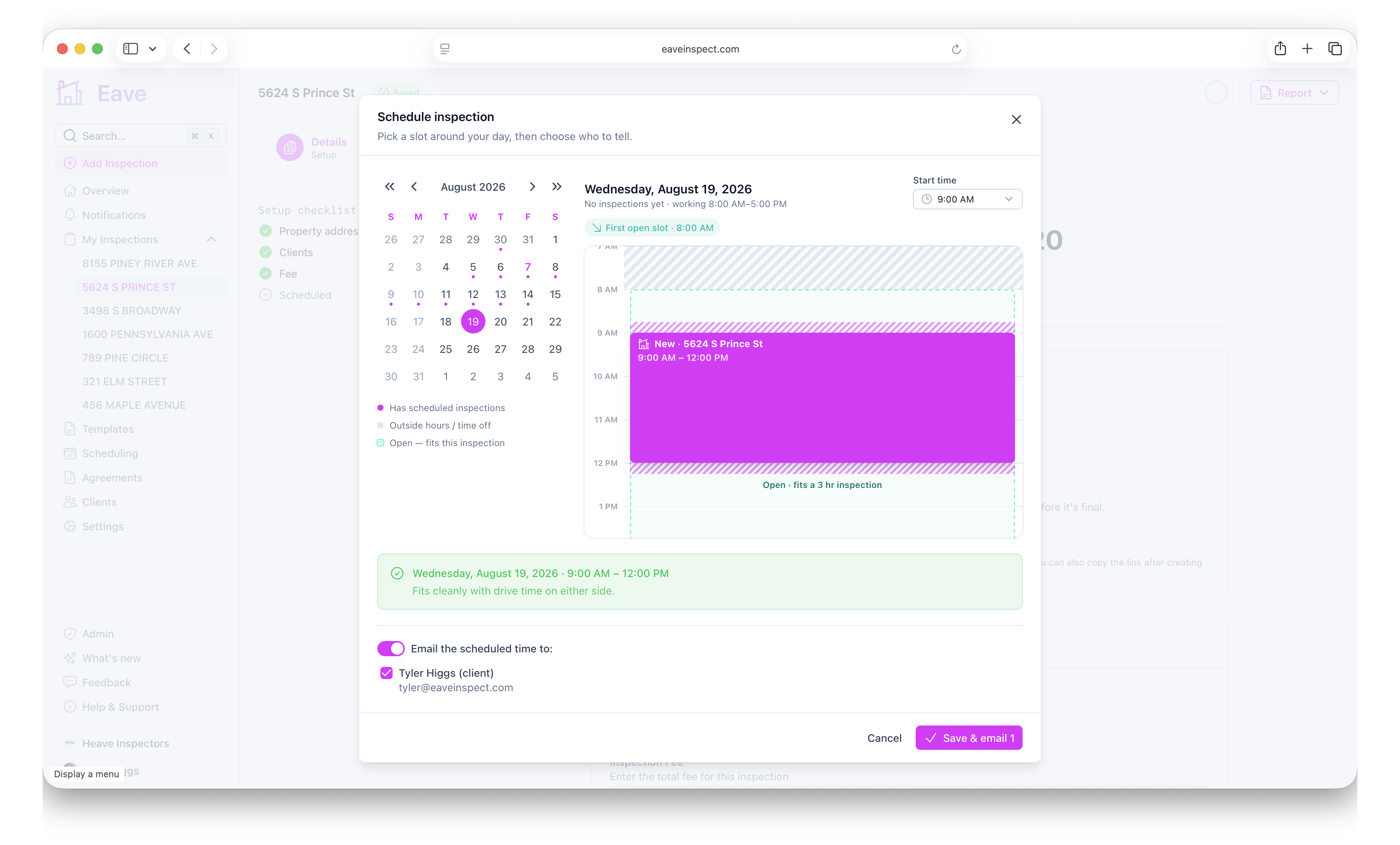
It's your calendar, so a conflict is a warning and never a wall: the Save button turns amber but still saves. Same-day double-bookings are sometimes exactly what you meant.
The same window opens from Add Inspection when you choose Pick date & time, so you get the same context before the inspection even exists.
Telling attendees when the inspection is
Clients and buyer's agents often want to be at the inspection, so the same window that sets the time offers to email it to them. Clients and the buyer's agent are checked by default; extra report recipients are listed but left unchecked. Turn the switch off to save the time quietly.
Under the date, the card always says where things stand:
- "Clients and the buyer's agent haven't been told the time yet" — with a Notify attendees button.
- "Attendees emailed 2 days ago — …" — who was told and when, with a Resend button.
- "Attendees are holding the wrong time" — a warning that appears when you reschedule after telling people. Send updated time emails the same people the new time.
Confirming a booking request emails everyone automatically, because the client picked that time themselves and there's nothing for you to review.
The booking link
Below the date, the Scheduling card walks through the booking link's states (only when online scheduling is enabled, or a link already exists):
- Not yet used — Create link & email clients or Create link only.
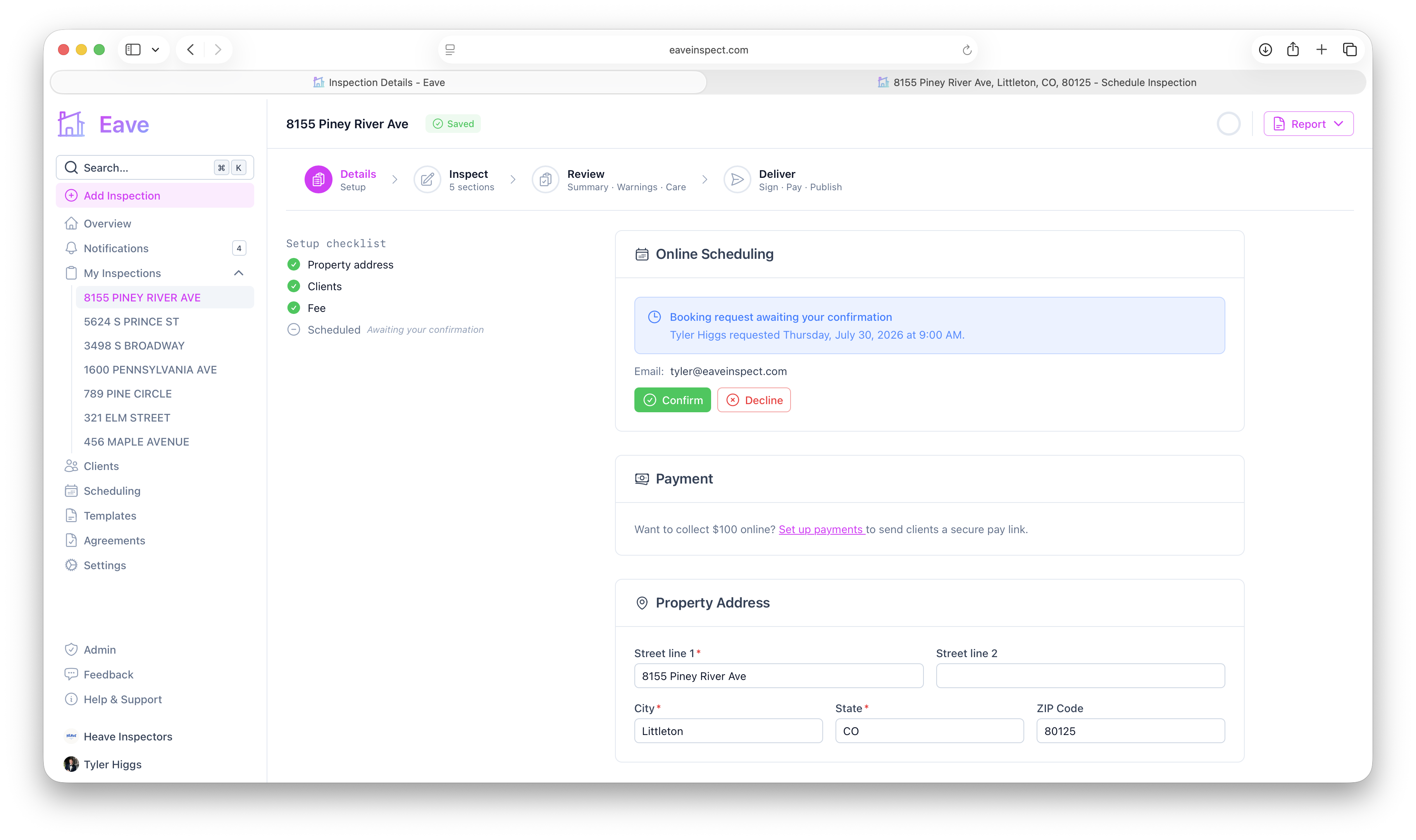
- Link active, no request yet — a copyable booking URL, plus Copy link, Email to clients, Regenerate link, and Disable.
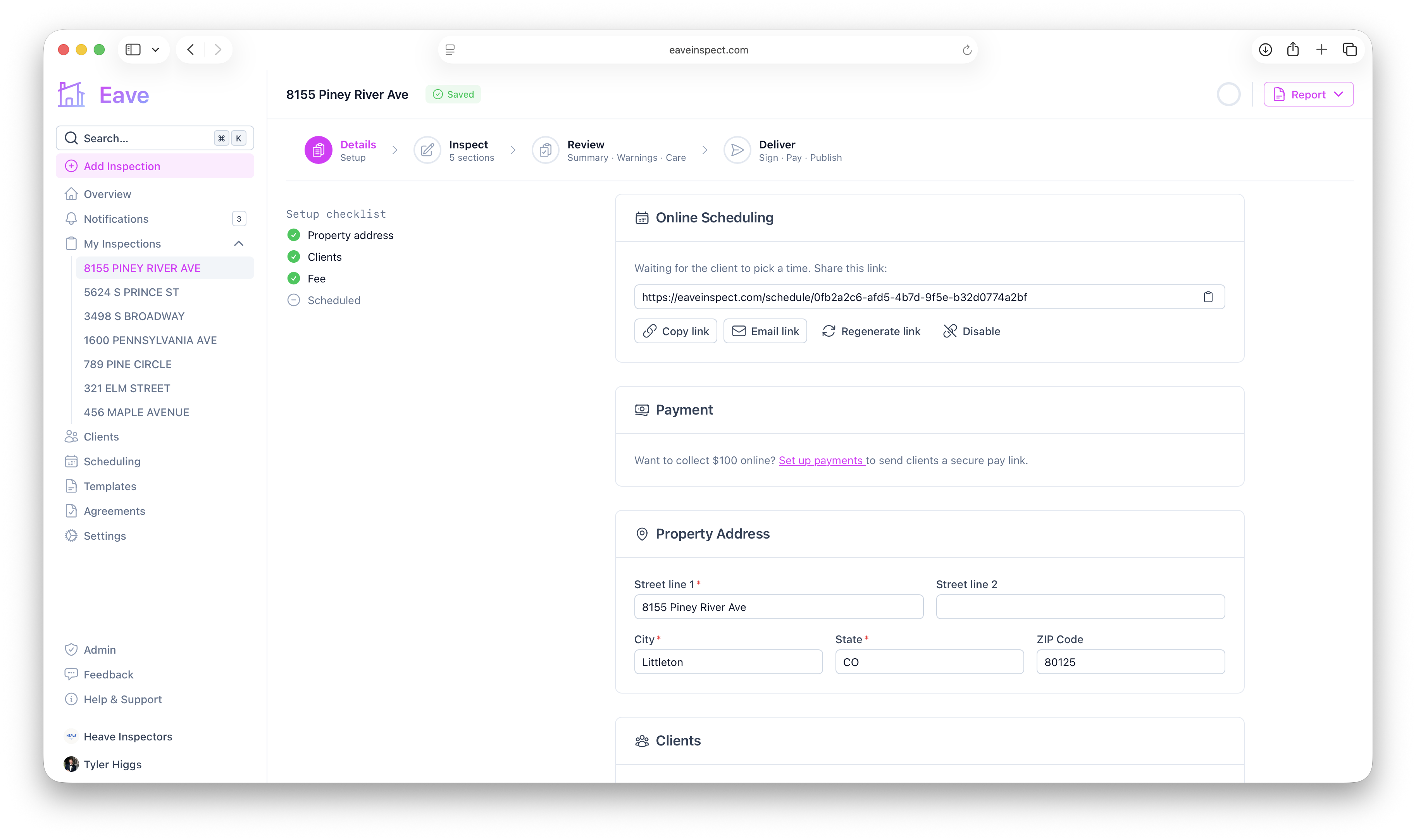
- Pending request — the client's requested name and time (plus email/phone/notes if given), with Confirm and Decline buttons.
- Client asked you to pick a time — shown when the client chose "I'm flexible" instead of a slot. There's nothing to confirm, so instead of Confirm/Decline you use Set date & time at the top of the card. The person who made the request is pre-checked in the email list, so they hear the time you picked. If you'd rather they choose after all, click Ask client to pick a time instead to send them back to the booking page.
- Scheduled via the tool — a "Scheduled via booking link" badge once you've confirmed a request, with a Disable booking link option.
Confirming sets the inspection's scheduled date and emails the time to the clients and the buyer's agent. Declining clears the request and emails the client a link back to pick a different time.
Client attendance
If the client answered "Will you be at the inspection?" on the booking page, their answer shows as a badge next to the scheduled time ("Client attending", "Client won't attend", "Attendance unconfirmed") and stays with the inspection after the request is resolved. You can also set or change it yourself in Client Attendance on the Inspection Details card — useful when a client tells you over the phone.
Opting out
You can opt out at any point before the report is published:
- Choose Decide later (or Pick date & time) instead of the booking link when creating the inspection, or
- Click Disable booking link on an existing inspection — the link immediately stops working, and the client sees it's no longer active if they revisit it.