Add your signature
Draw or upload the signature that appears on your inspection reports.
Your signature appears in the inspector section of every report. Add it once under Settings → Account → Signature.
This is your signature as the inspector. It's separate from the pre-inspection agreement your client signs — see Pre-inspection agreements for that.
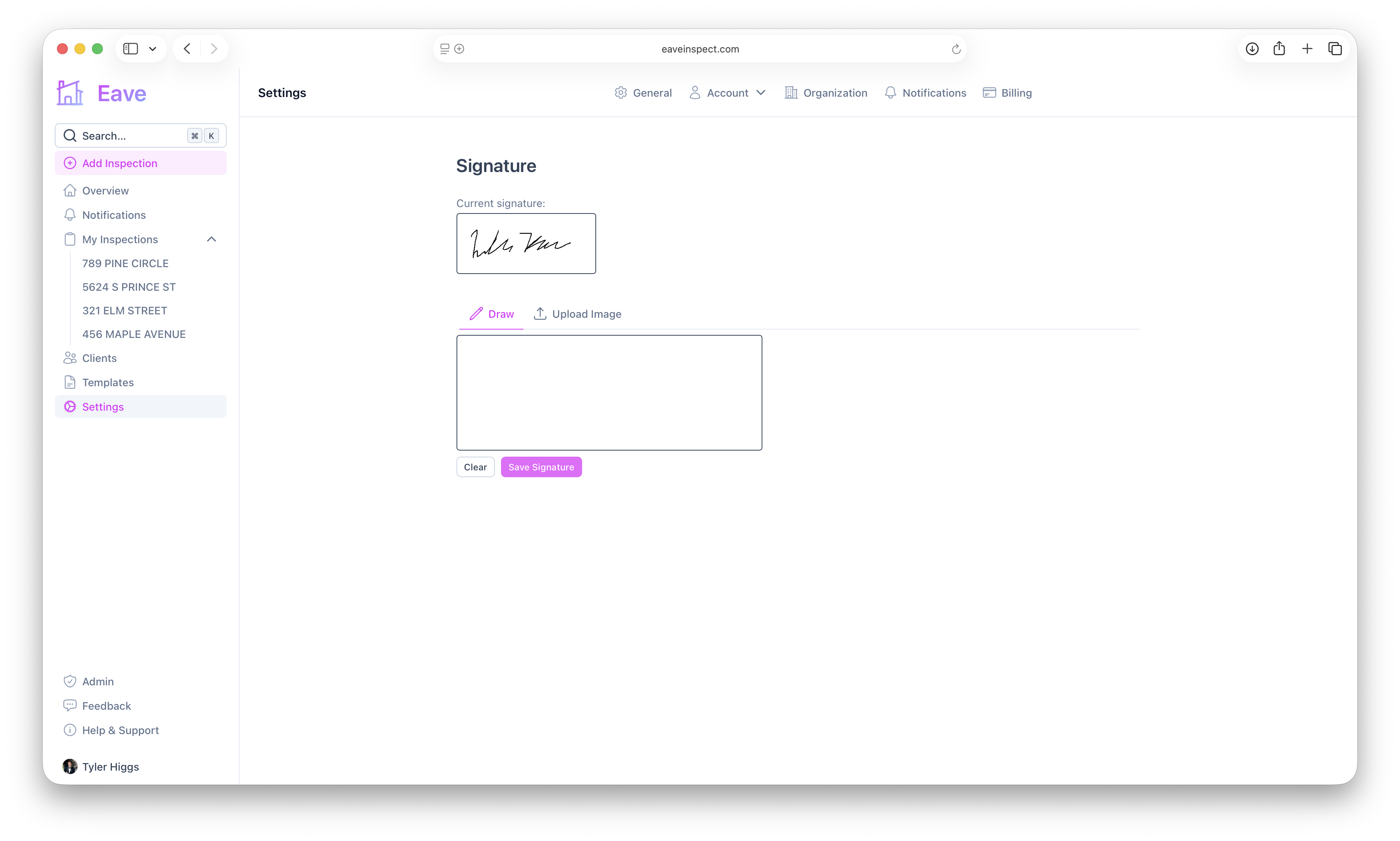
Draw your signature
On the Draw tab, sign directly on the canvas with your mouse, trackpad, or finger (it works on touch devices). Use Clear to start over, then Save Signature to upload it. The save button activates once you've drawn something.
Upload an image instead
Prefer to upload? Switch to the Upload Image tab, click Choose File, and pick an image of your signature. Images must be under 512 KB and are resized to a max of 800px.
Where it appears
Once saved, your current signature shows at the top of the page for reference, and it's placed in the inspector section of your published reports. To replace it, just draw or upload a new one.
A signature is one of the fields Eave checks for profile completeness. Adding it clears the reminder dot on your profile and keeps your reports looking complete. See Business profile & licensing.