Creating a custom template
There are two ways to create a custom template: start from a blank canvas, or duplicate an existing one. Both open in the template editor.
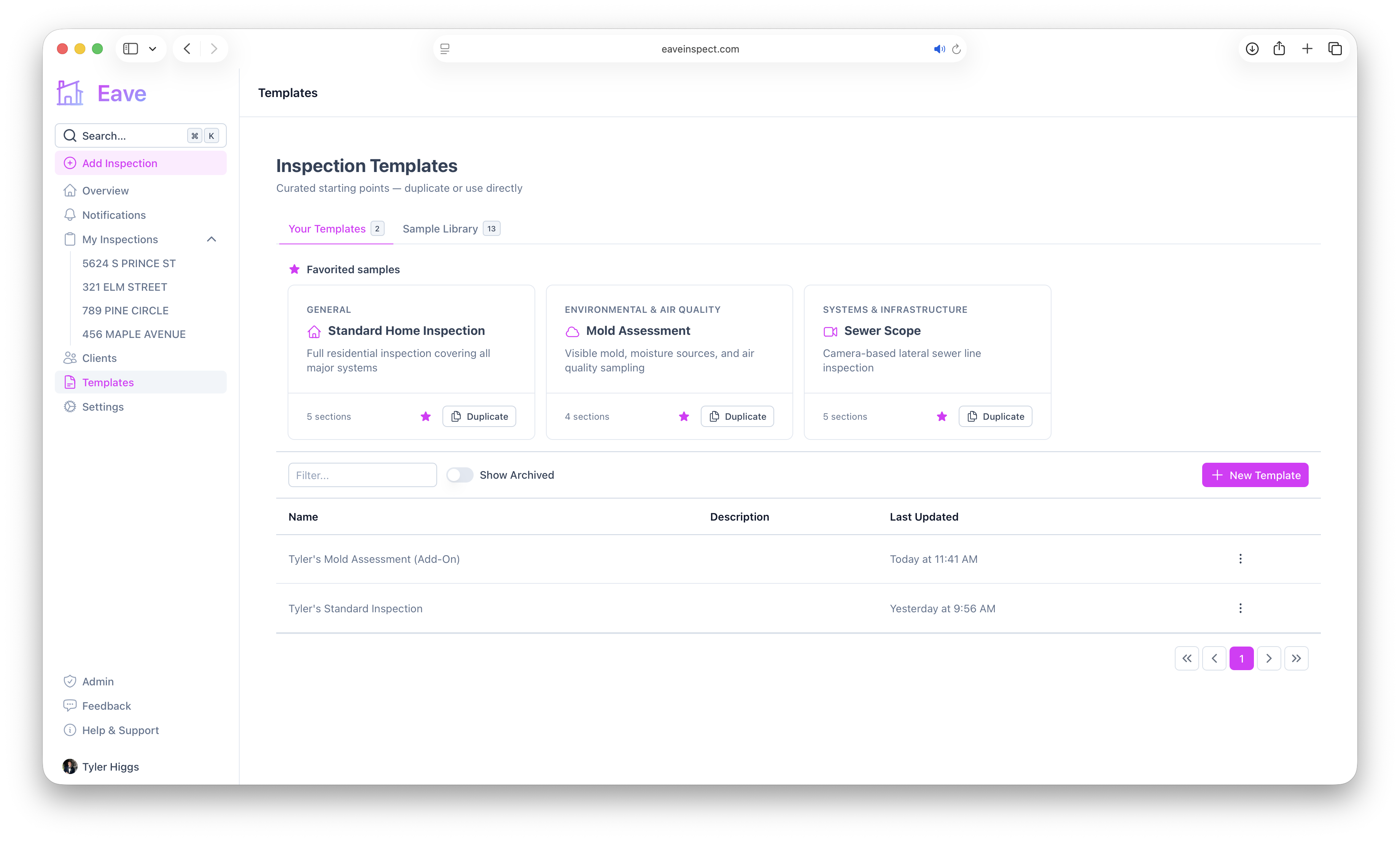
Option 1 — Start from scratch
On the Your Templates tab, click New Template. Eave creates a blank template with a placeholder name (you can rename it) and opens the editor so you can add sections, subsections, and fields.
Option 2 — Duplicate an existing template
Duplicating is the fastest way to get a head start:
- From the Sample Library, click Duplicate on any sample (such as Standard Home Inspection) to get a fully editable copy.
- From Your Templates, use a template's actions menu to Duplicate it.
The copy is yours to edit freely — the original is untouched.
Make it your own
Once it's open in the editor, customize the title, sections, fields, warning triggers, and home-care triggers. Everything saves automatically. Full details: Editing a template.
Set it as your default (optional)
If you'll use the new template often, set it as your default for new inspections. See Using templates and Set a default inspection fee.
Share it with your team
If you're part of an organization, templates you create are automatically available to your teammates. See Sharing templates & reports.