Payments overview
Collect inspection fees online — how money reaches you, what clients can pay with, and how the pieces fit together.
Eave lets you collect your inspection fee online. You send the client a secure pay link (or let the report page collect payment for you), they pay by card, Apple Pay, Google Pay, or bank transfer, and the inspection is marked paid automatically. The money goes straight to your own Stripe account — Eave never holds your funds and adds no fee on top of Stripe's standard processing rate.
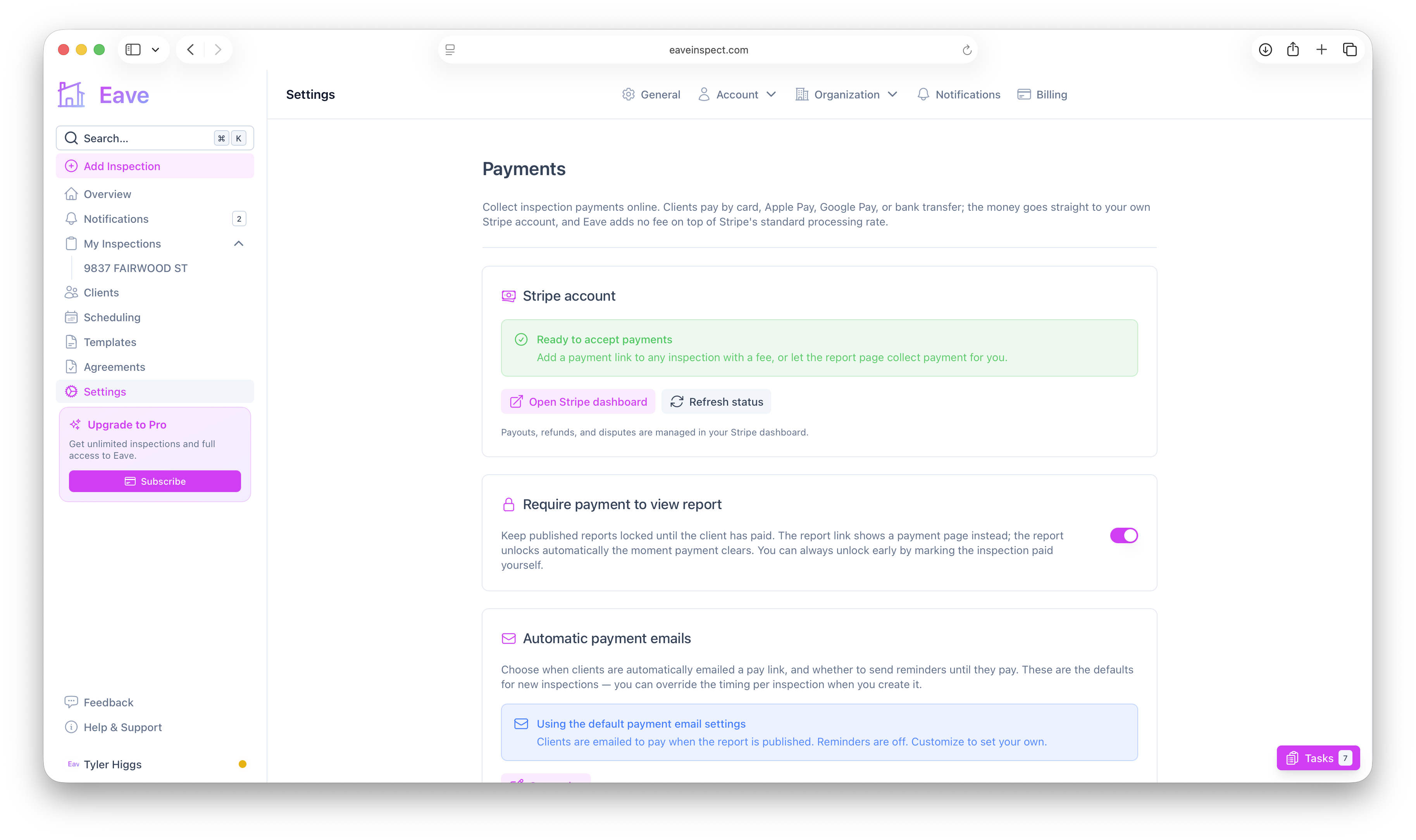
How it works, end to end
- Set up your Stripe account once. A few minutes of guided setup connects your bank so payouts land in your account. See Set up your Stripe account.
- Add a pay link to an inspection (any inspection with a fee), or let it be emailed automatically. See Collecting payment on an inspection.
- The client pays. They open the link, see the fee, and pay. See What clients see when they pay.
- You get paid. The inspection is marked paid automatically, you're notified, and the client gets a receipt.
What clients can pay with
- Card, Apple Pay, Google Pay — confirmed instantly.
- Bank transfer (ACH) — cheaper for larger fees, but takes 1–4 business days to clear. The inspection is marked paid automatically once it settles.
The one-path client experience
Payments fit into the same flow the client already walks — email → sign → pay → report:
- If you use a pre-inspection agreement, the client signs first, then continues straight to payment.
- If you require payment to view the report, the published report stays locked until they've paid, then unlocks itself.
- You can also just email a pay link and leave the report open — the two features are independent. See Automatic payment emails & reminders.
Online payments are off until you set up Stripe. Until then, nothing about payments appears on your inspections — you can still record cash or check payments manually as always.
Client payments are separate from your own Eave Inspect Pro subscription. This section is about collecting money from your clients; for your own plan and billing, see Subscriptions & billing.