Building a repair request
This walkthrough is for the person building a repair request — usually the buyer's agent — from an inspection report link. If you're an inspector deciding whether to offer it, start with Repair requests.
Open the builder
On the published report, click Build repair request (it becomes View repair request once one exists). This opens the builder for that property.
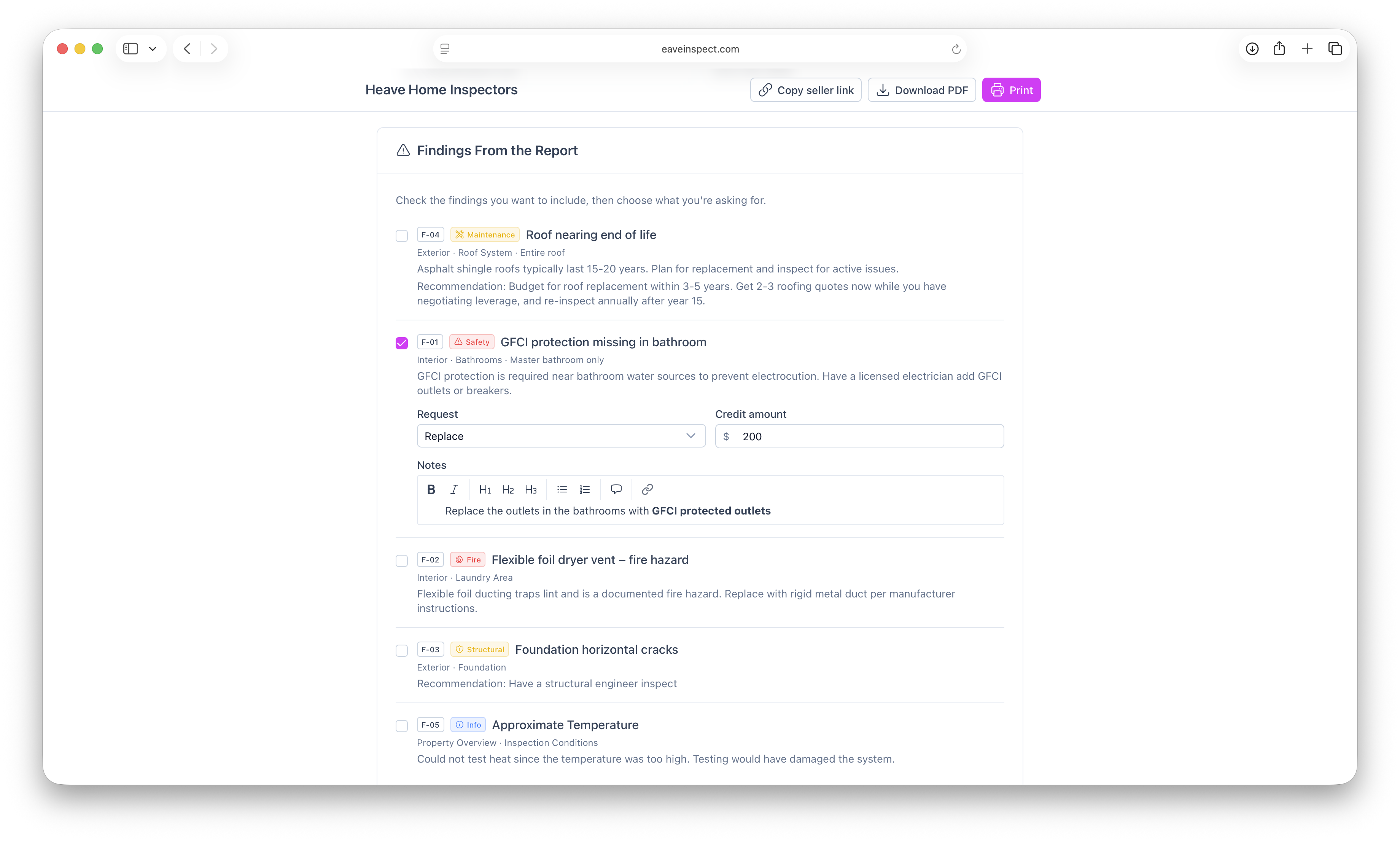
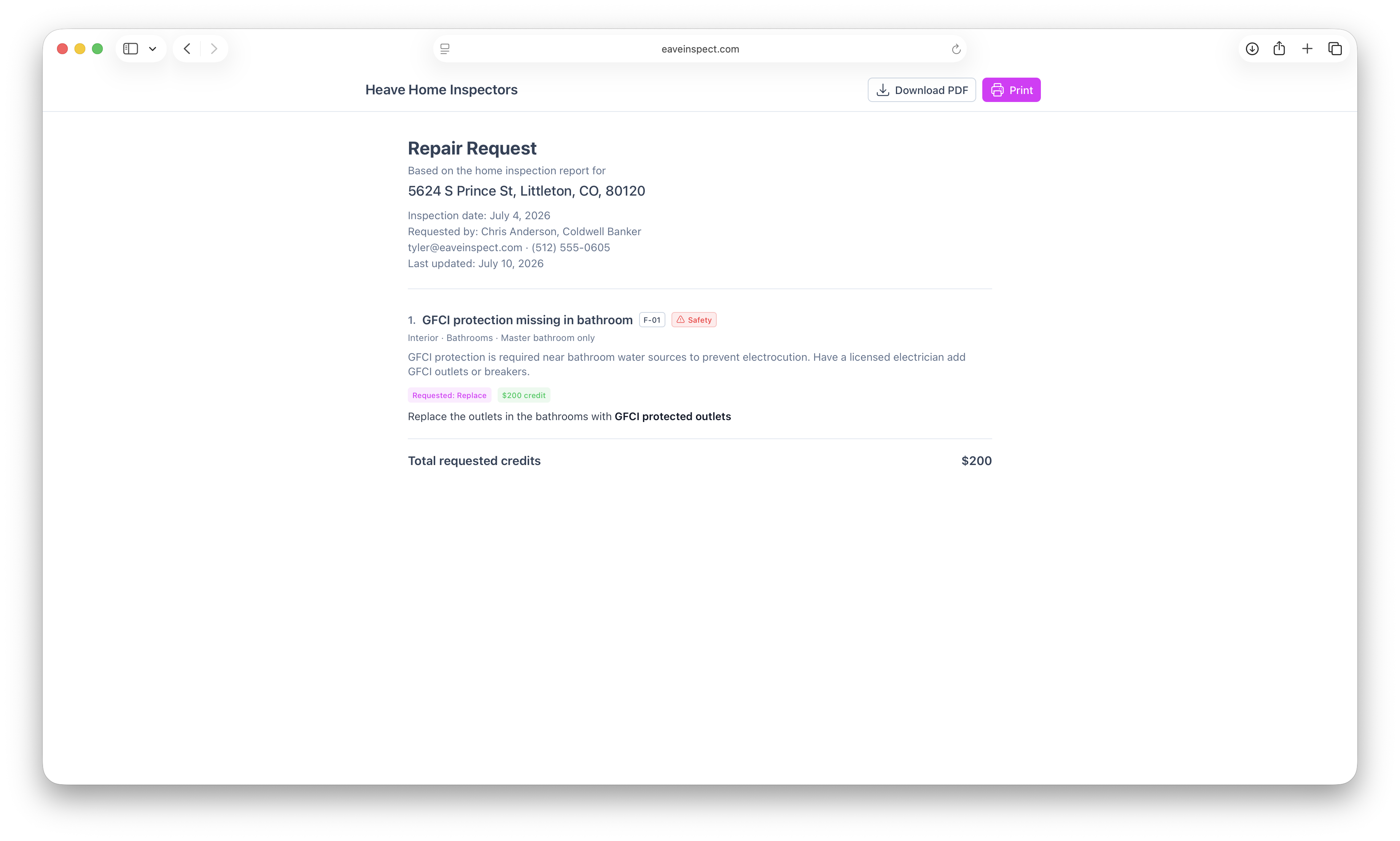
Everything you do here saves automatically — a status badge in the toolbar shows when your changes are saved. A live document preview at the bottom of the page always reflects the finished result.
Requested By
Fill in the requester's name, company, email, and phone. On first open, this is prefilled from the buyer's agent on the report when available — adjust it as needed.
Pick findings from the report
The Findings From the Report section lists every finding on the report, numbered to match it. Check the ones you want to include. For each included finding, choose:
- Request — what you're asking for: Repair, Replace, Credit, Further evaluation, or Other.
- Credit amount — an optional dollar figure (useful with a Credit request).
- Notes — anything the seller should know about this specific ask.
Add custom items and notes
- Custom Items — add asks that aren't tied to a report finding (each has its own request type, credit amount, and notes).
- Additional Notes — a free-form message to the seller's side at the end of the document.
Share, download, or print
Use the toolbar to deliver the finished document:
- Copy seller link — copies a read-only link to share with the seller's side. They can view, download, and print it, but not edit it.
- Download PDF — save the document as a PDF.
- Print — print the document (only the document preview prints, not the builder controls).
Repair requests
Let the buyer's side build a free "ask list" for the seller from your published report — turn it on per inspection or set a default.
Using Eave on iOS
The native iOS app — open addresses in Maps, fill out inspections offline, find your way around with the section navigator, and attach warnings, photos, and annotations.