Managing agreements on an inspection
You attach and manage an agreement per inspection — at creation time, and any time after from the Deliver page. This is also where you track whether the client has signed and unlock the report if you need to.
Attaching at creation
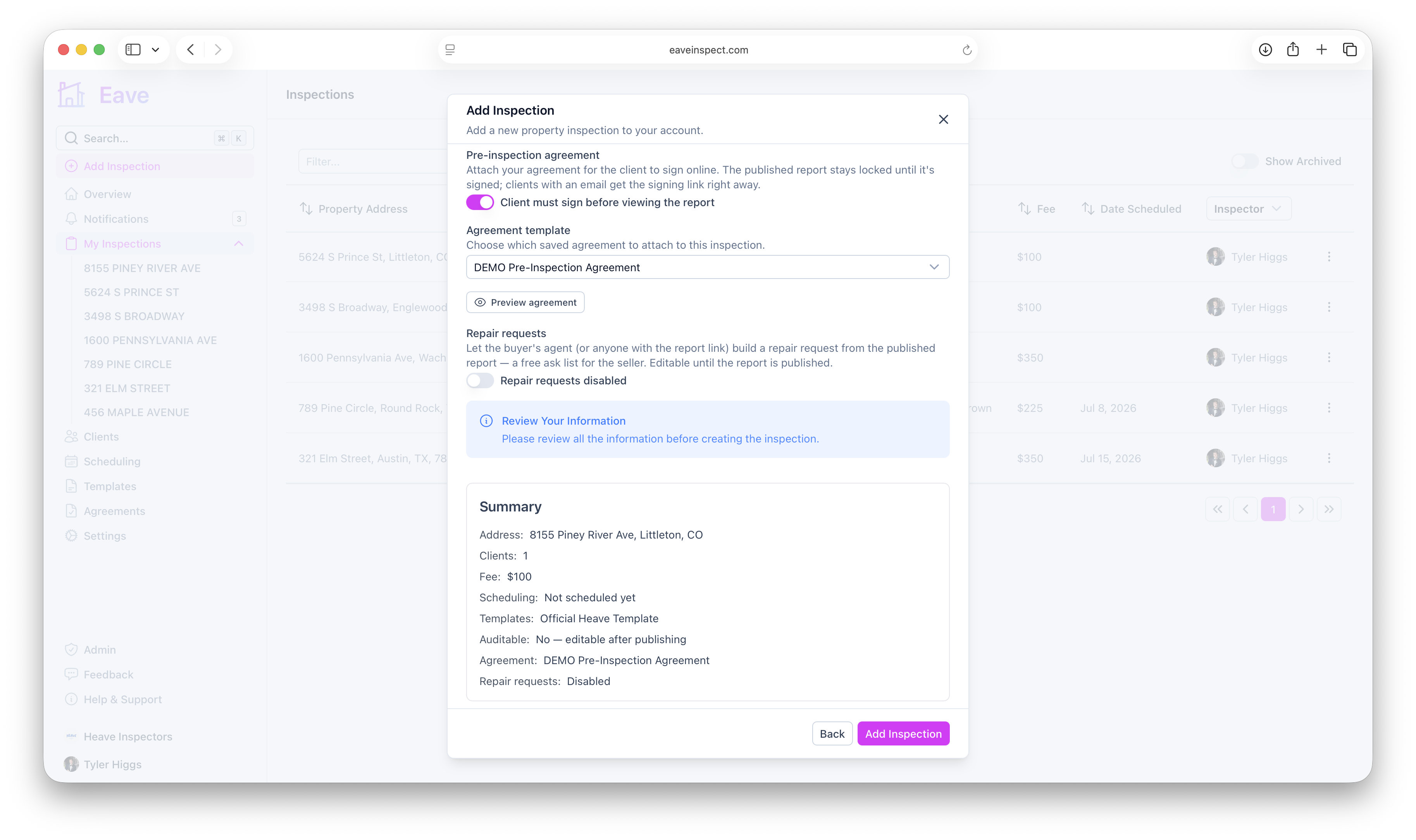
On the last step of Add Inspection, the Pre-inspection agreement switch controls whether an agreement is attached. It starts on if you have Collect agreement signatures turned on in your defaults.
- On — "Client must sign before viewing the report." If you have more than one saved template, an Agreement template select lets you pick which one (defaulting to your default, or the built-in sample). A Preview agreement button opens a view-only copy — filled in with the details you've entered so far — so you can read exactly what the client will sign before you create the inspection.
- Off — "No agreement for this inspection." The report is viewable without a signature.
With the switch on, a When to email the signing link select lets you set the timing for this inspection — it starts on your account default.
When the signing link is emailed
The agreement is attached to the inspection immediately in every case, so a signing link always exists for you to copy or send yourself. The setting only controls the automatic email to clients:
- When the inspection is scheduled (the default) — the link goes out as soon as the inspection has a date, whether you set it yourself or confirm a booking request. This is usually what you want: clients often sign before a date has been agreed on, and the agreement shows the scheduled date.
- As soon as the inspection is created — the old behavior.
- When the report is published — the link goes out with publishing. The report stays locked until they sign.
- Never — I'll send it manually — nothing is sent automatically; use Email link to clients on the Deliver page.
Set your default at Settings → Account → Defaults → Agreements; organizations can set one for their members at Settings → Organization → Defaults. Override it per inspection in Add Inspection or on the Deliver page (until the link has been emailed).
The link is only ever emailed once automatically — rescheduling or republishing won't re-send it. Use Email link to clients to send it again.
The agreement card on Deliver
The Pre-inspection agreement card on the Deliver page shows one of three states:
- No agreement — pick which agreement to attach (an Agreement template select appears when you have saved templates) and when the signing link should be emailed, then either Preview agreement (a view-only copy, so you can read it before sending), Add without emailing (attaches it and gives you a signing link to share yourself), or Add & email to clients (attaches it and emails the signing link right away — disabled if no client has an email).
- Awaiting signature — Copy signing link and Email link to clients (both share the client's signing link — disabled if no client has an email), plus Preview agreement, which opens a view-only copy for you. Your preview never lets you sign on the client's behalf — only clients sign, from their own link. Until the link has been emailed you can still change when it goes out; afterwards a footer shows when it was last emailed.
- Signed — the signer's name and date, a Signed online or Paper signature badge, plus Download signed PDF (once the PDF is ready) and View agreement.
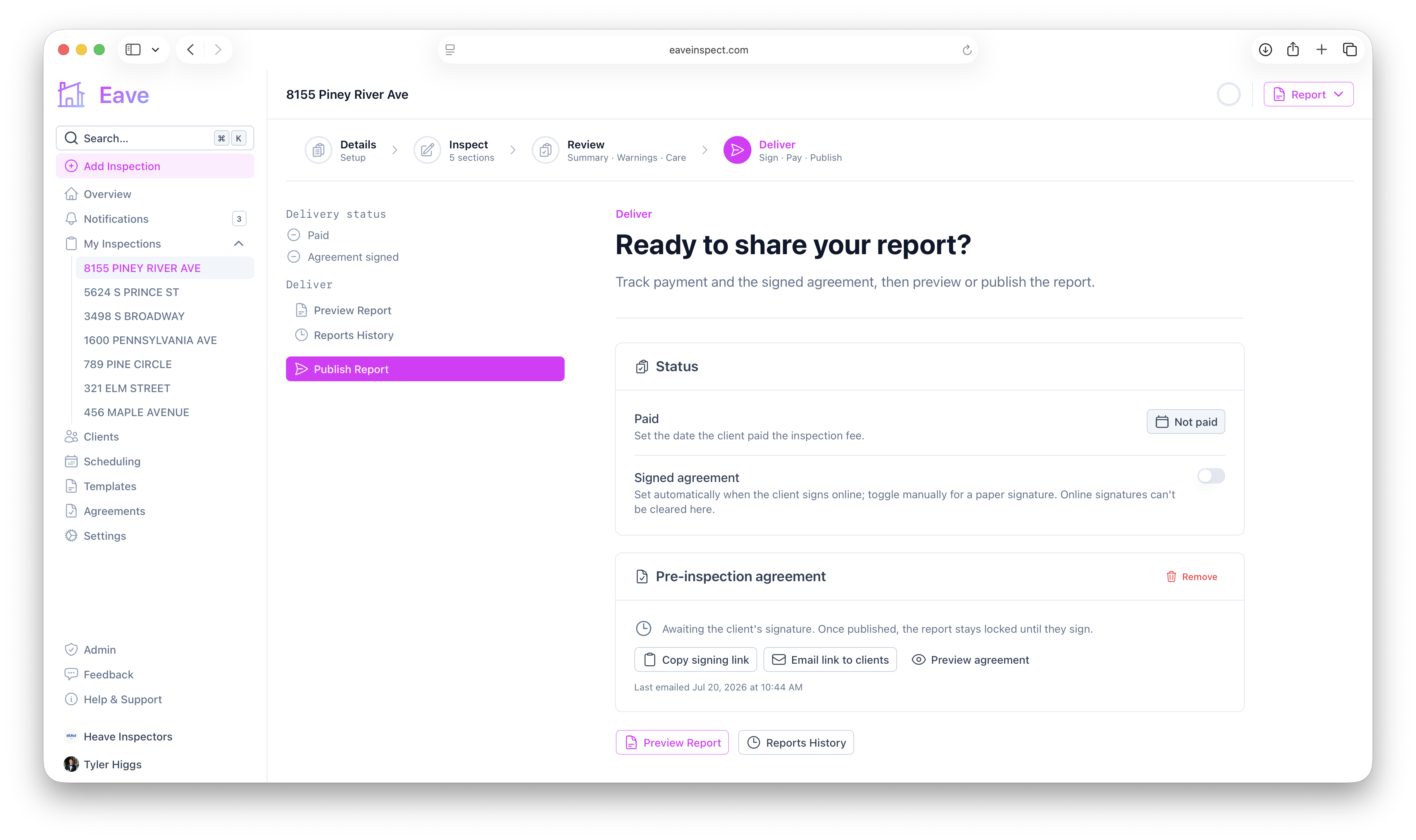
The Deliver page's Delivery status checklist also tracks an Agreement signed item, and inspections that collect signatures show a Signed badge in your lists.
Marking a paper signature
If a client signed on paper, use the Signed agreement toggle in the status card to mark it signed manually — this stores it as a Paper signature.
Unlocking or switching the agreement
The card's Remove button is your escape hatch. Removing an agreement unlocks the report (no signature required) and deletes any recorded signature and signed PDF — so use it deliberately. To switch to a different template, Remove the current one, then pick the template you want and add it again.