Sync inspections to Google Calendar
Connect your Google account and your scheduled inspections show up on a dedicated Eave Inspections calendar, next to the rest of your day. It's a one-way mirror: Eave updates Google Calendar, and never the other way round.
Connect Google Calendar
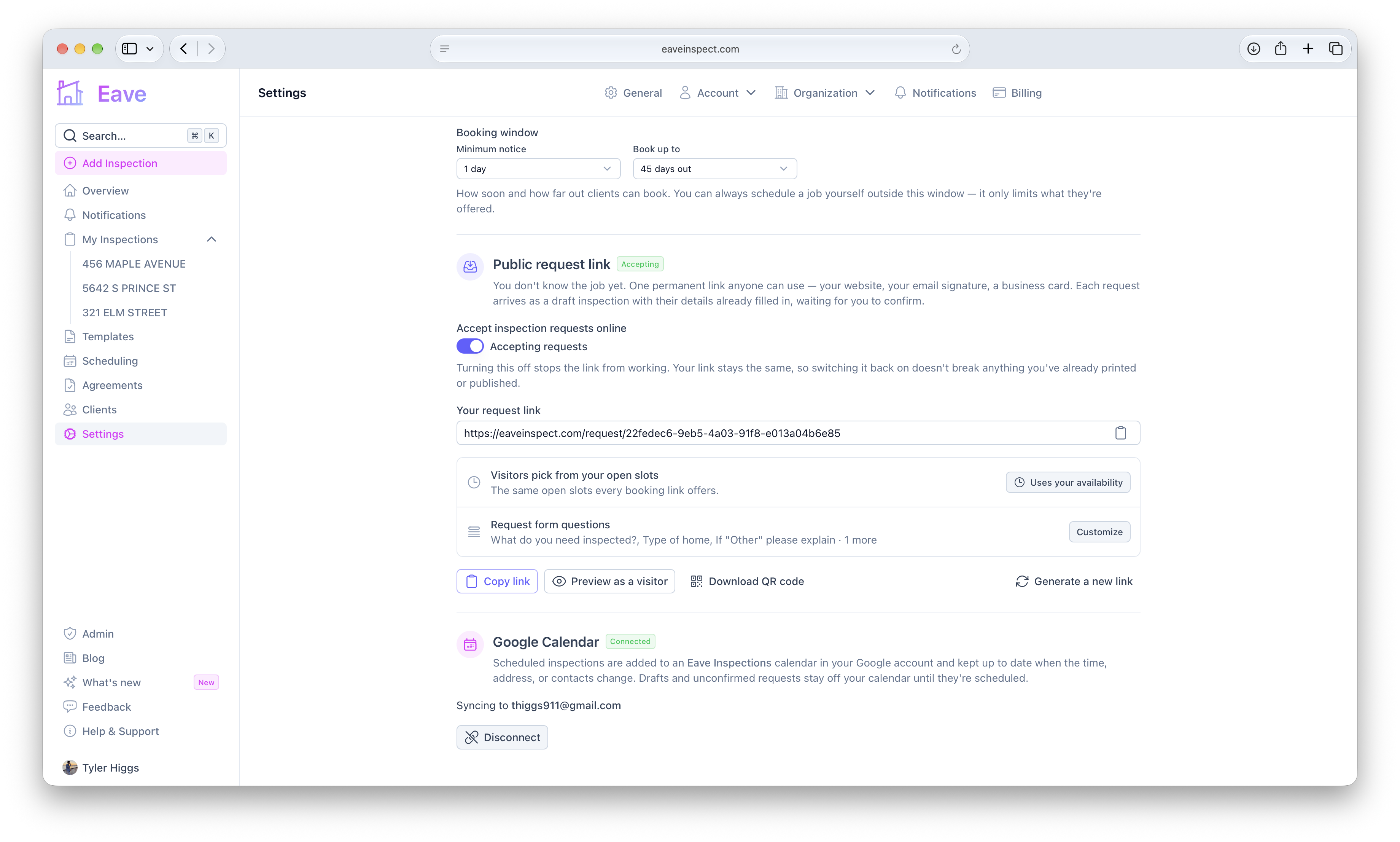
Go to Settings → Account → Scheduling, scroll to the Google Calendar card, and select Connect Google Calendar. Approve the request from Google.
Eave creates a separate Eave Inspections calendar in your Google account, so you can color it, hide it, or share it with your office without Eave ever touching your other calendars. Any inspection you already have scheduled is added right away.
What shows up
An inspection appears on your calendar once it has a confirmed date. Drafts and booking requests you haven't confirmed yet stay off your calendar until they're scheduled.
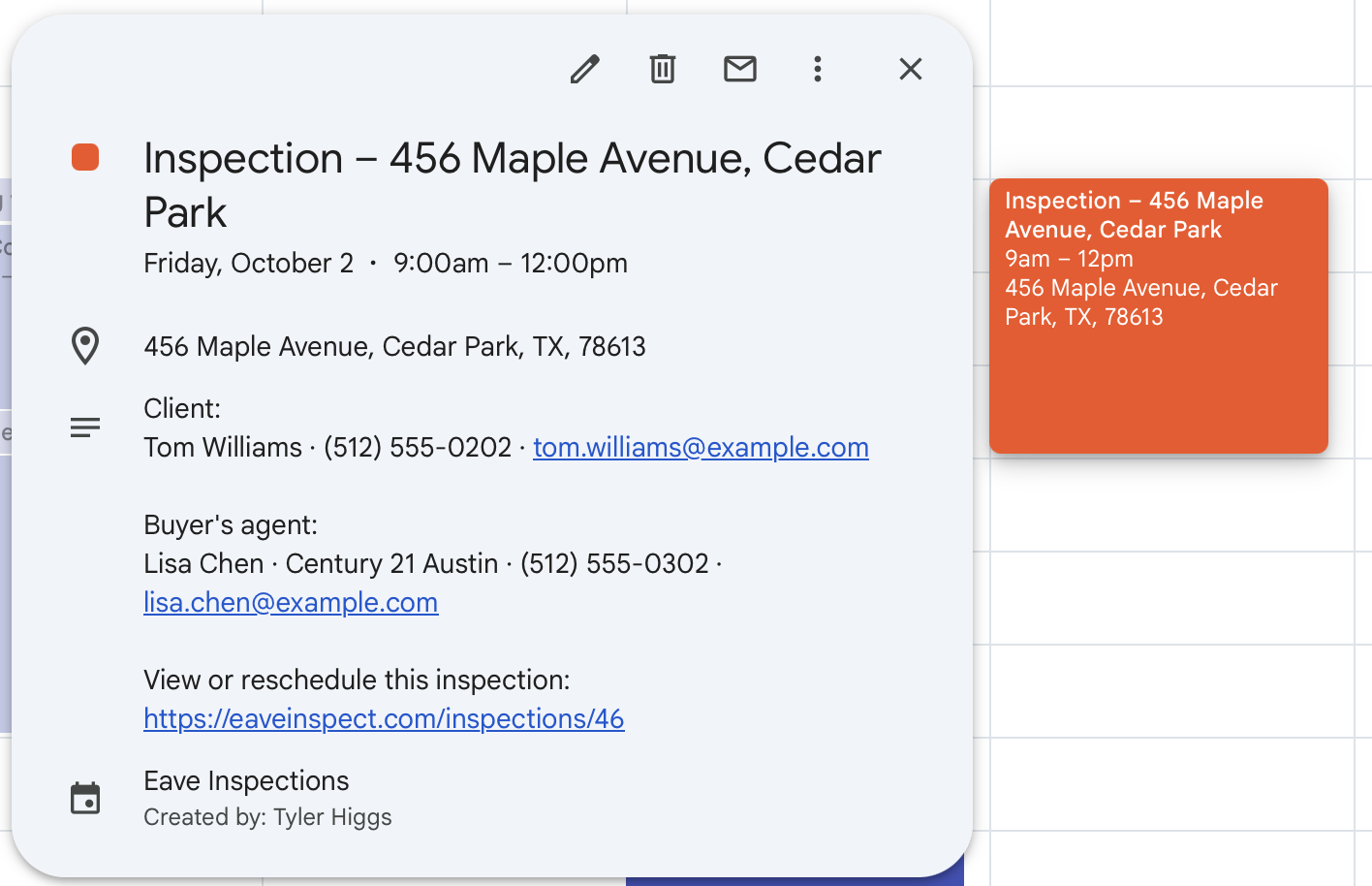
Each event includes:
- The inspection title and the property address as the location
- Your clients' and the buyer's agent's contact details
- A link back to the inspection in Eave
- A length matching the inspection duration in your scheduling settings
Staying in sync
Change the date, address, clients, or buyer's agent and the event updates. Clear the date or archive the inspection and the event is removed.
To reschedule, use the View or reschedule this inspection link in the event. Changes you make to the event inside Google Calendar aren't sent back to Eave.
Disconnect
Select Disconnect on the same settings page. This removes the Eave Inspections calendar from your Google account. Your inspections in Eave aren't affected.