Using Eave on Mobile
Eave works in any modern mobile browser — no app to install. Open the site, log in, and you have full access to your inspections, templates, and reports right from the field.
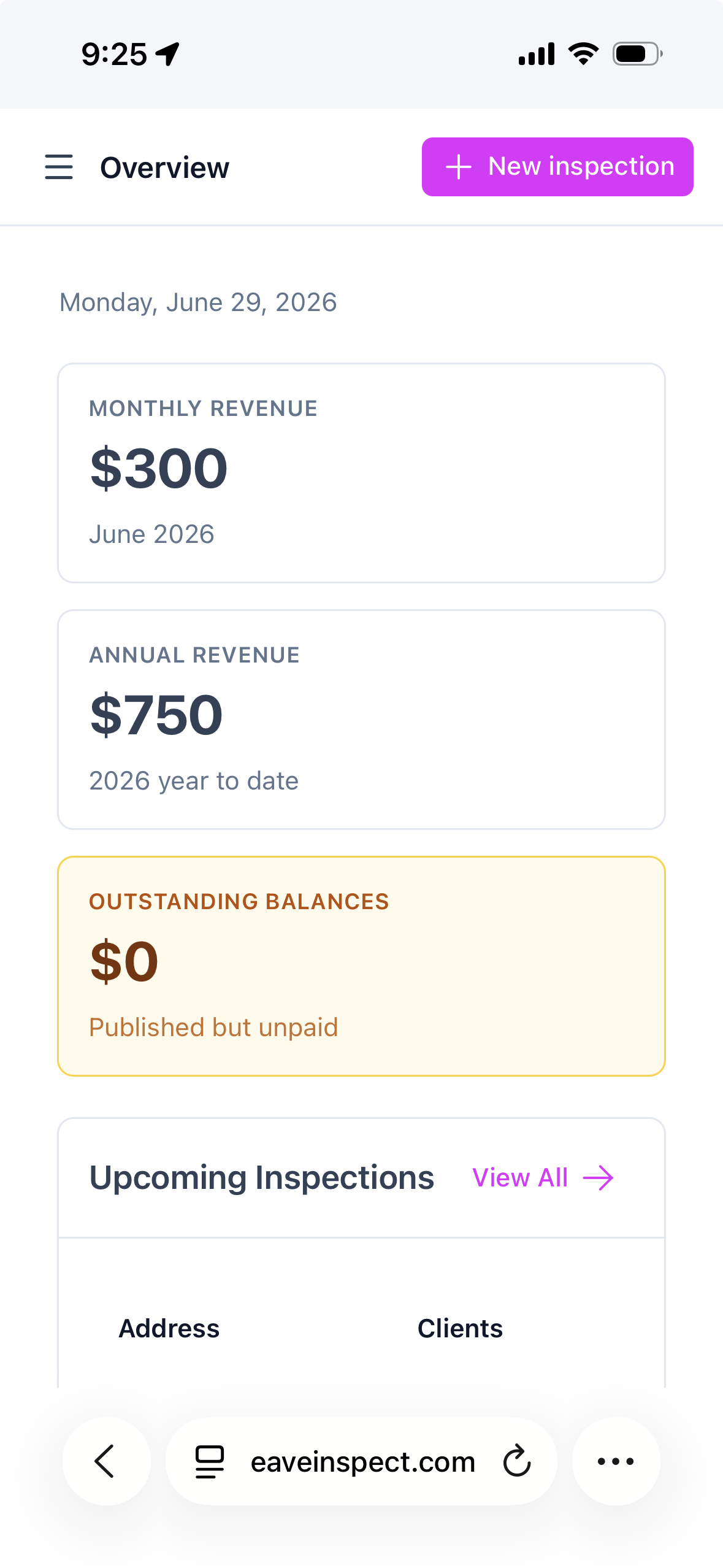
Opening Eave on Your Phone
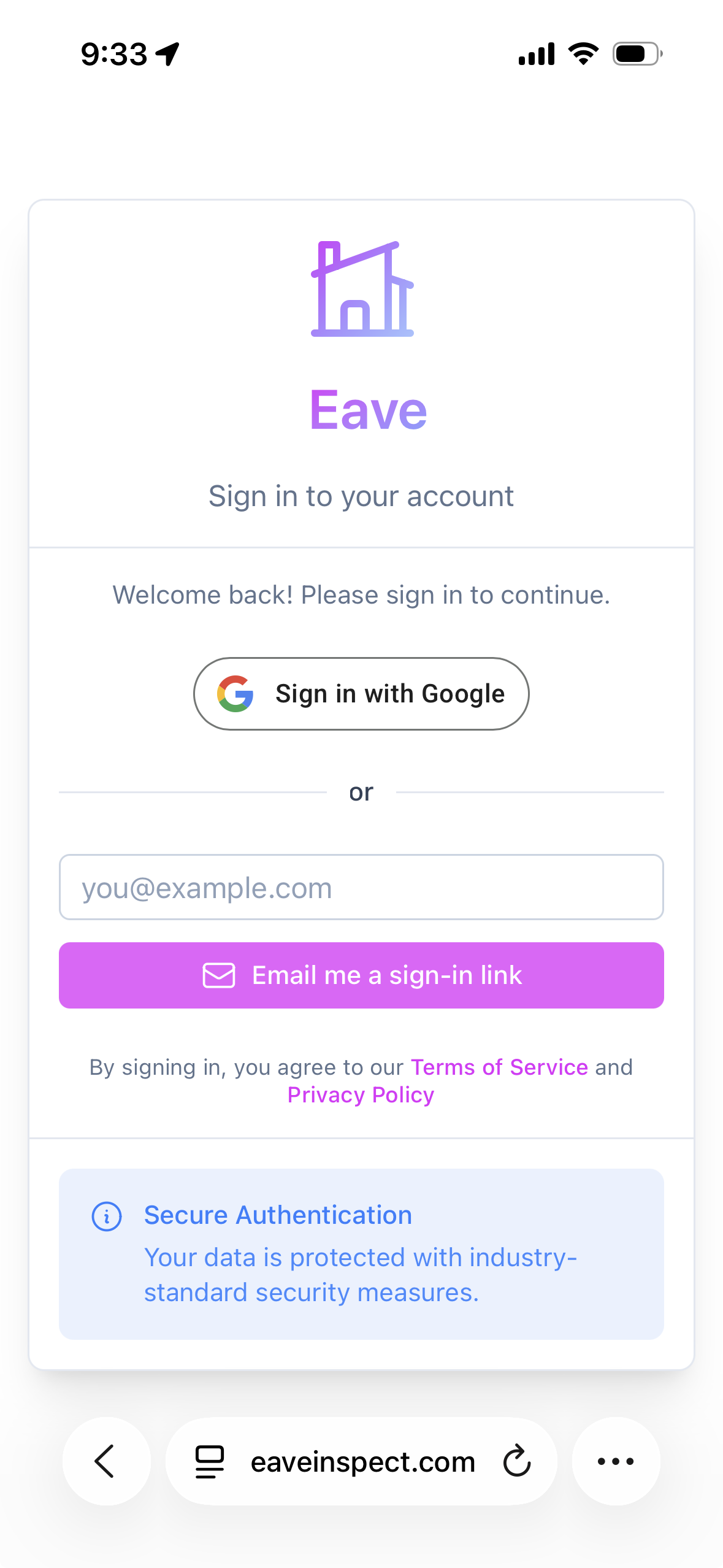
Navigate to eaveinspect.com in your phone's browser (Safari, Chrome, or Firefox all work), then sign in with your Google account. To make it easy to reopen, tap Share → Add to Home Screen on iOS or Add to Home Screen from Chrome's menu on Android — this pins a shortcut that opens like a native app.
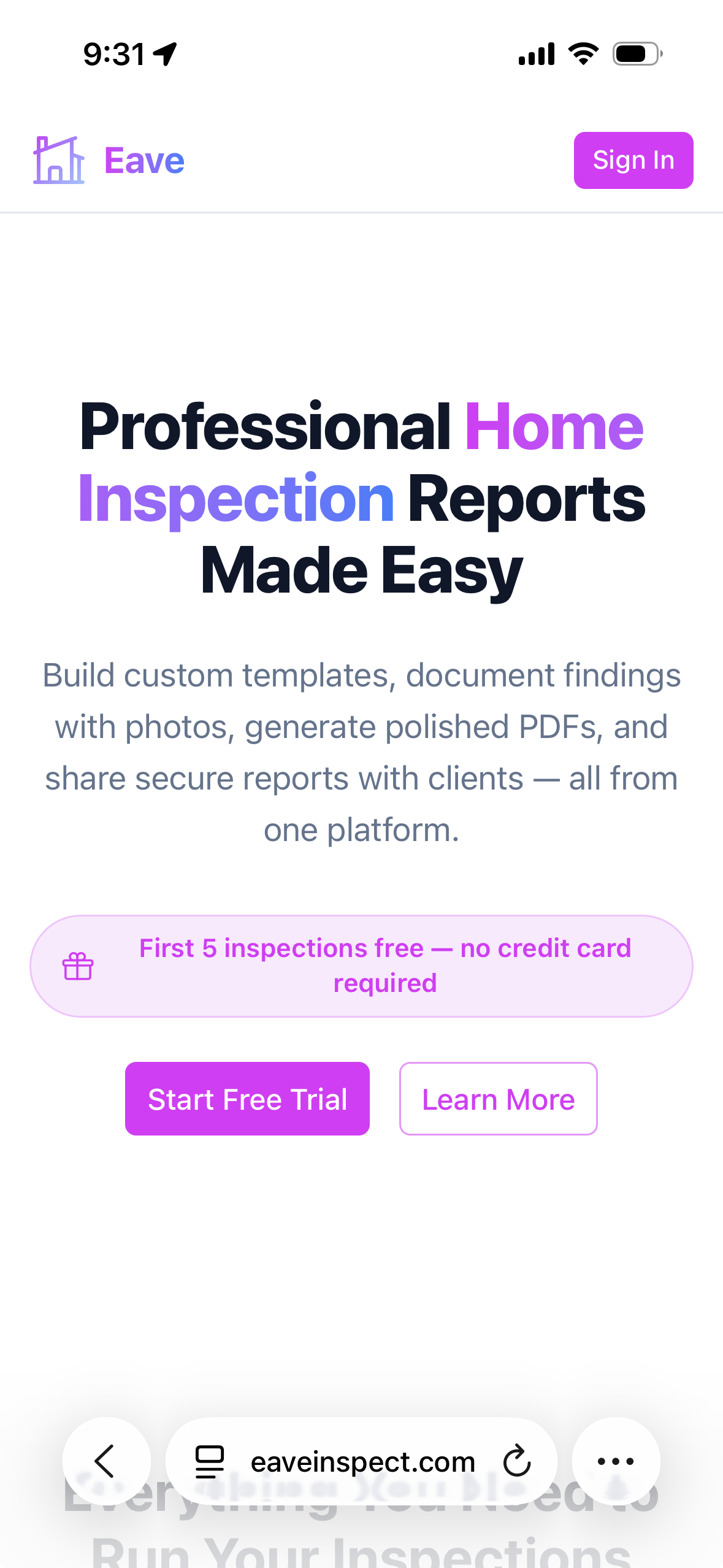
Click "Sign In"
Navigating the App
On a small screen the sidebar is hidden by default. Tap the menu icon (three lines) in the top-left corner to open it. You'll find links to Inspections, Templates, Settings, and your account there. Tap the to close it.
Your Dashboard
The dashboard shows your recent inspections as cards. Tap any card to open that inspection. Use the + button in the top-right corner to create a new one.
Creating an Inspection
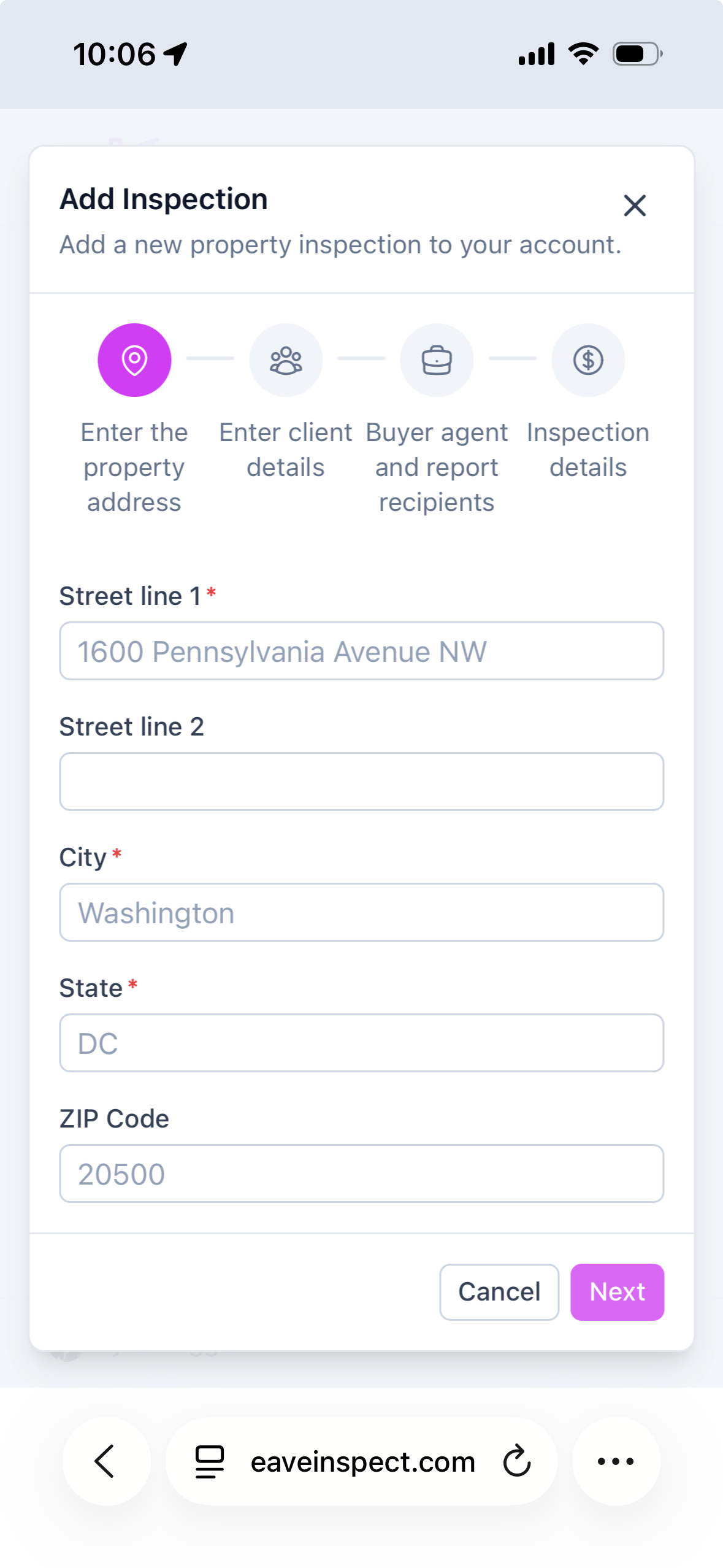
Tap + to open the new inspection form. Fill in the Property Address, schedule a date, and add your client details. Tap Save when you're done. For a full walkthrough of the form fields, see Add an Inspection.
Filling Out Sections
Open an inspection and tap a section name to expand it. Each field appears stacked vertically — tap a field to focus it and bring up the keyboard. When you finish a text field, tap Next on the keyboard to advance to the next one, or tap outside the field to dismiss the keyboard and scroll freely. Your answers save automatically as you go. See Filling Out Sections for details on field types.
Adding Photos
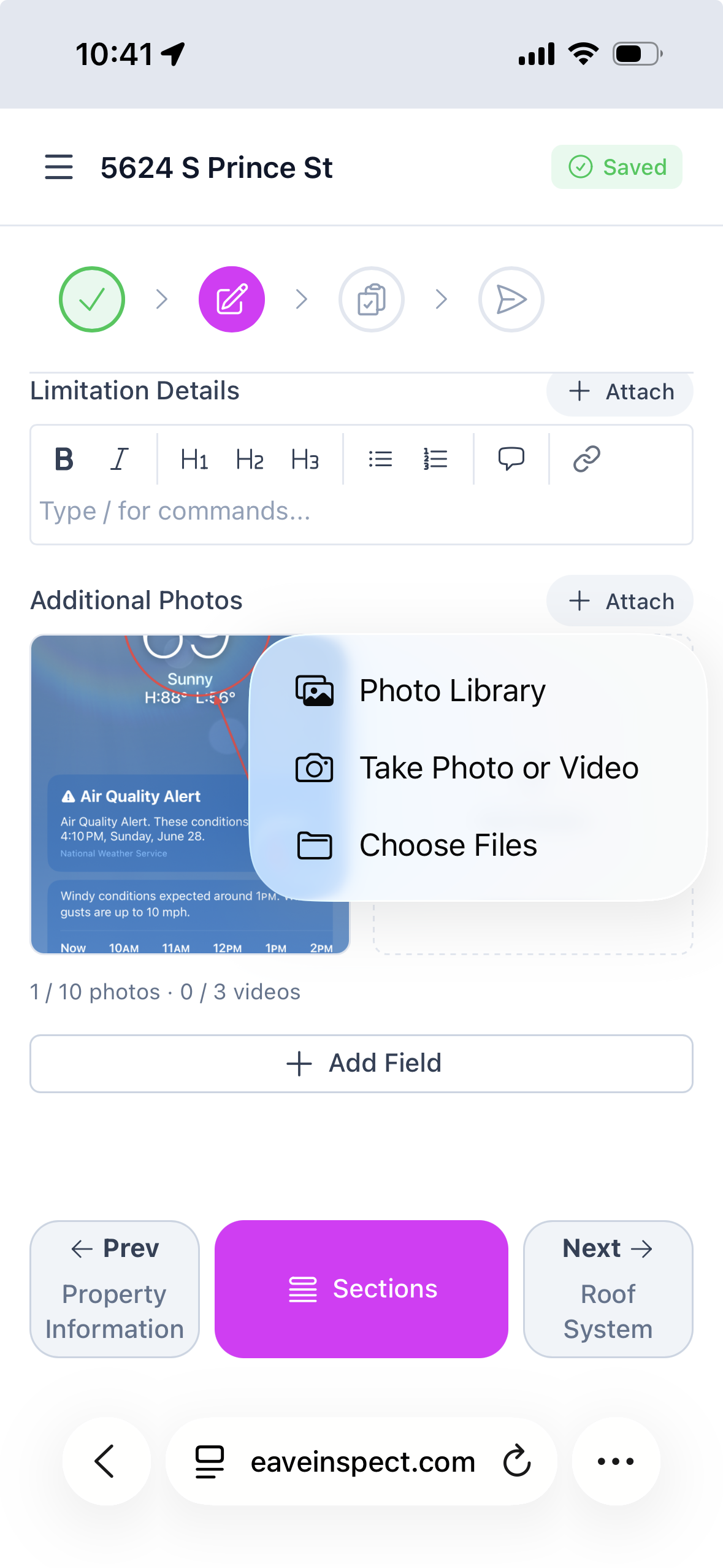
Tap a photo field to open the upload sheet. Choose Camera to take a photo on the spot or Photo Library to pick an existing one. Photos are automatically resized before upload, so you don't need to worry about file size.
Navigating Inspections
Eave has a navigator specifically designed for jumping between sections easily on mobile.
Publishing from Mobile
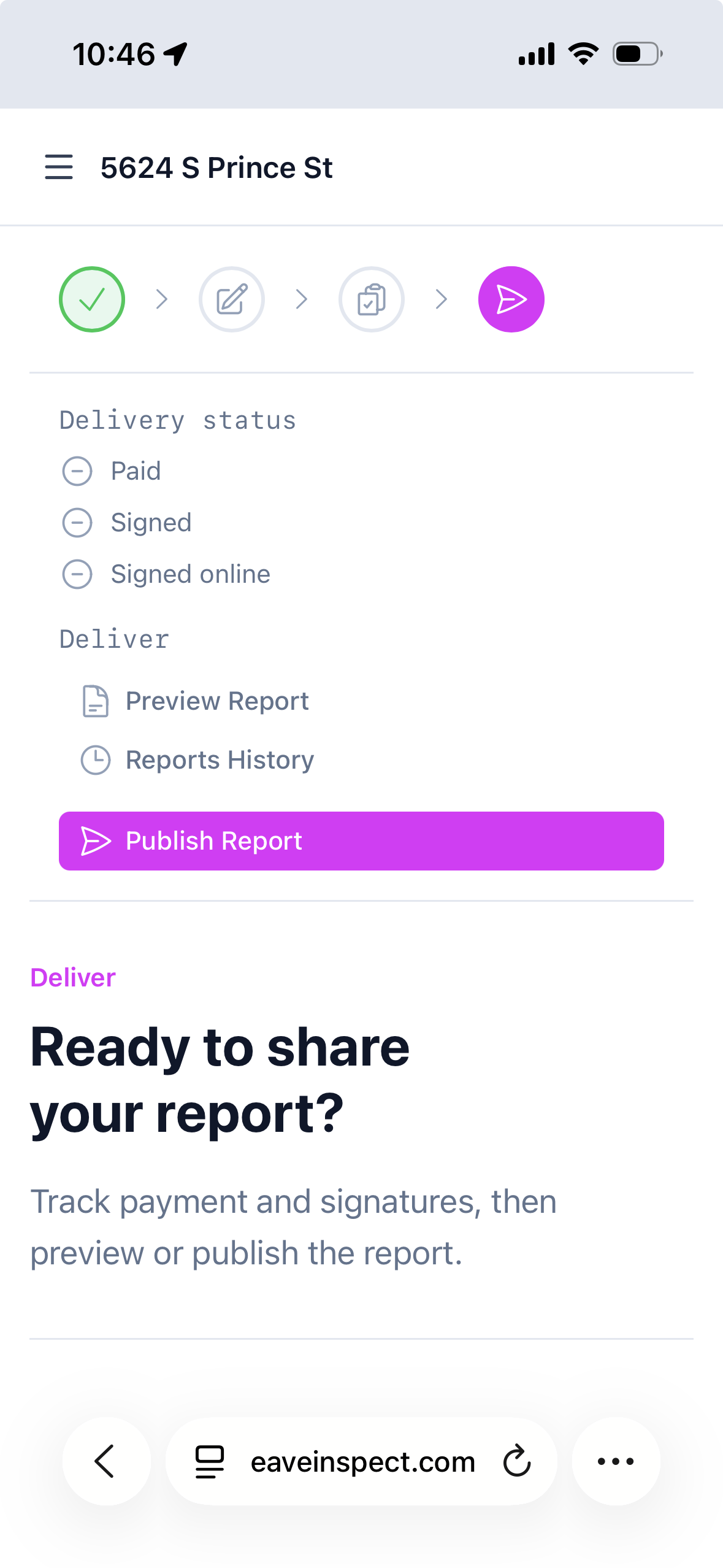
When you're ready to share the report, open the inspection and tap the Report tab, then tap Publish. Your client will receive an email with a link to the report. See Publishing Reports for details on what happens when you publish.
Tips for Field Use
- Keep the tab pinned in your browser so you can switch to the camera app and come back without losing your place.
- Auto-save is always on — you never need to tap a save button while filling out sections.
- Good lighting helps — photos taken in bright, even light produce clearer reports.
- Offline note: the mobile browser requires an internet connection — if you lose signal mid-inspection, finish the section you're on and wait for connectivity before moving to the next. The iOS app keeps working offline and syncs automatically once you're back in range.