Put your request form on your own website
Your public request link was always meant to go on your website. Until now that meant a link that sent visitors somewhere else. Now the whole form can sit right on your page, dressed in your colors.
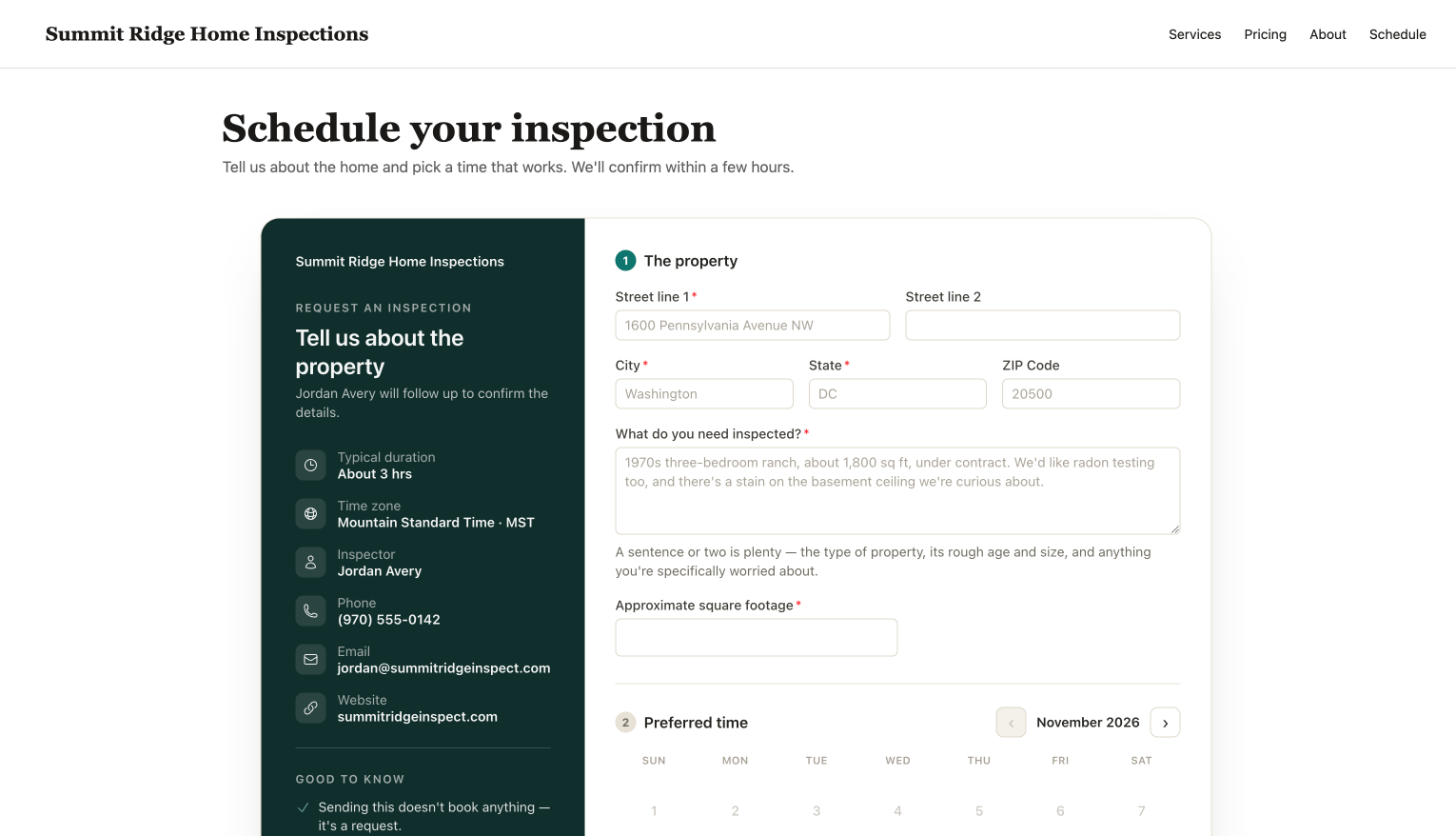
Embed it
Go to Scheduling, and on the Public request link card click Add to website. Copy the Embedded form code and paste it into an HTML block on your site. It works with WordPress, Squarespace, Wix, Webflow and anything else that takes HTML.
The form resizes to fit its content, so visitors never scroll inside a box, and the space around it is see-through, so your site's own background shows behind it. Requests arrive just like they do from the link: as a draft inspection, waiting for you to confirm.
If your site can't embed a form, the Button option gives you a single "Request an inspection" button in your accent color that opens your request page instead.
Make it yours
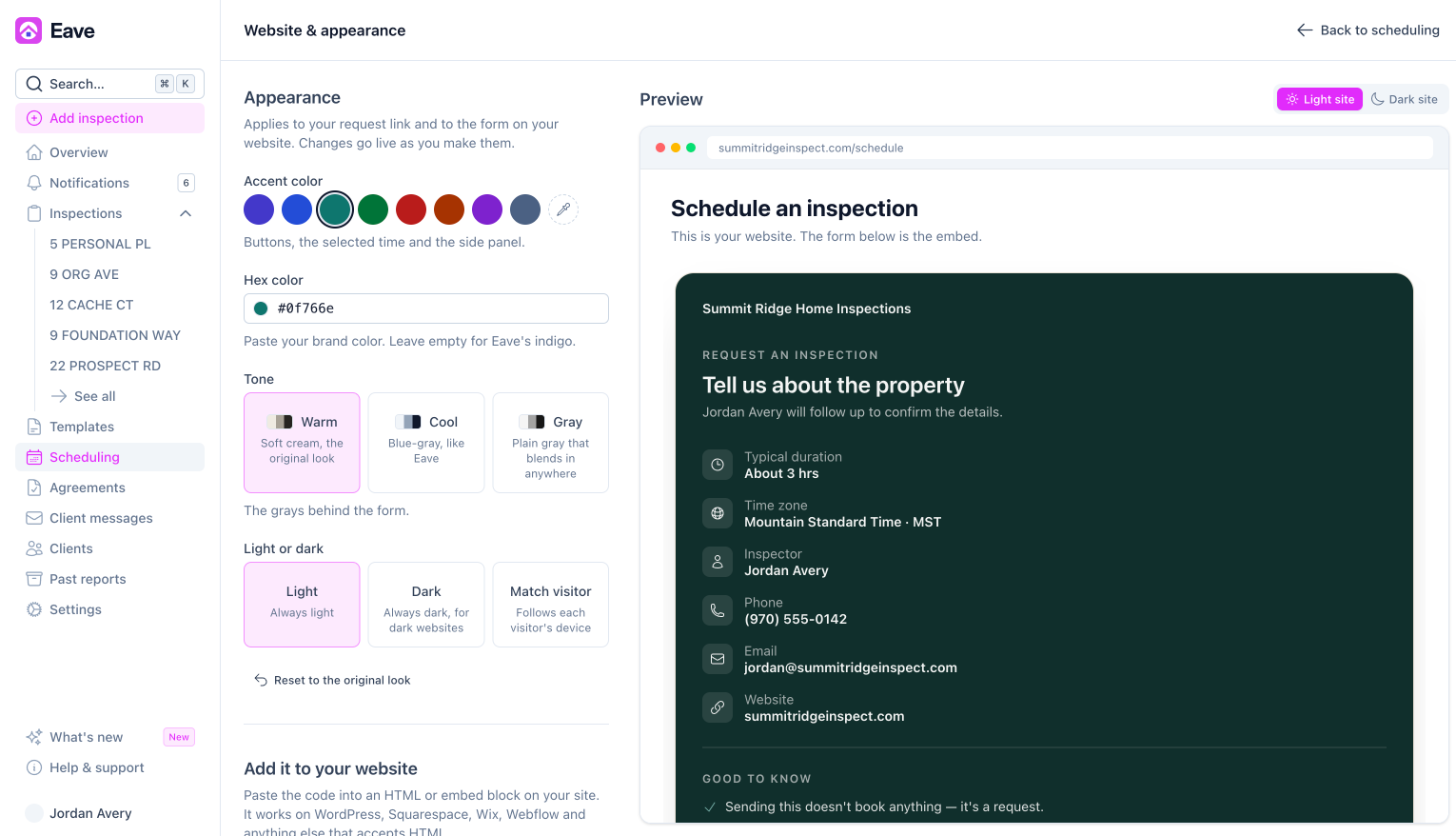
Three settings, and the preview updates as you click:
- Accent color: pick a swatch, use the eyedropper, or paste your brand's hex code. Eave builds a full set of shades from it, so button text stays readable whatever you pick.
- Tone: warm cream (the original look), cool blue-gray, or plain gray.
- Light or dark: always light, always dark, or match each visitor's device.
Flip the preview between a light and a dark sample website to check how it sits on yours.
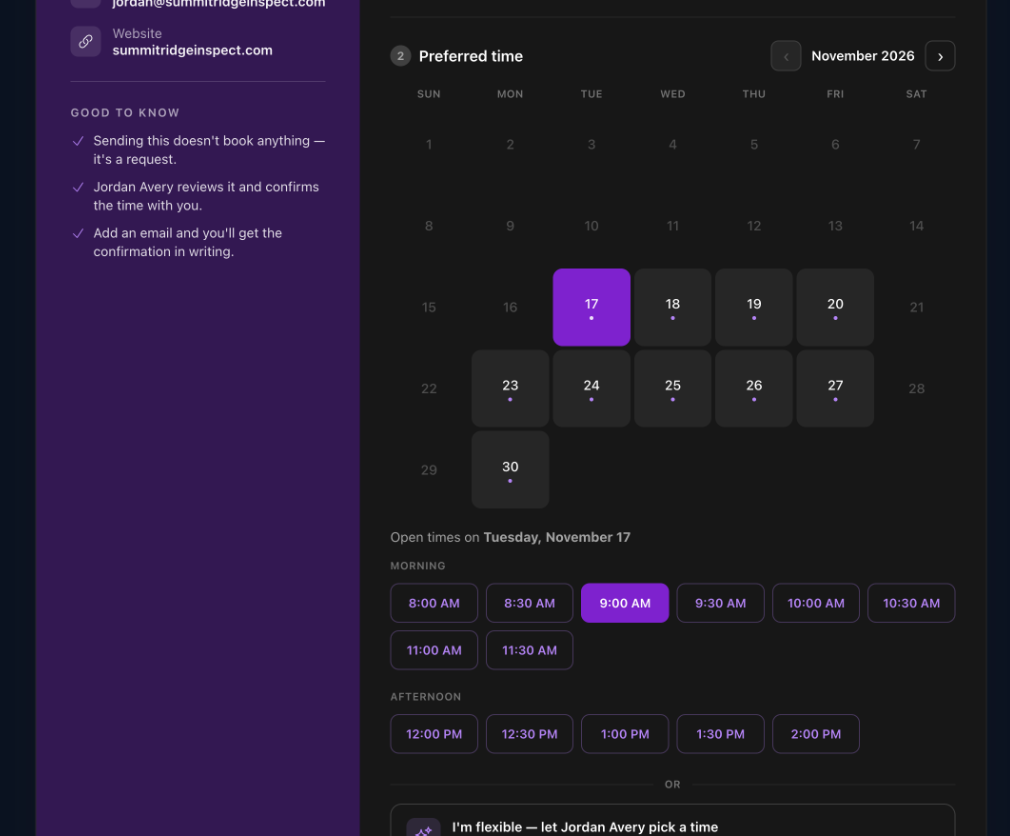
The look applies to your request link too, and the code loads your current settings every time. Change your color next month and your website updates on its own, with nothing to paste again.
See Put your request form on your website for step-by-step instructions for each website builder.
Your website has been holding open the front door for a while. Now it can take the request too.